Browser Event Block
The Browser Event block pauses the workflow until a specific browser event occurs - such as a tab loading, closing, or a new window opening - before continuing to the next node.
Timeout (seconds)
Set how long the workflow waits for the event to fire. The default is 10 seconds. If the timeout is reached without the event occurring, the workflow continues to the next node. If the event fires before the timeout, the workflow proceeds immediately.
Events
Select the browser event that the workflow should wait for.
Tab Closed
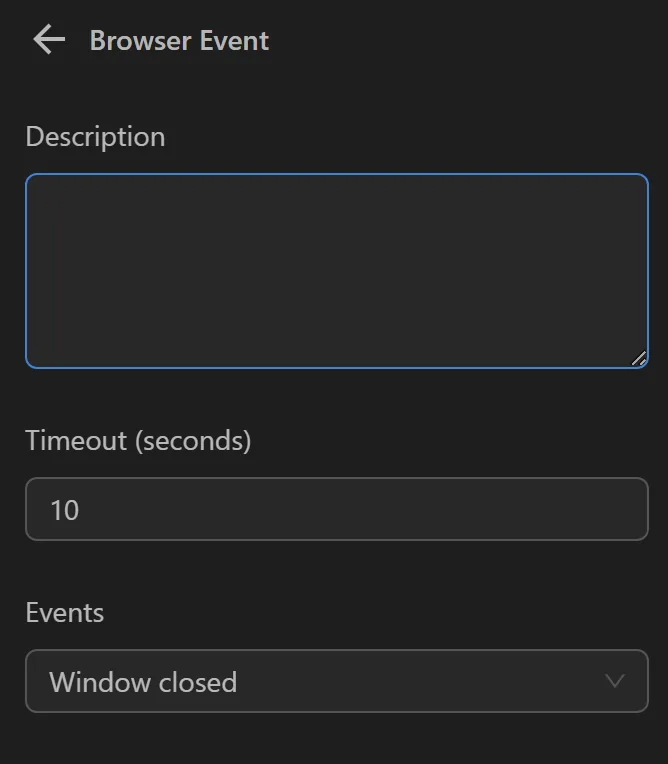
Wait for an active page to close before the process executes the next node.
Example
Currently you have a profile with two pages: Google and YouTube.

When configured this way, closing any page initiates the next steps in the workflow.
Tab Loaded
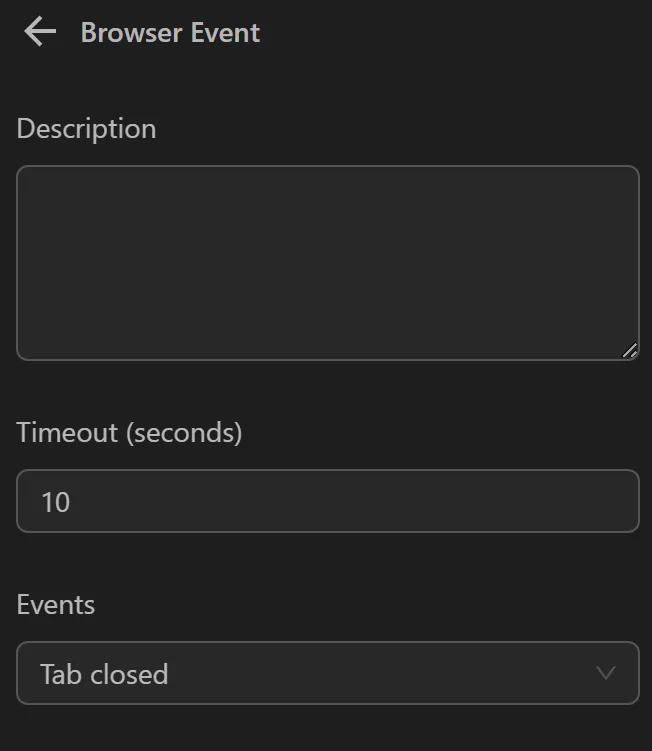
Wait for the active page or a page with the desired URL to load before executing the next node.
Example
Currently you have a profile with two pages: Google and YouTube.
When you configure it like this, if the currently active page, YouTube, experiences a page reload event, the subsequent nodes will be executed.
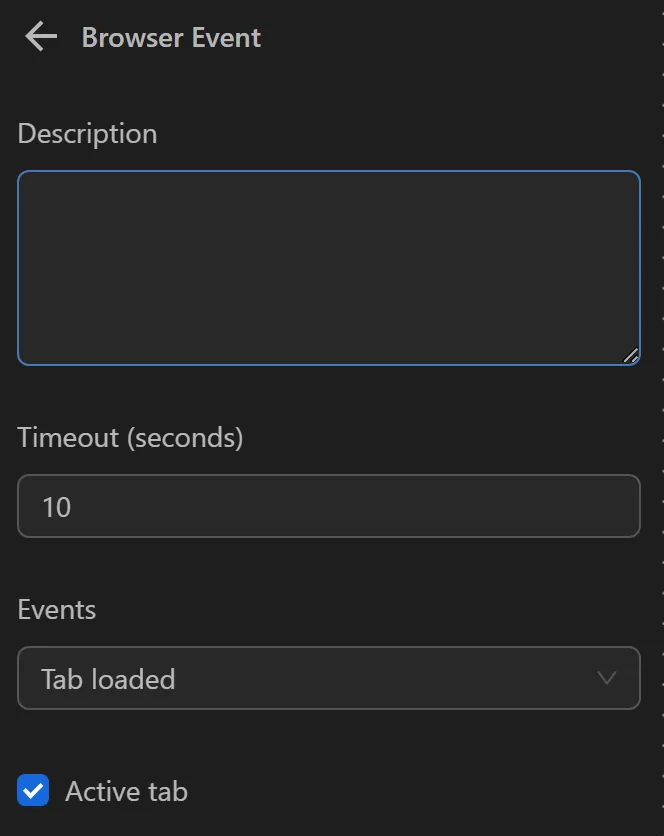
Alternatively, if you want a page with the URL https://www.youtube.com/ to reload before executing the next node, you configure it as follows:
Tab Created
Wait for a page to be created before executing the next node.
Example
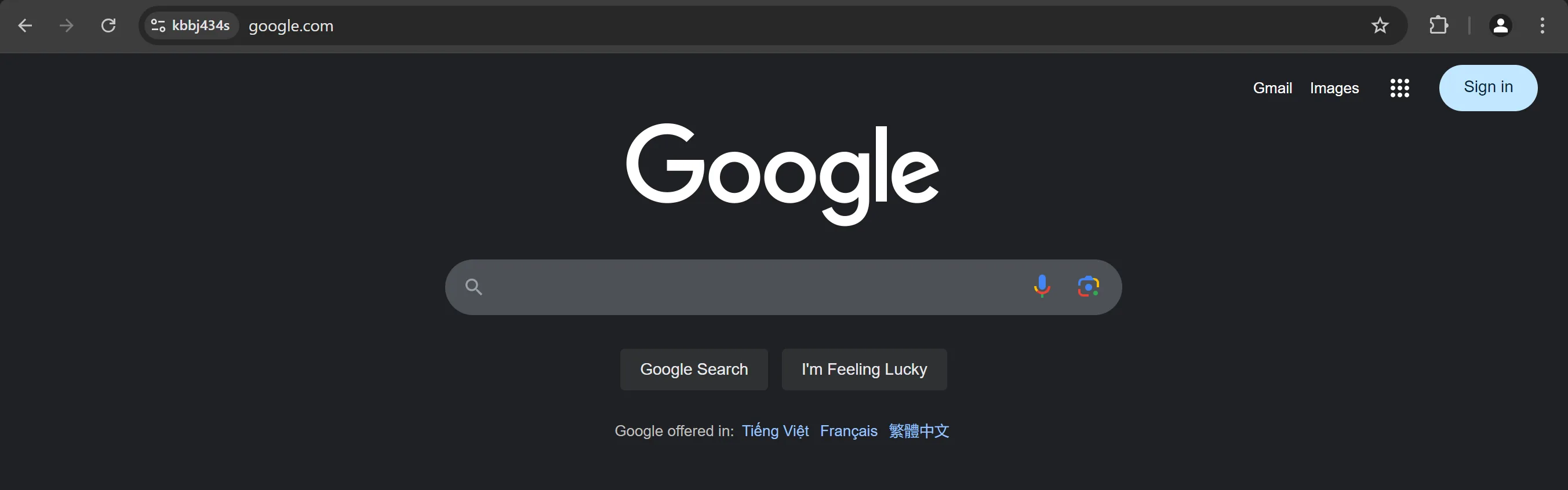
Currently you have only one page: Google.
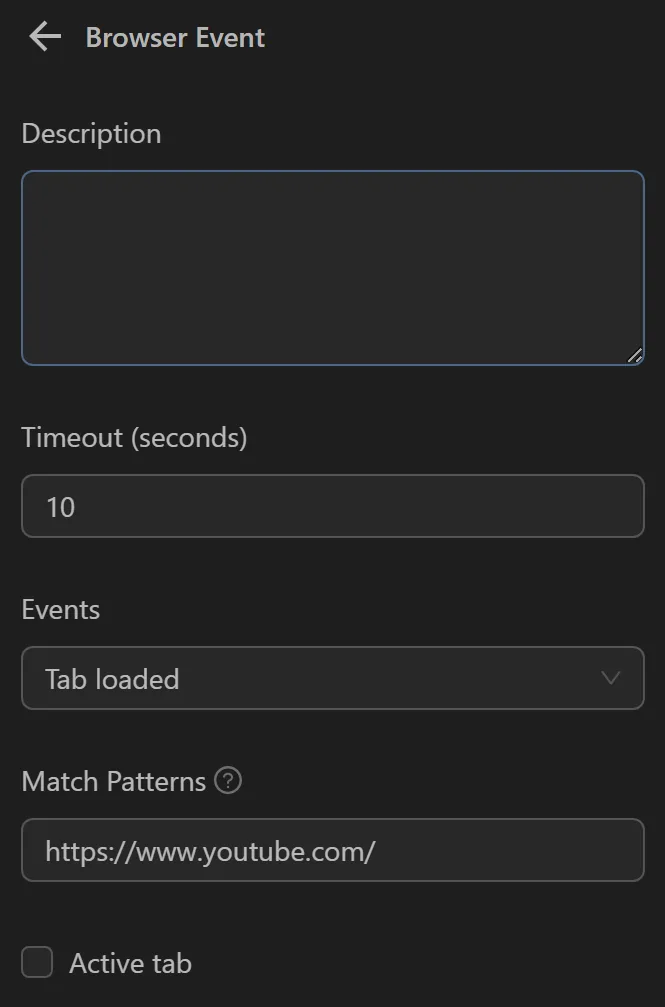
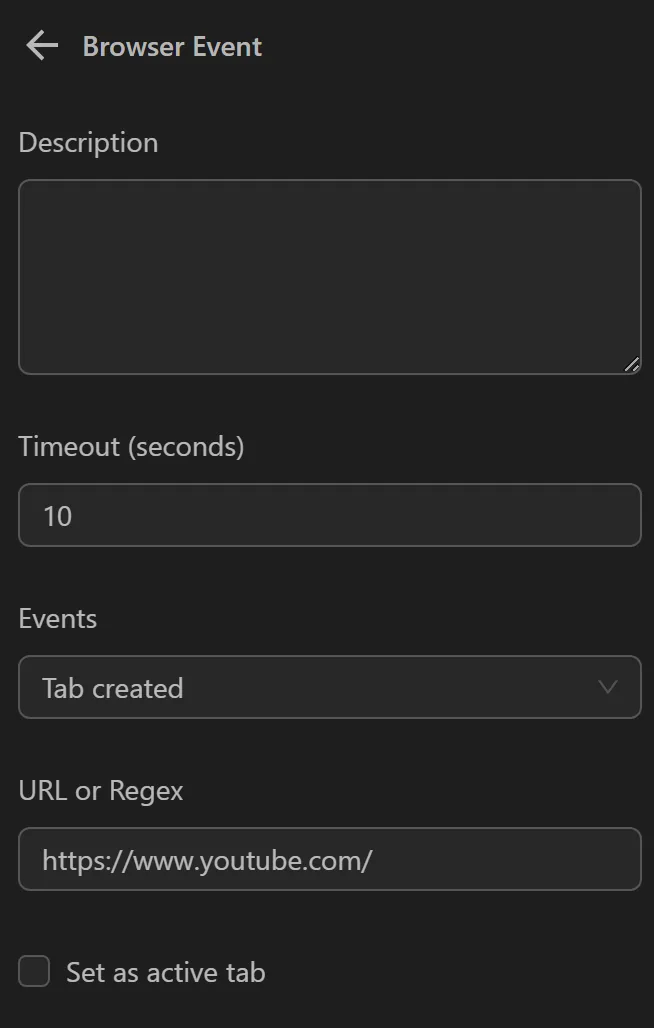
When you configure it like this, once a YouTube page is created, the process will execute the next node.
Additionally, if you want to set that page as the active tab, you can add the Set as active tab option.
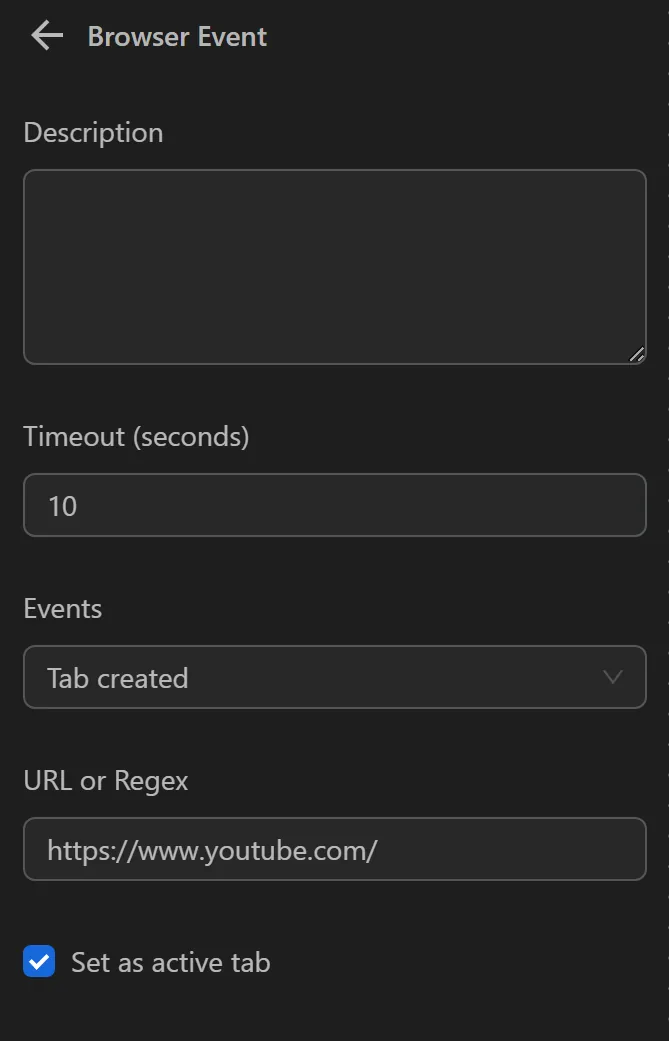
Then, the active page will switch to the newly created YouTube page, and you can continue interacting with this page.
Window Created
Wait for a window to be created before executing the next node.
Example
You have a window as shown below:
When you configure it like this, once a window with the URL https://www.youtube.com/ is created, the process will execute the next node.
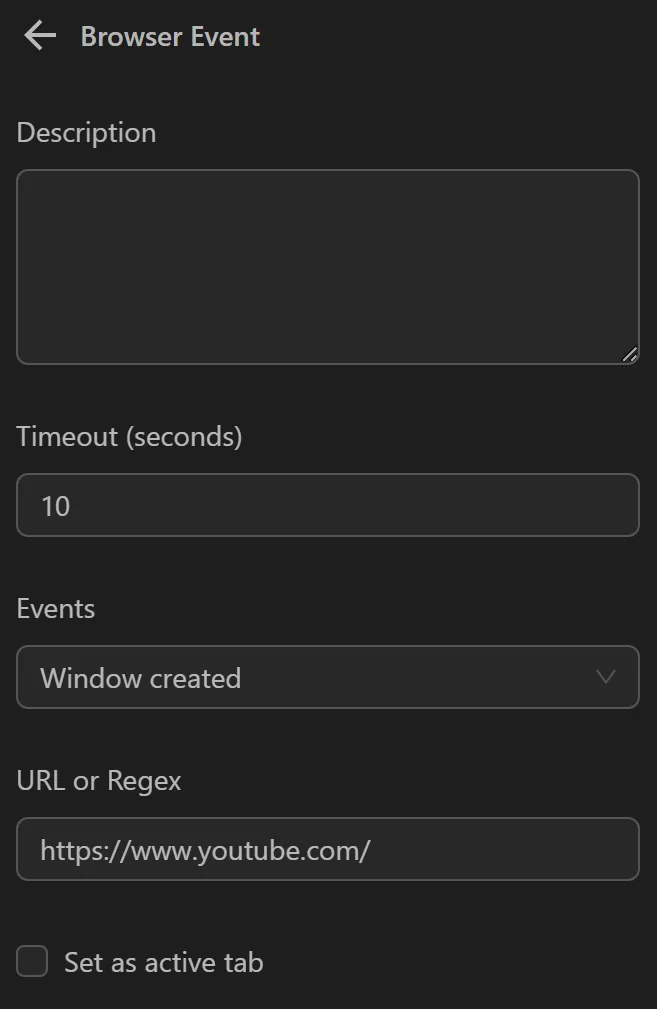
Additionally, if you want to set that window as the active tab, you can add the Set as active tab option.
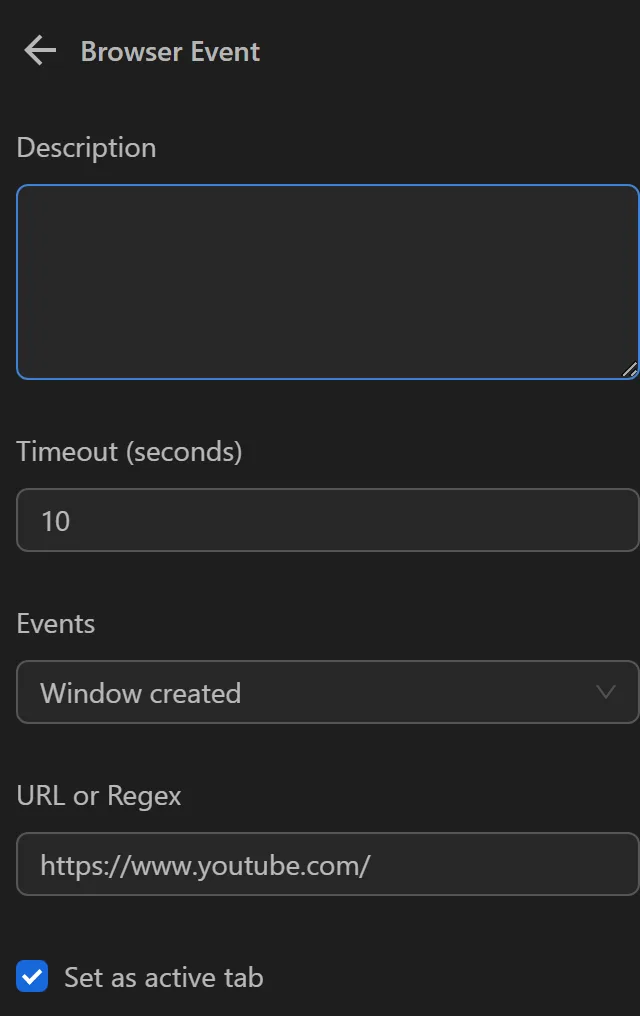
Then, the active page will switch to the newly created YouTube page.
Window Closed
Wait for a window to close before executing the next node.
Example
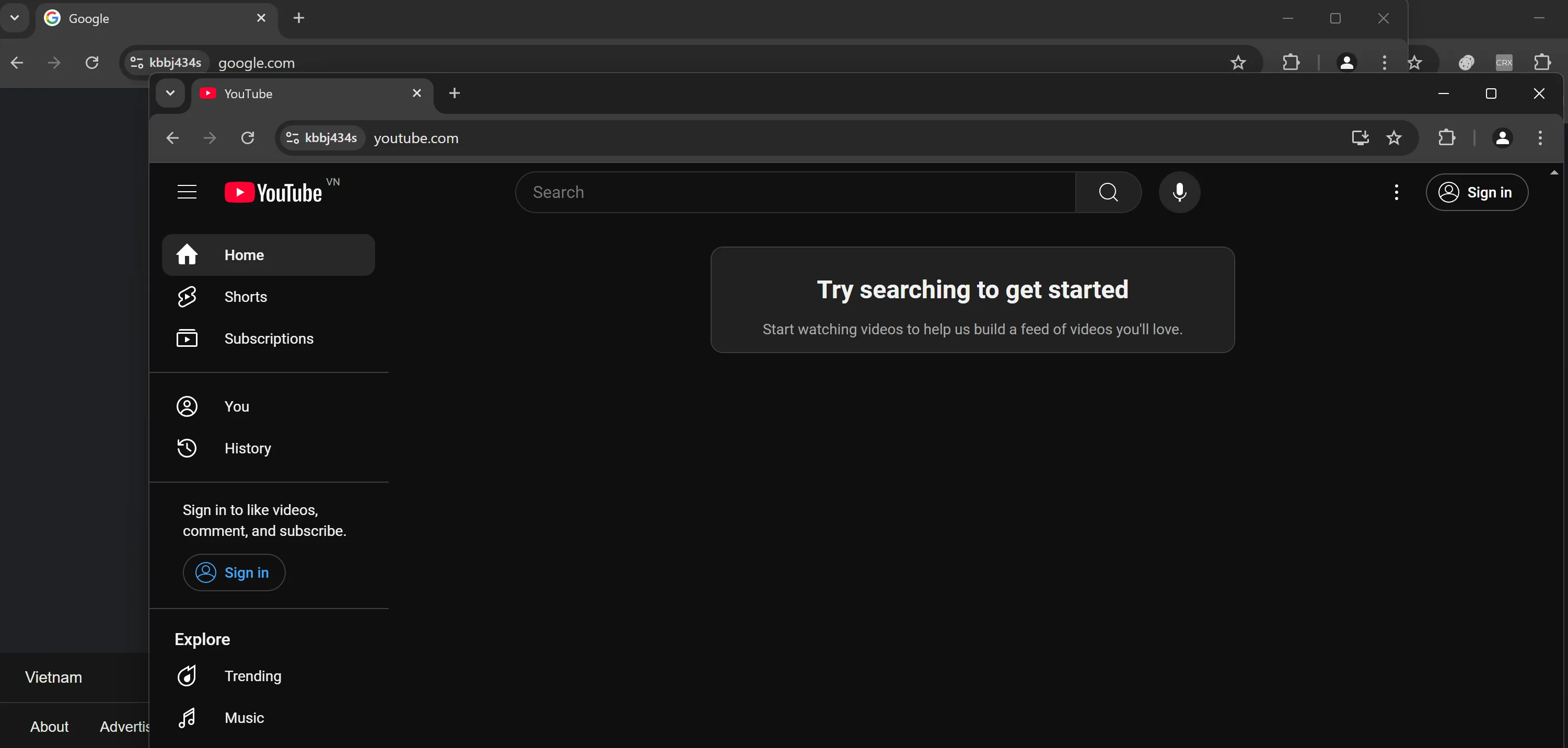
You have two windows as shown below:
When you configure it like this, if any window closes, the process will execute the next node.