
Packages Block
The Packages feature lets you save reusable groups of workflow nodes as packages - like a toolkit of pre-built automation steps. You can create your own packages or use ones from Omnilogin's free workflow repository. When needed, simply import a package into any workflow instead of rebuilding the same logic from scratch.
Initialize
To use this feature, the user must first create a package
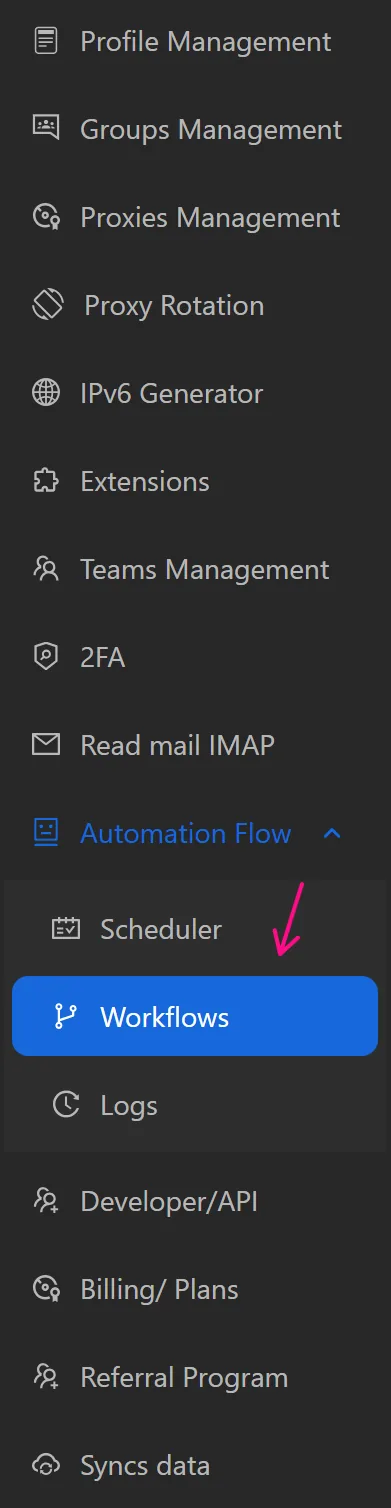
First, select Automation Flow -> Workflows
then select Packages and Add Package
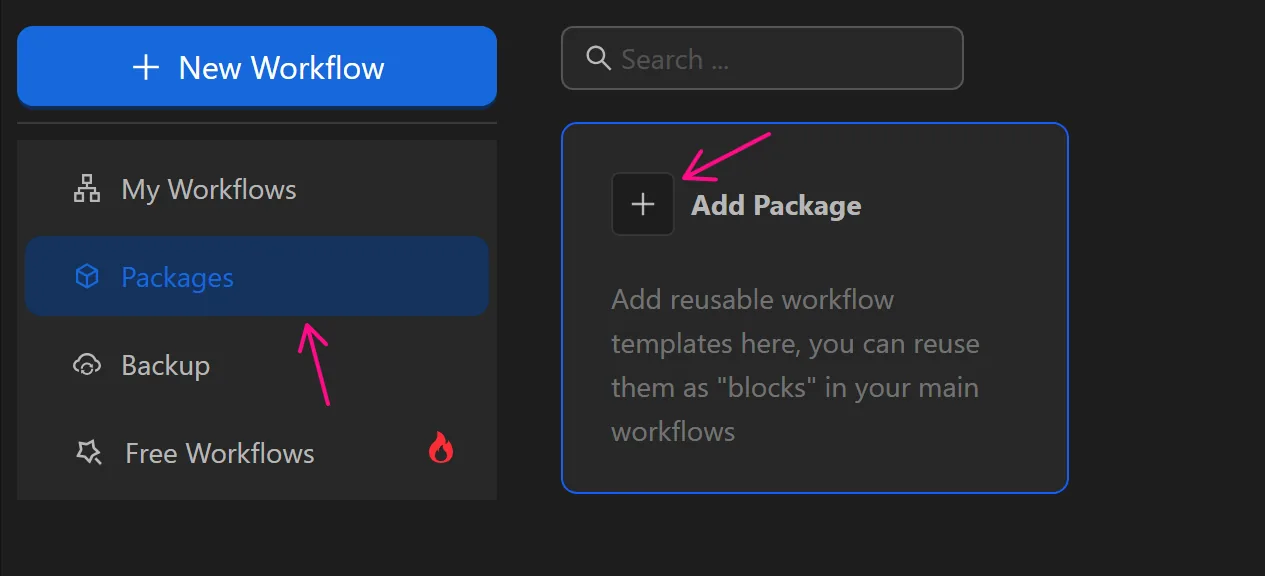
There are 2 options for the user:
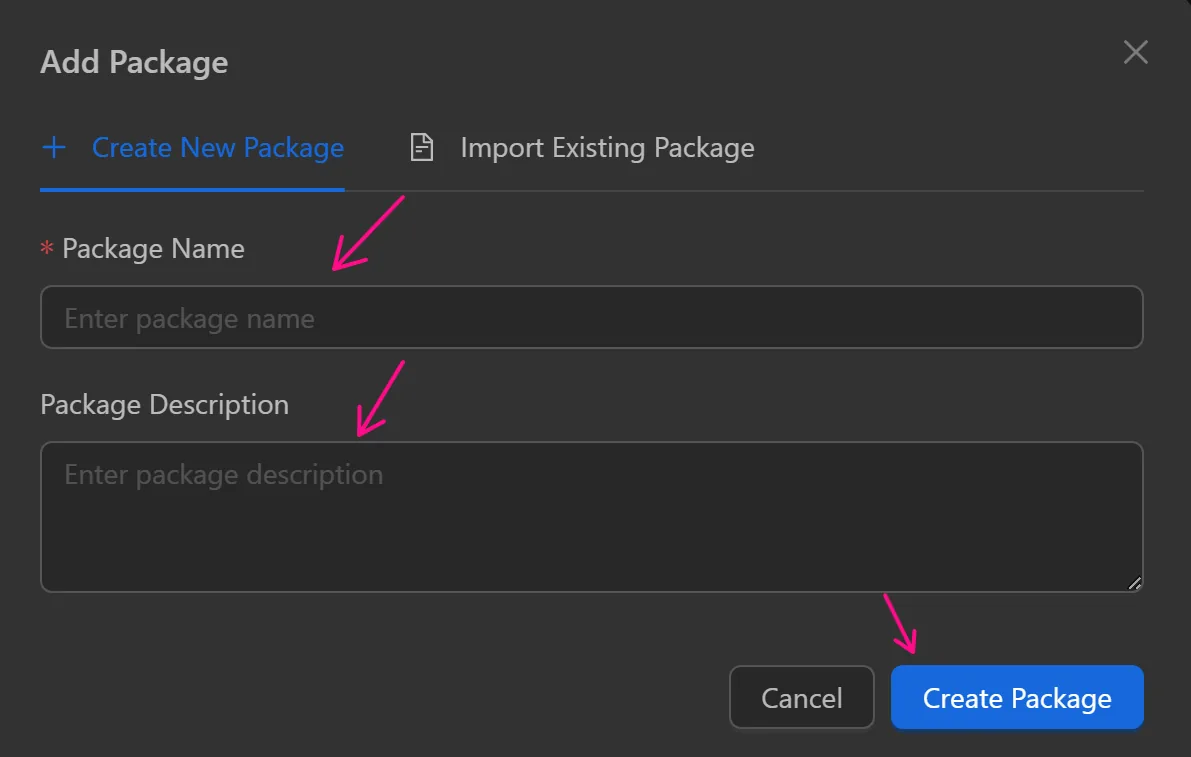
- Create New Package: create a completely new package
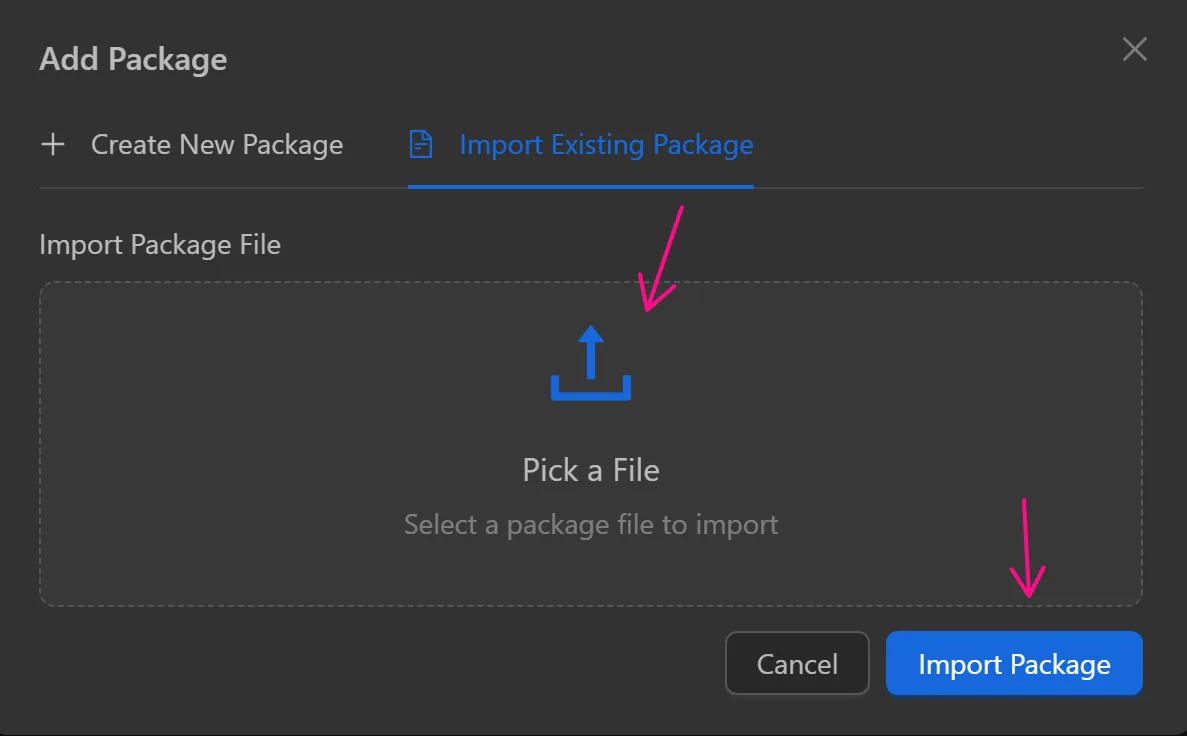
- Import Existing Package: import an existing package exported from someone else or yourself
After selecting create or import, the user will be transferred to the workflow editing section, where the user configures the nodes they want to run between the 2 nodes Input and Output.
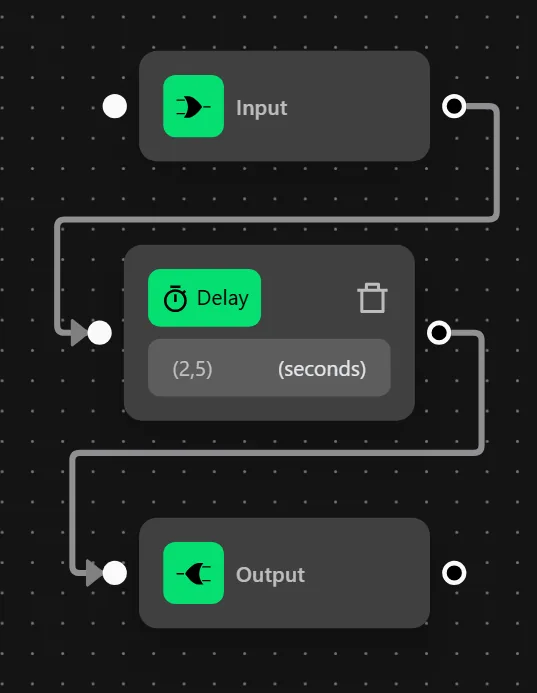
In addition, users can configure multiple input-output pairs or multiple inputs with multiple outputs in a package
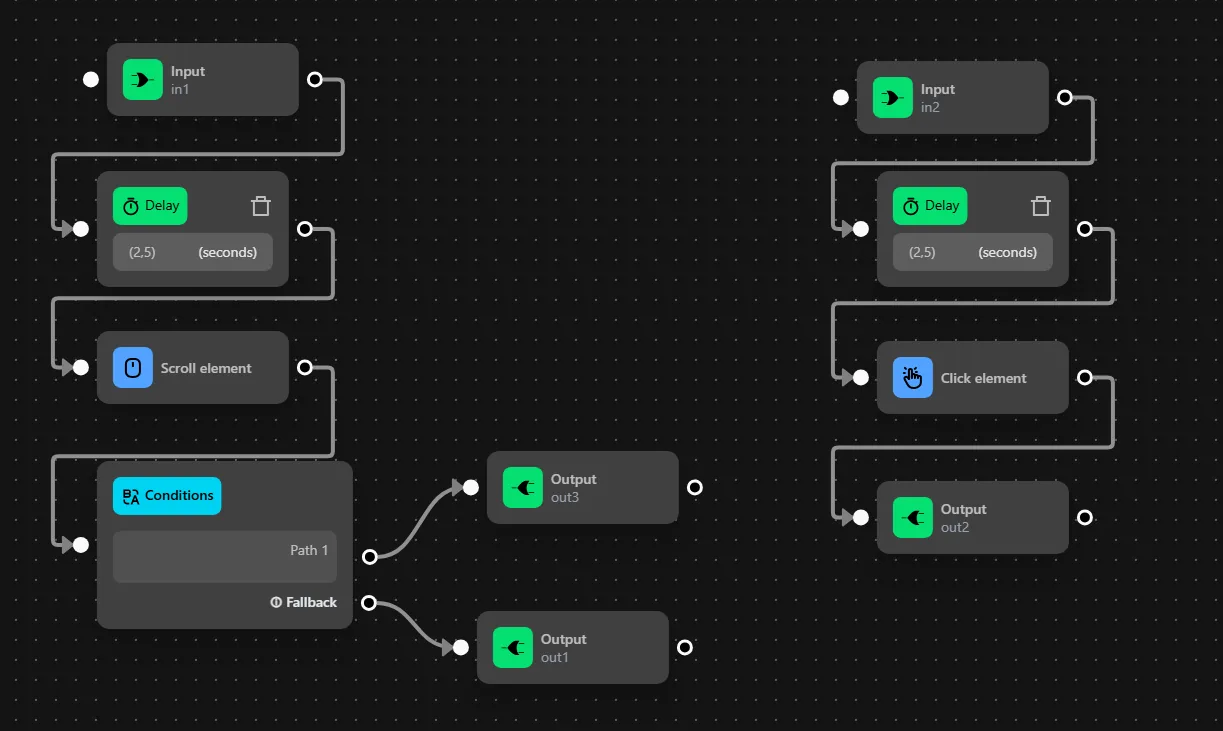
Usage
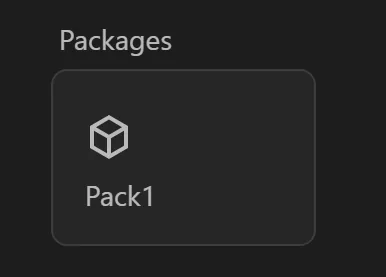
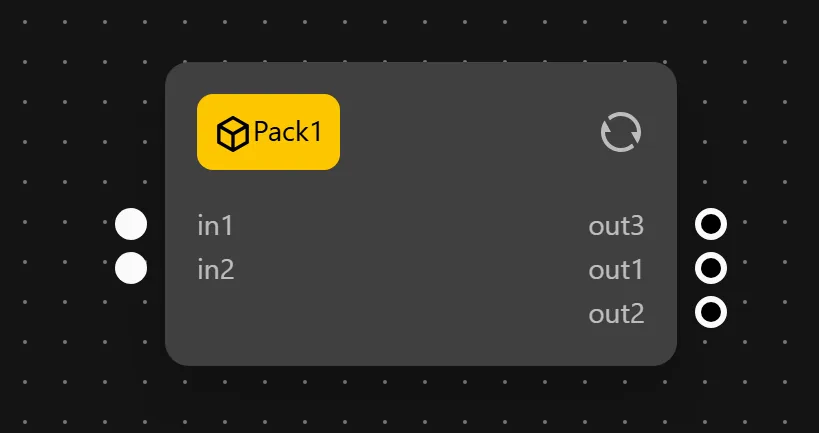
After creating or importing a package, users can use them in a specific workflow. For example, when creating a package called Pack1, users can now scroll down and drag the package to use
Edit package
Users can edit packages like editing workflows (add, edit nodes, add input outputs). But when finished editing, users need to note the following
- In case of editing logic (editing selectors, adding nodes): there is no need to reload that package in the workflow
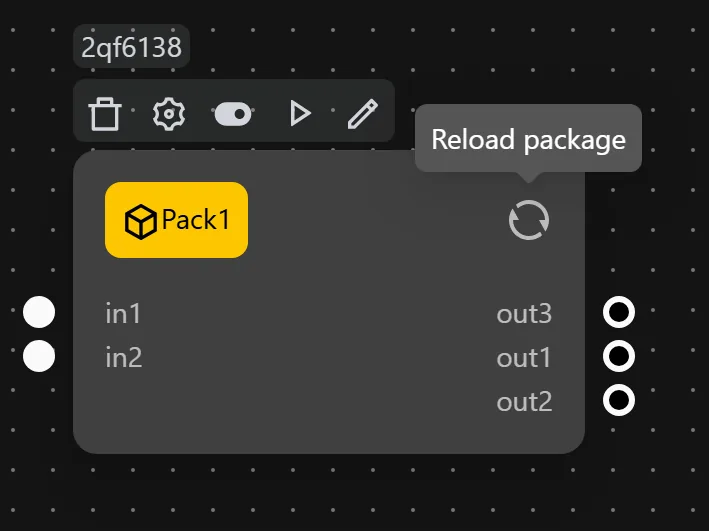
- In case of adding input/output/input name, output: need to go to the package usage workflow, select
Reload package
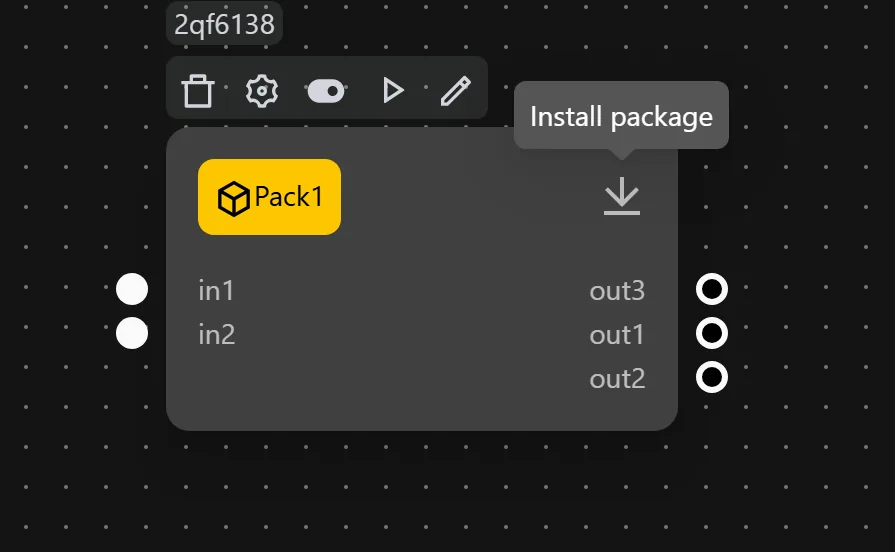
Download package
In case the package is in a workflow that the user received from another person or another machine, when he wants to edit it, he needs to download it to be able to perform the editing action
Note
Packages that do not need to be downloaded can still run in the workflow