
Batch Actions
The Batch Actions feature lets you perform operations on multiple selected profiles at once - including updating tags, URLs, proxies, cache settings, and more.
Update Tags
Update tags for the selected profiles. Update methods include:
- Append to List: Add selected tags to the end of the list.
- Replace All Old Tags: Delete all tags of the selected profiles and add new ones (completely replace the old list).
- Delete All Tags: Remove all tags.
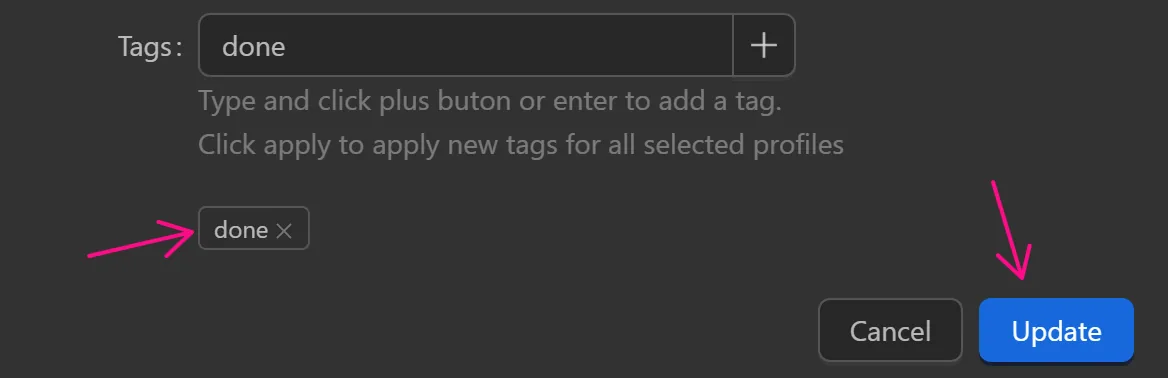
To add a tag, the user must enter the tag they want to add, then press the + icon to add that tag. After adding the desired tag, select the Update button.

Note
A profile can contain a maximum of 10 tags.
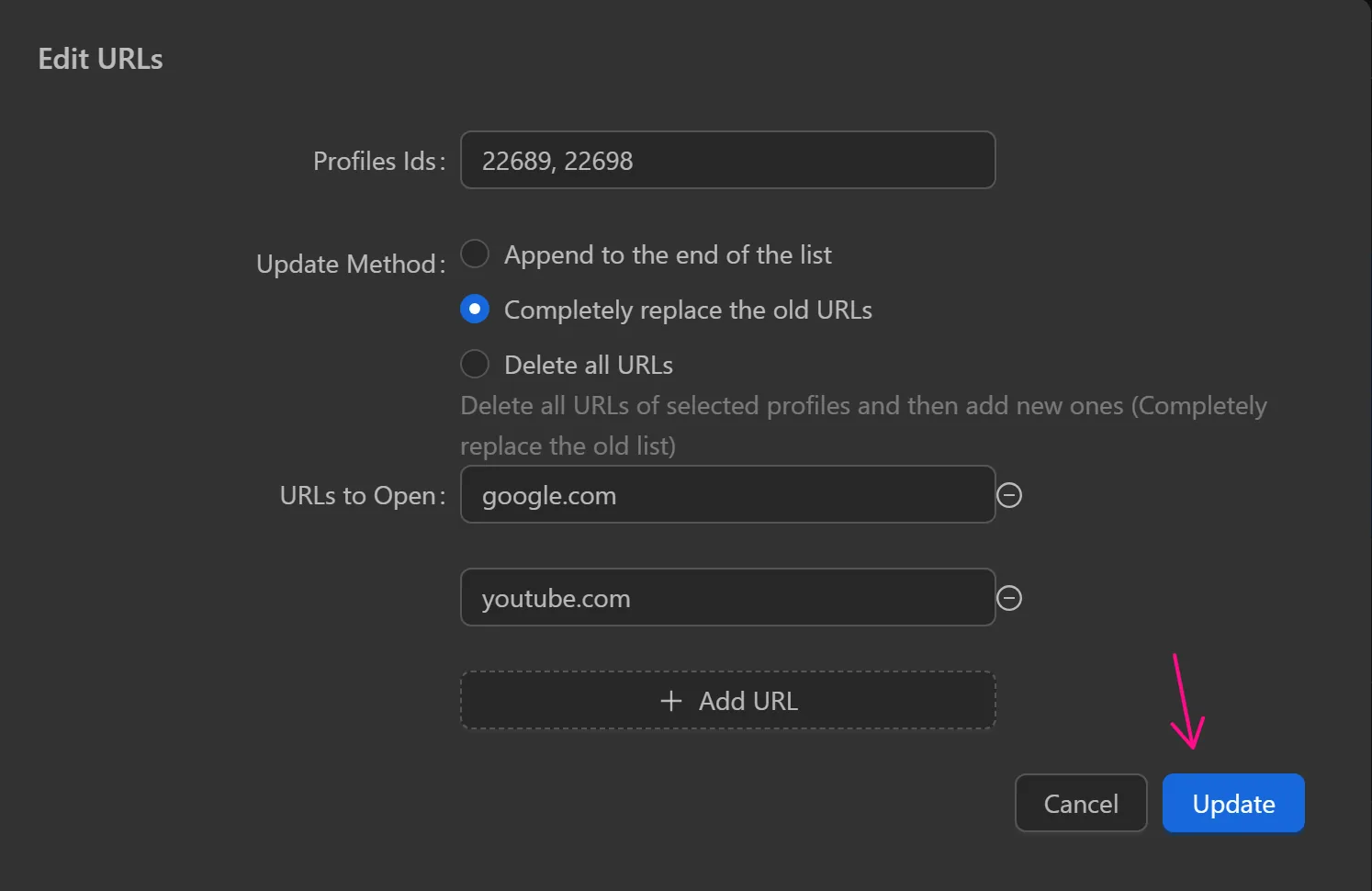
Update URLs to Open
Open pages corresponding to the url added when opening the profile
To add a url, the user selects an Update Method, then selects the Add URL button.
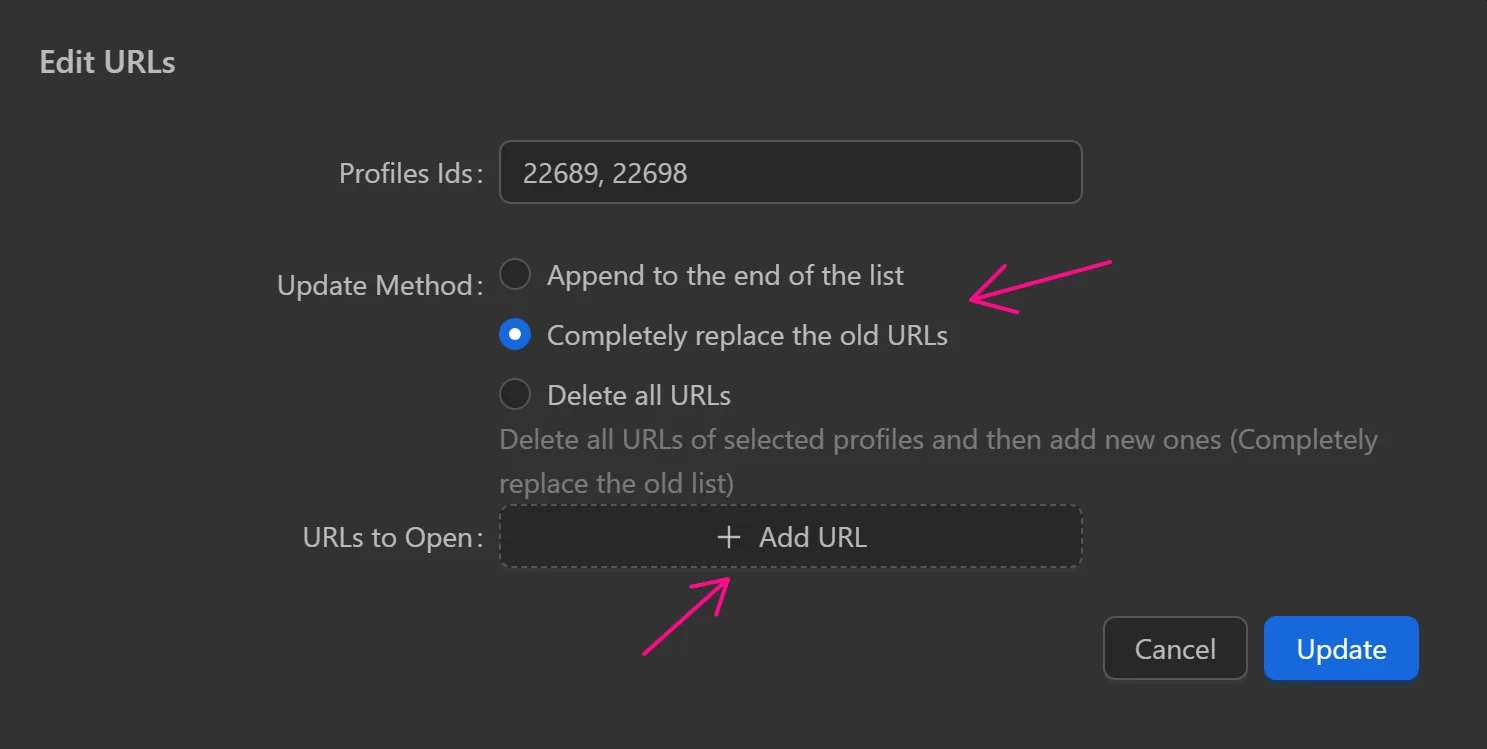
Next, fill that url in the blank box
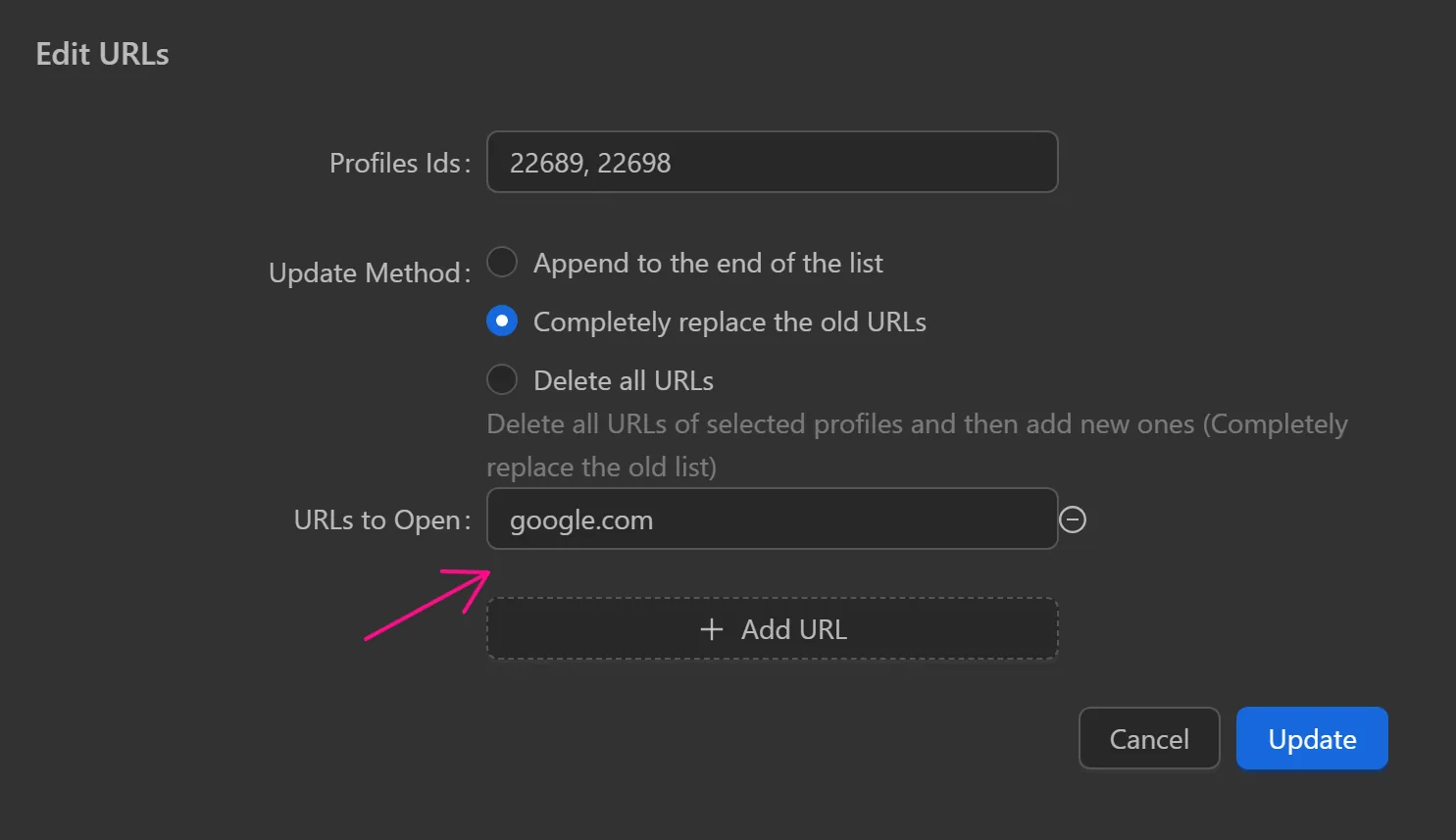
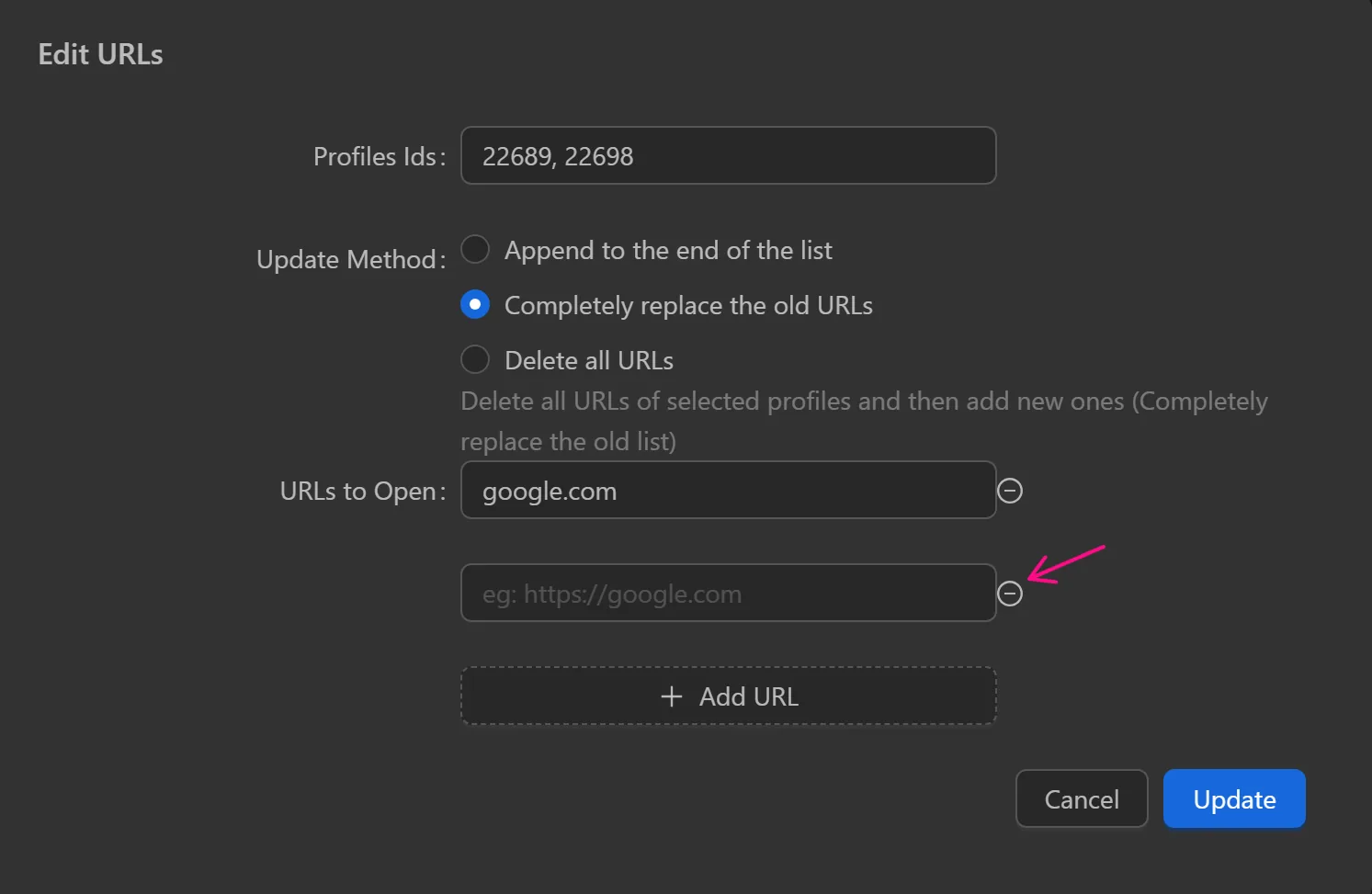
To delete a url, click on the minus symbol
After completing the url values, select the Update button. After opening that profile, the pages with the added url will be opened

Update Proxy
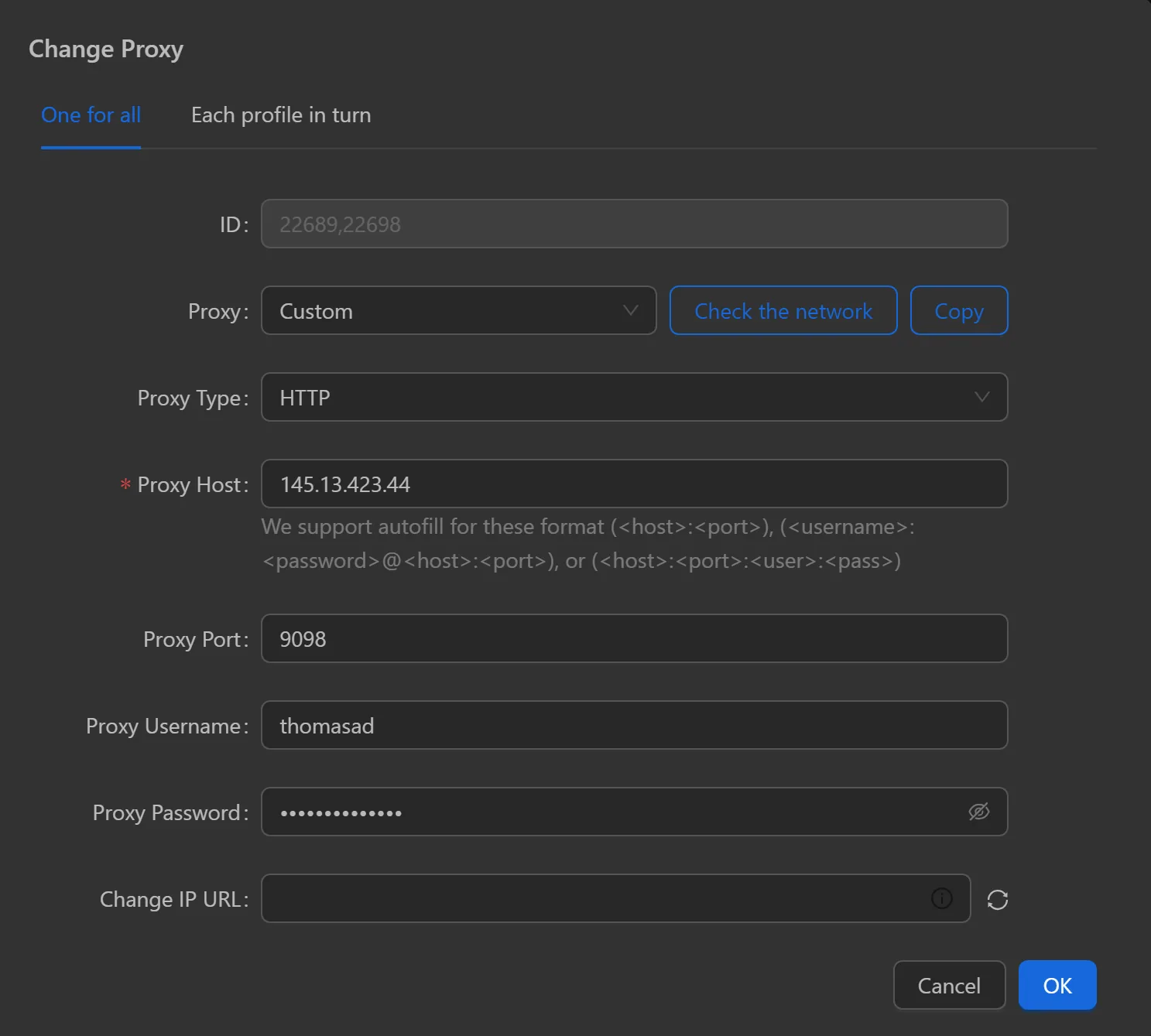
Update proxy for profiles
- One for all: update one proxy for all selected profiles
For example, here the selected profiles will use the proxy the user is entering
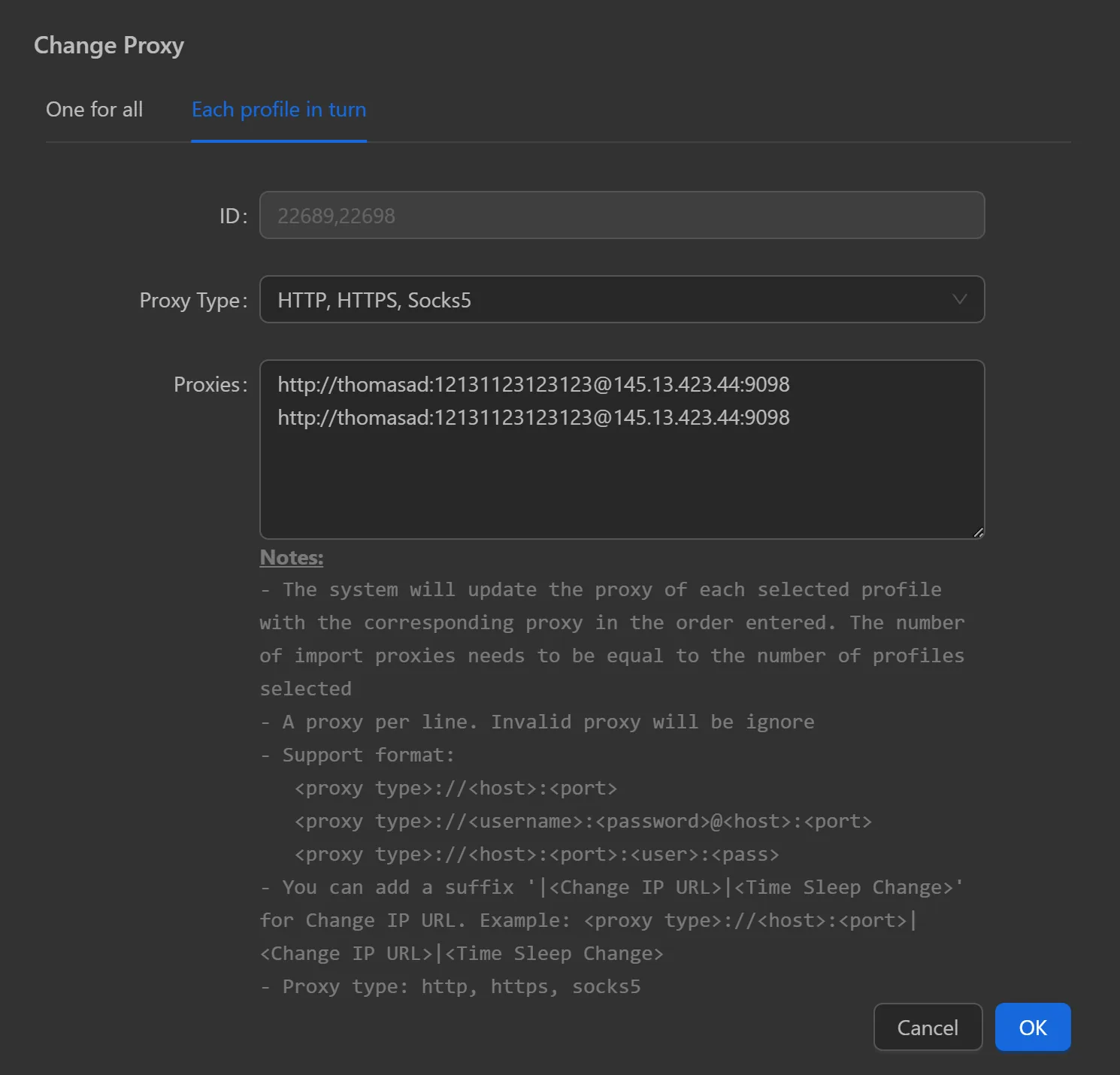
- Each profile in turn: update the proxy list in order from top to bottom for the profile list in order from left to right
For example, in image, profile 21811 will use proxy 145.13.423.44:9098:thomasad:12121212 and profile 21812 will use proxy 146.13.423.44:9098:thomasad:12121212
Note
The number of proxies entered must be equal to the number of profiles selected. One proxy per line. Incorrectly formatted lines will be ignored.
Tip
If you have 5 proxies but want to add 10 profiles, copy and paste those 5 proxies into the proxy list
Quick Proxy Check
Check if the proxy is still usable, after checking which proxy is still active will turn green, red means it is not active

Turn on/off Proxy
Select to turn on/off the proxy of the profiles. The profile with the proxy turned off will use the real network

Clear Profile Cache
Clear the cache for the profiles. This will help reduce the storage capacity of each profile, avoiding a full hard drive. This feature does not affect the account currently used in the profile
Clean Profile
Remove some errors and some unusual junk to restore the profile to its best state. This function fixes some errors with extensions. This feature does not affect the account currently used in the profile
Backup to Cloud
Backup the current data of the selected profile to Google drive. When using this feature, users need to use the Activate Sync feature for the previous profile
First, the Open button of the profile must have the following icon to use this feature

If this icon is displayed, the Activate Sync feature must be used for the previous profile

Then, when selecting Backup to Cloud, the app will return a notification board with the following descriptions
- Success: backup successful
- fail: backup failed failed
- ignore: profile does not use the Activate Sync feature so it cannot be backed up

Activate Sync
Sync profile data to the Cloud. When using this feature, the profile data will be available when opened on another device or another account (allowed to use this profile). The profile using the feature can only be opened on one device or account at the same time. If you want others to open it, the main account needs to use the Force Unlock Profile feature. When using this feature, you need to log in to the account in the Data Sync feature
Disable Sync
Disable data syncing for the profile. When disabled, opening the same profile on different computers will show different data.
Force Unlock Profile
Force unlocking profiles opened by other members. This feature is only visible to profiles after using the Activate Sync feature
Copy Profile ID
Copy the IDs of the selected profiles.
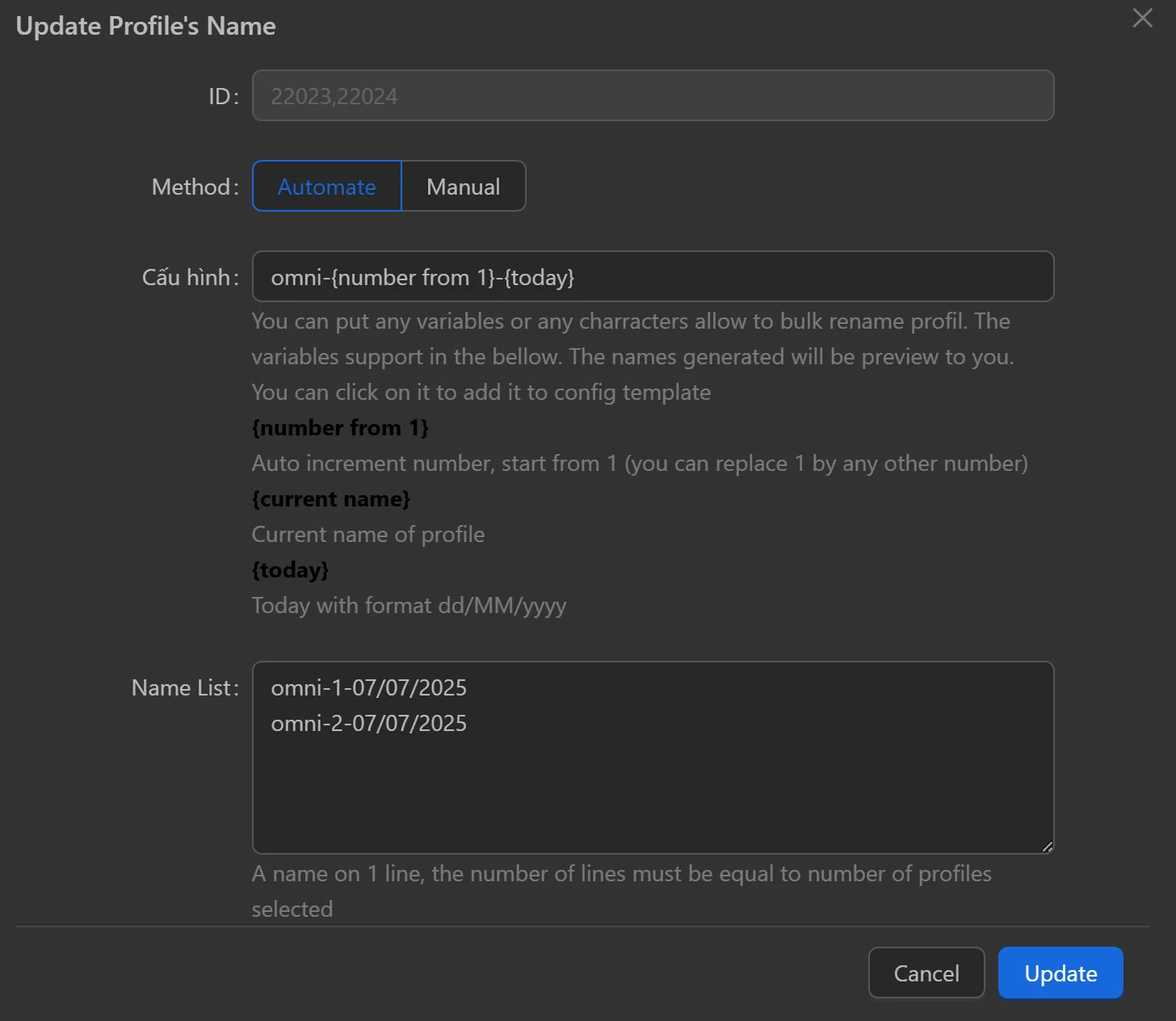
Update Profile Name
Method
Automatic
- Configuration
- Configure using the expression
{current name}{number from 1}{today}. For example, to configure with the nameomni,number starting from 1,date as today, separated by-, configure asomni-{number from 1}-{today}. The result will be:omni-1-07/07/2025. The second profile will beomni-2-07/07/2025. - Name List: List of new names for profiles created based on the expression.
- Configure using the expression
Manual
- Configuration: Rename each profile to the desired name.
- Name List: Select profiles from the list to rename. Each name on a new line, with the number of lines equal to the number of selected profiles.
Update to Latest Chrome
This feature helps users update their browser profiles to the latest version.
Check Chrome version
First, click on the icon with two rotating arrows in the bottom left corner of the app.

Next, select 1, 2, or by number to check for new versions; the latest version is always at the top.
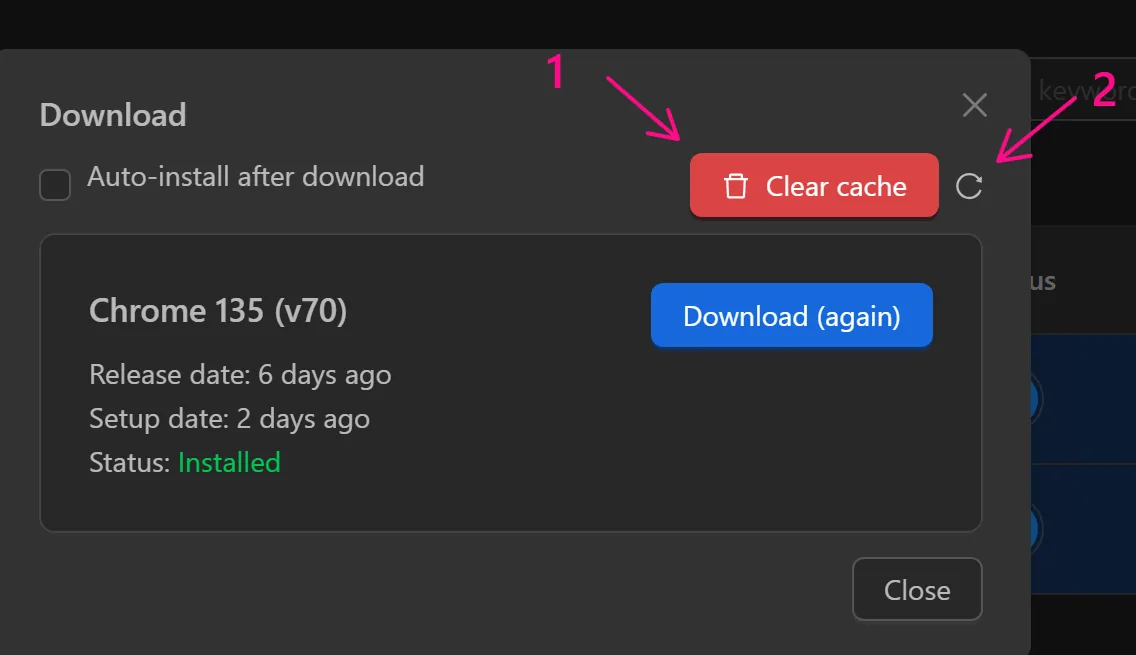
Download and Install Chrome
To install any version of Chrome, select Download
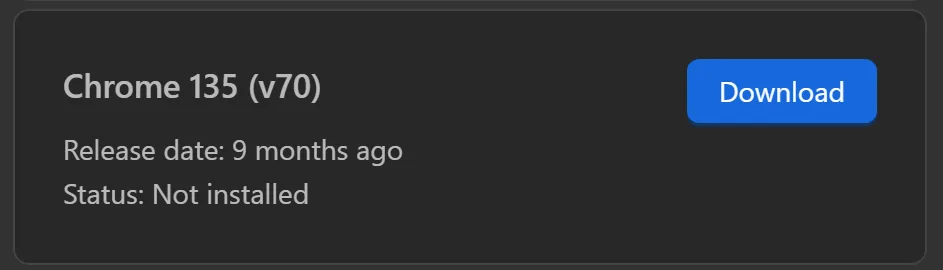
Then, select Install.
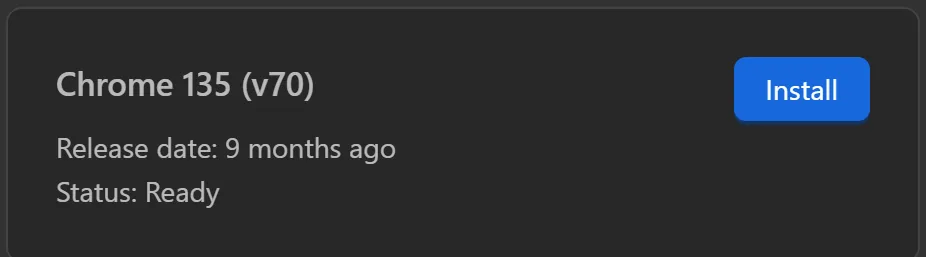
After the download is complete, users can update their profiles to this Chrome version.
Update chrome to the latest
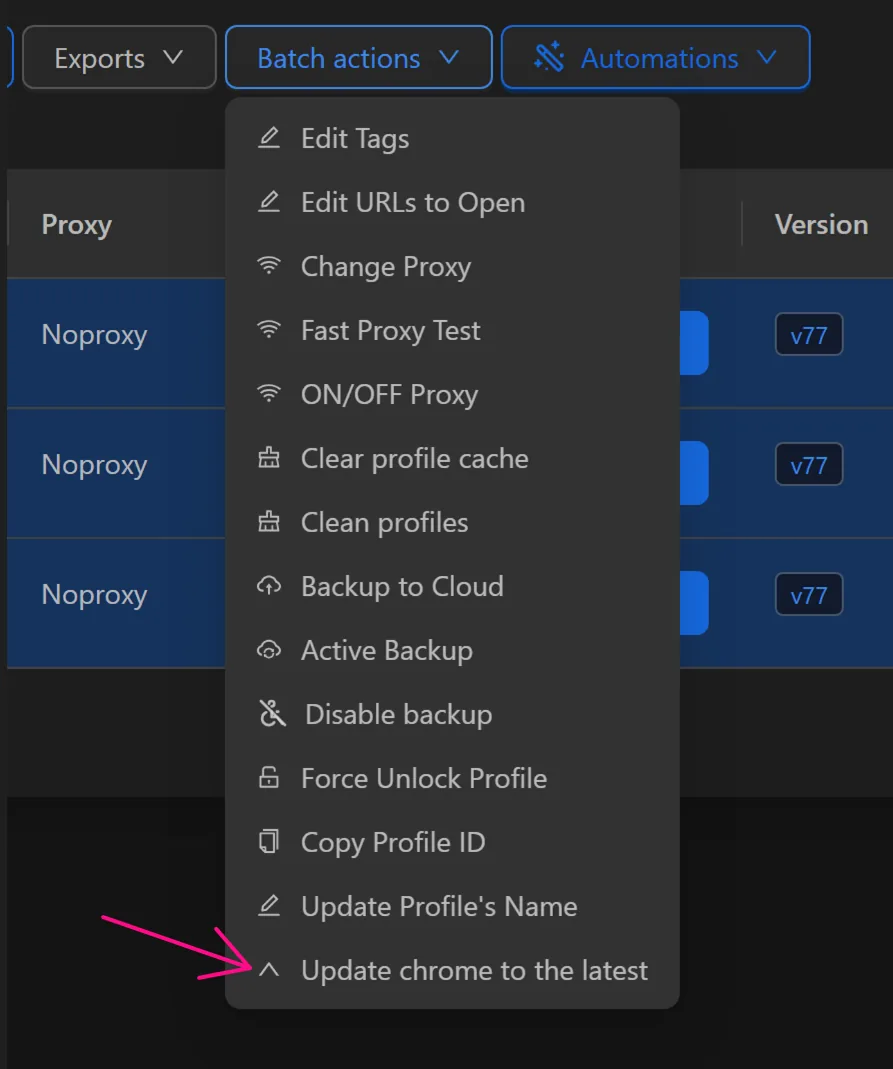
First, select the profiles you want to update.

Then select Batch action
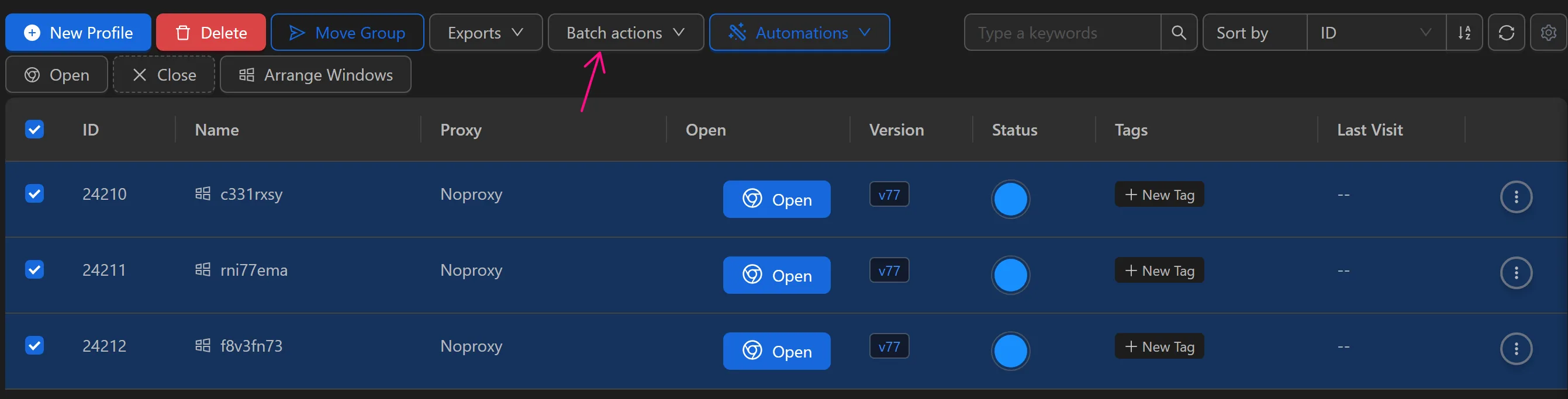
Next, select Update chrome to the latest
Select OK in the confirmation window.
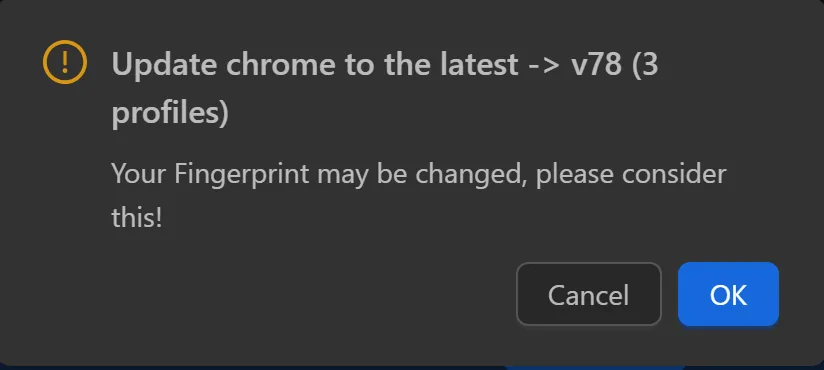
After completion, the profiles have been updated to the latest version of Chrome.
