
Running a Workflow
After creating a workflow, you can run it directly from the workflow editor or from the workflow list. Omnilogin supports running workflows on a single profile or across multiple profiles simultaneously.
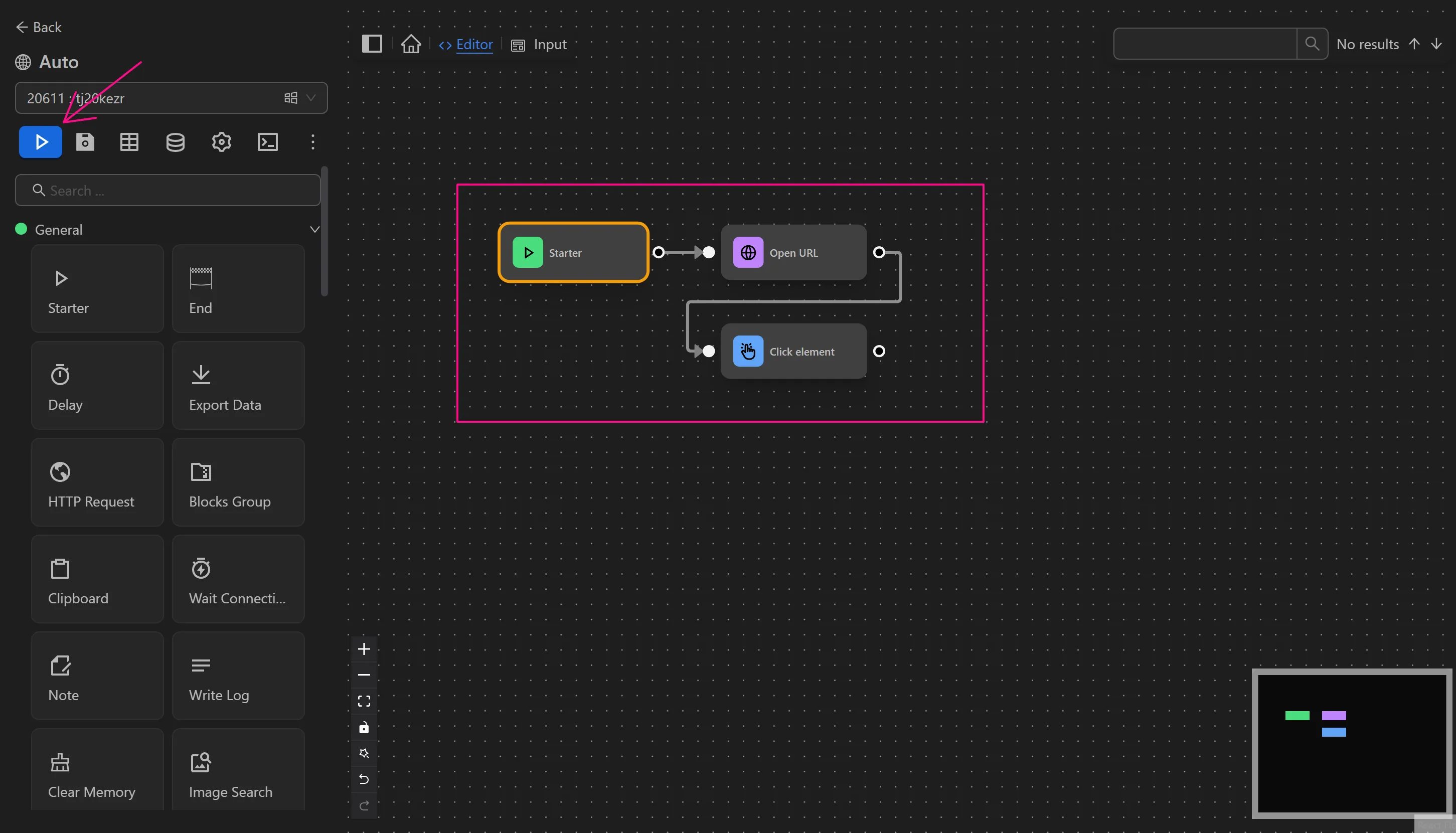
Run from the editor
You can run a workflow by opening the Automation panel and clicking the () icon on the Automation you want to run.
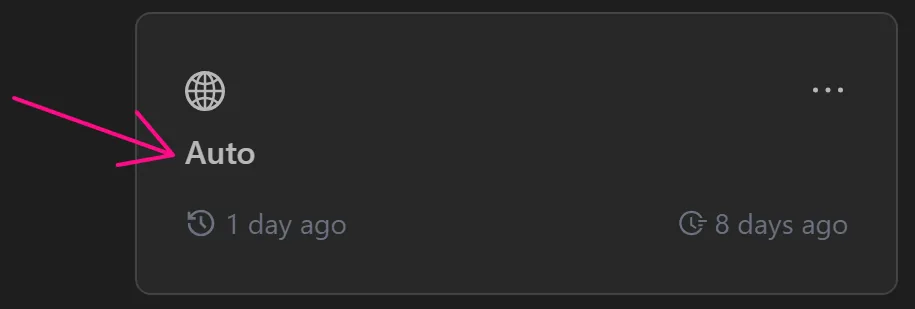
Run workflows with multiple profiles
You can run the workflow with multiple profiles after completing it by clicking on the workflow name, then pressing the icon ()
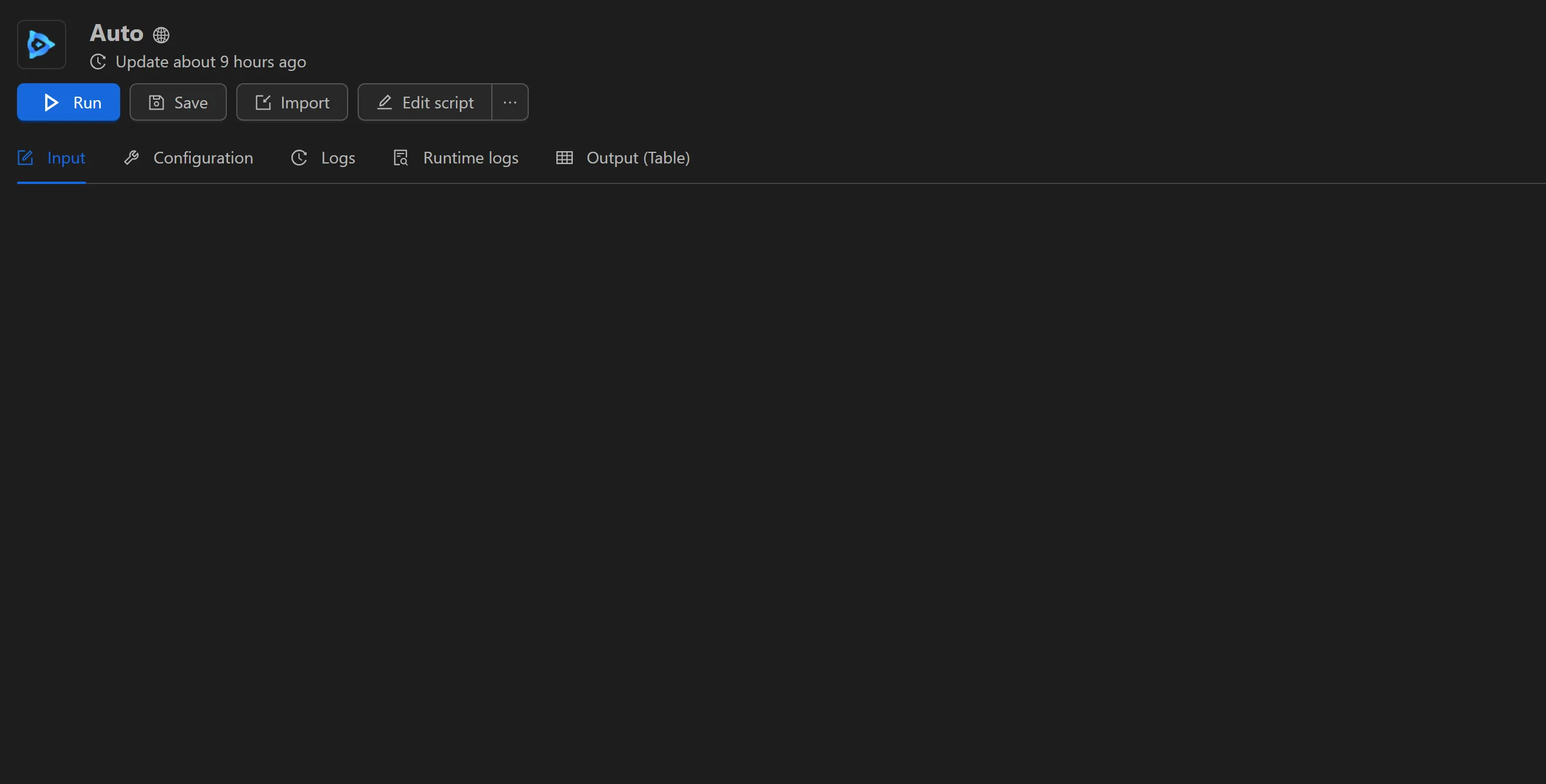
Input
First, in the Input section, if the process requires information here, fill it in before proceeding to the next step.
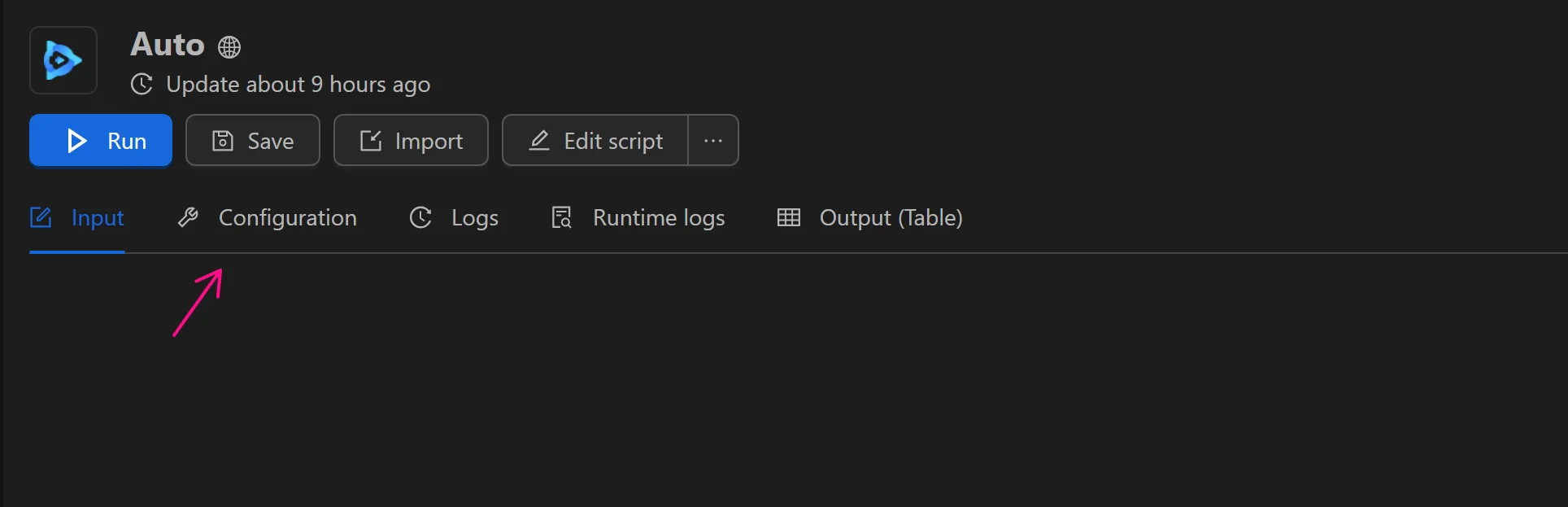
Configuration
Next, go to the Configuration section.
Next, select a profile type such as tag, group, or list.

For each type, select the corresponding information to choose the profiles.
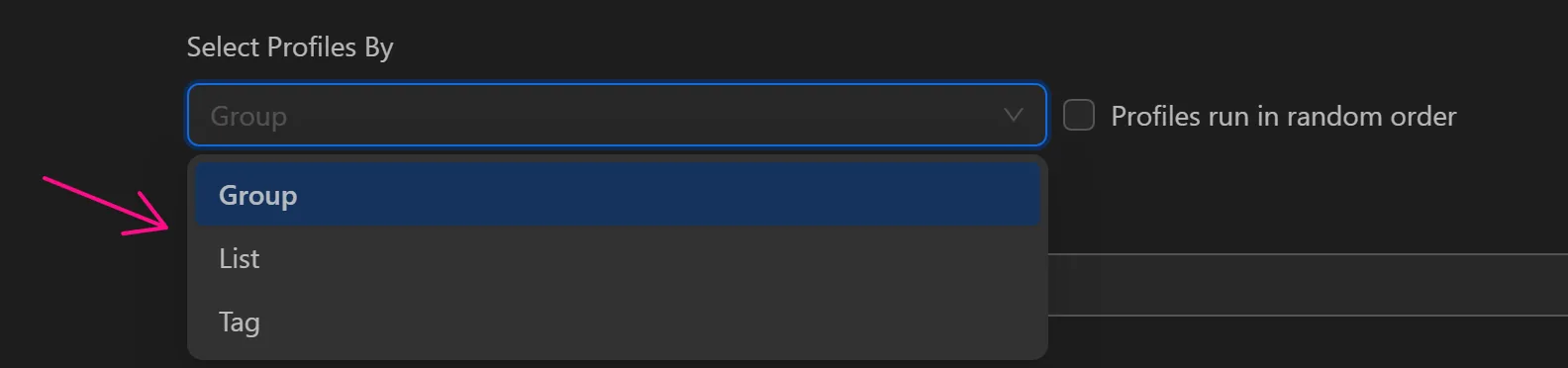
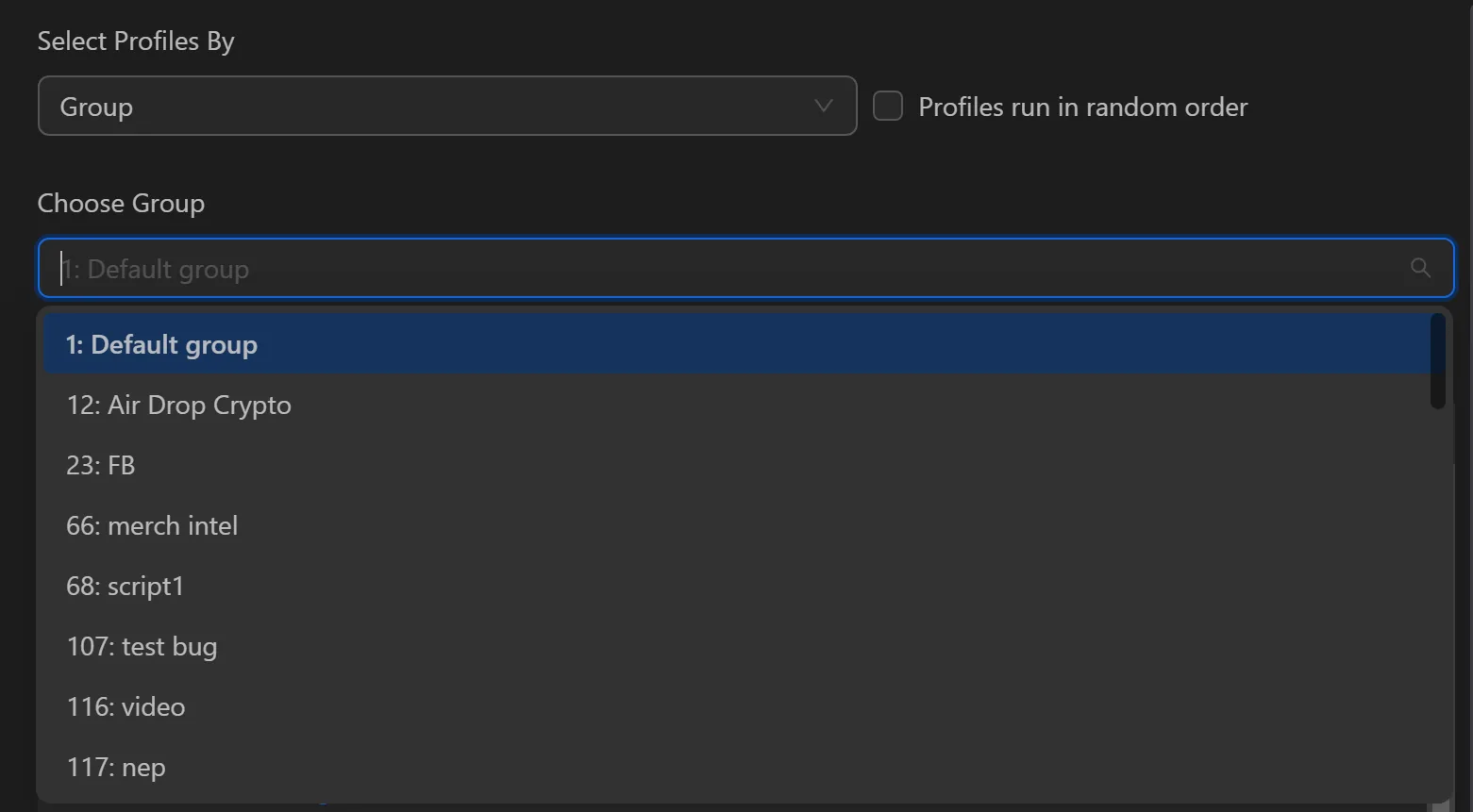
When selecting Group, choose the groups you want to use to run this process.
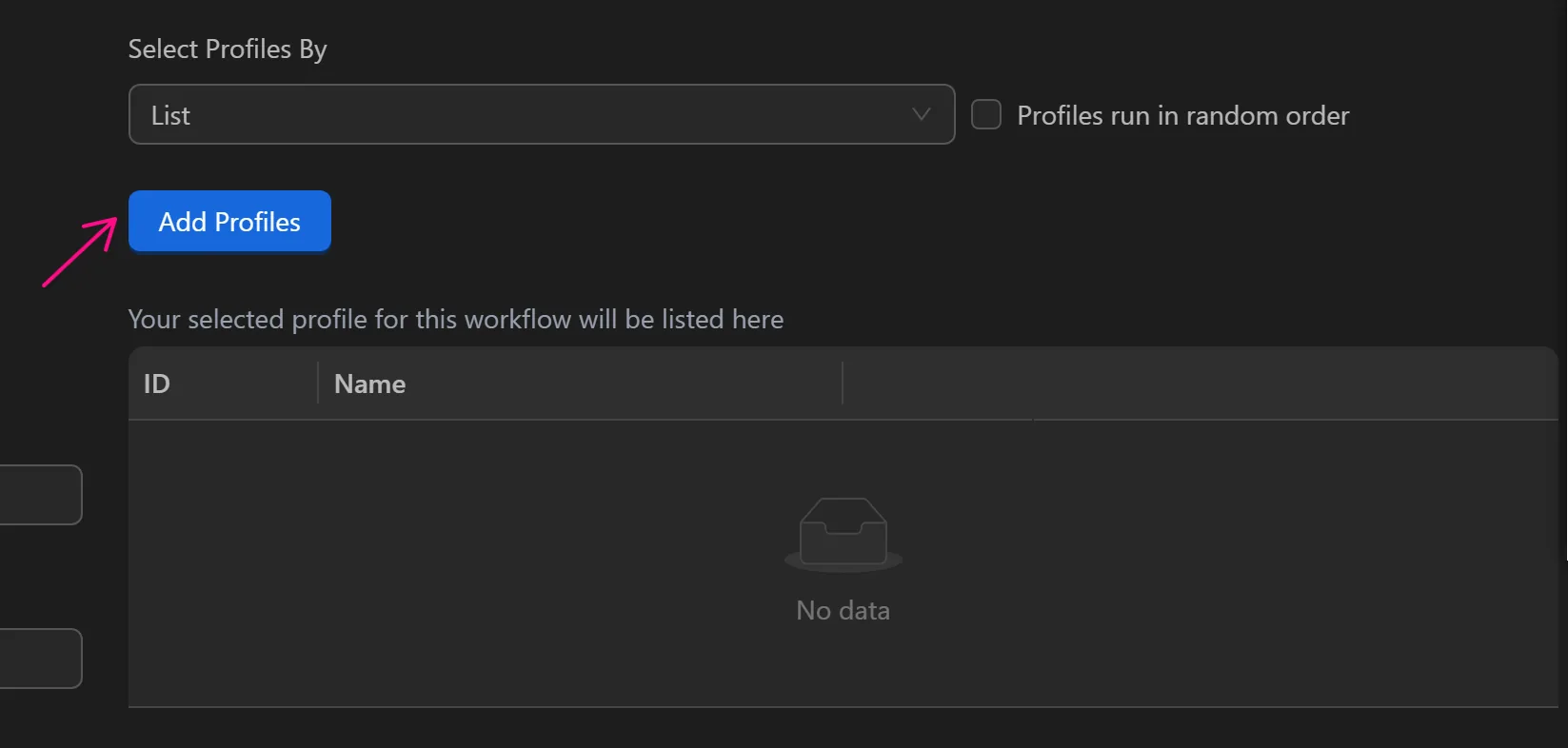
When selecting List, select Add Profiles
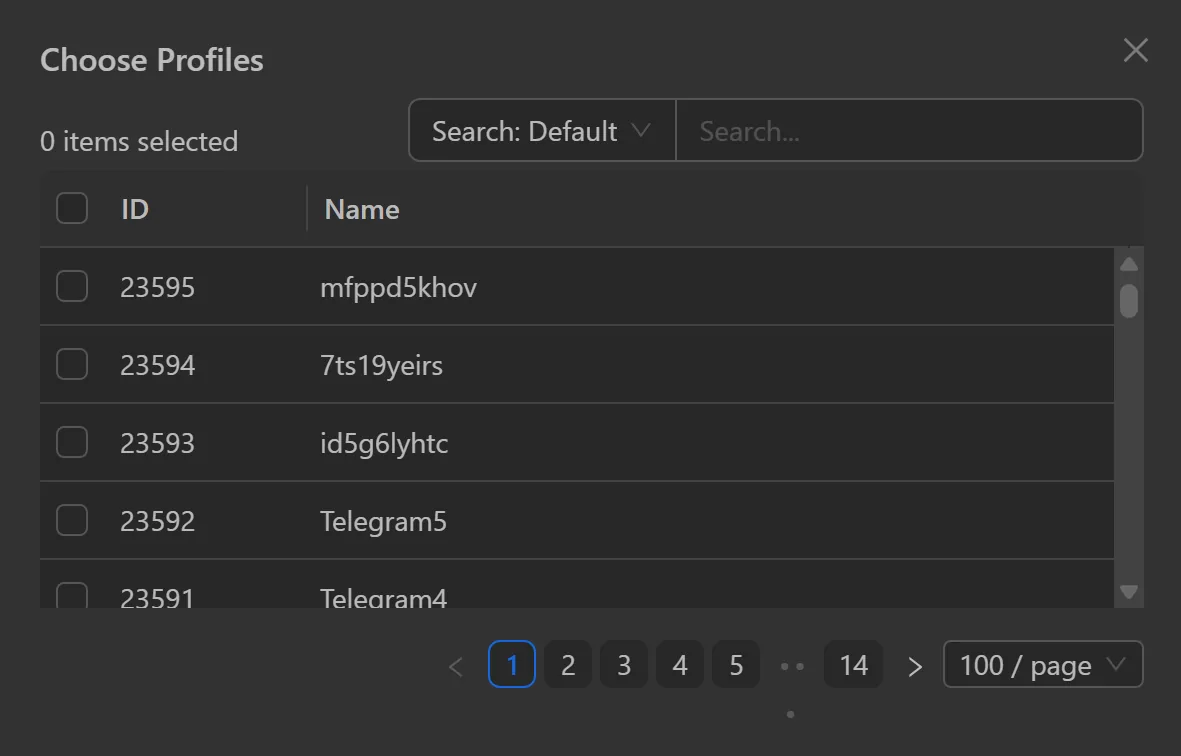
Next, select the profiles you want to use to run the current process.
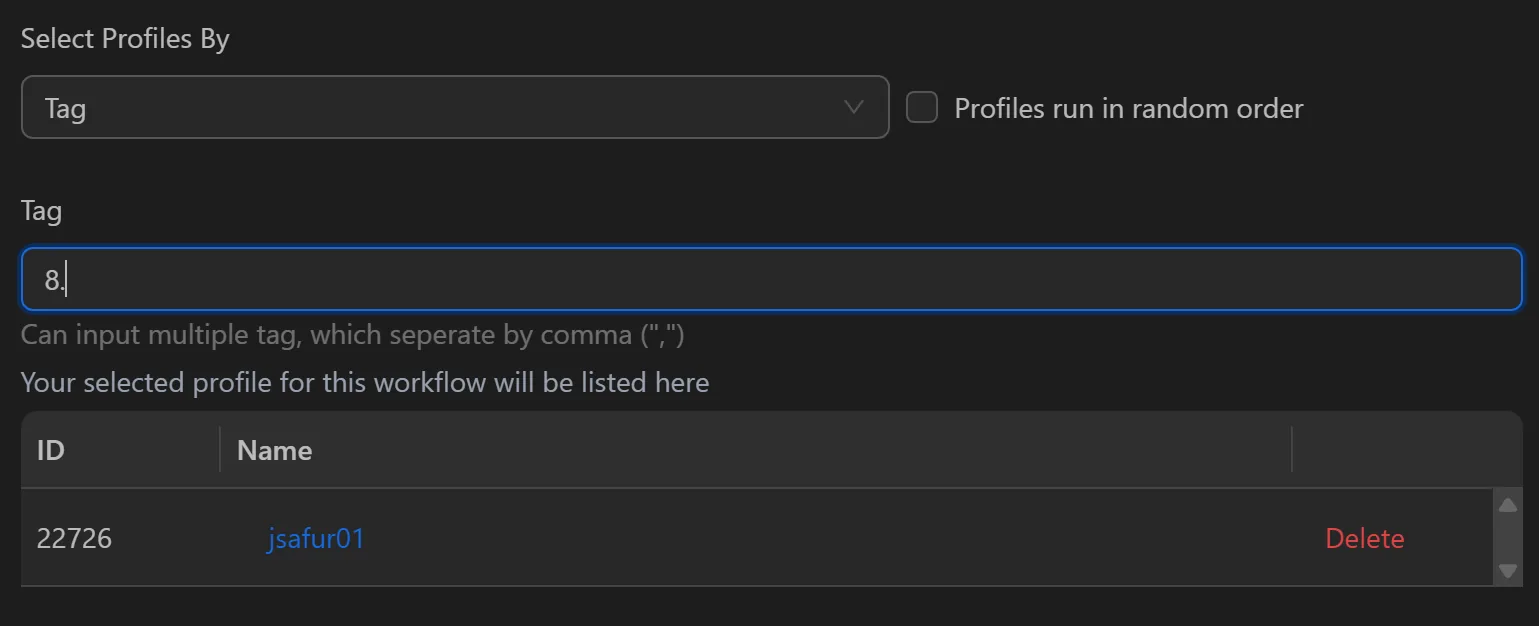
When selecting Tag, enter the tags of the profiles you want to run here.
Note
If there are multiple tags, only the profiles with those tags will be displayed. For example, if profile 1 has the tag p1 and profile 3 has the tag p2, and profile 3 has two tags p1 and p2, then when entering p1 and p2, only profile 3 will be displayed.
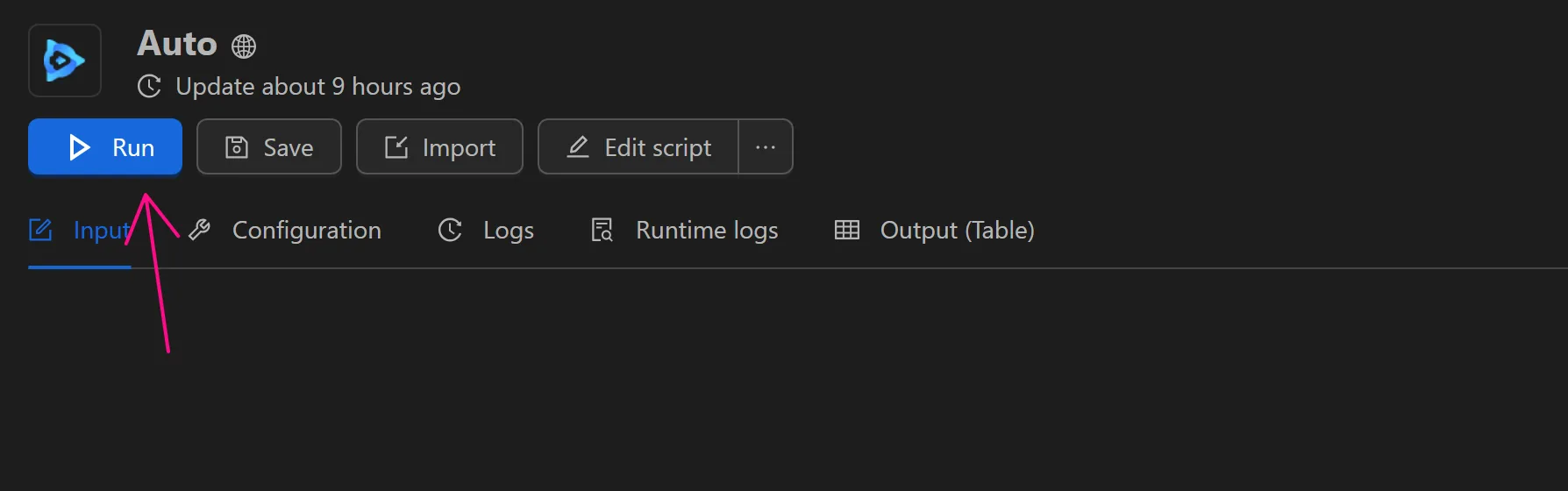
After configuration, to run a process, click the
Note
While the process is running, do not close the Omnilogin pop-up browser window, otherwise the automation will not work.
Logs
After the process finishes, to see how the process profiled, users can select the Logs item.
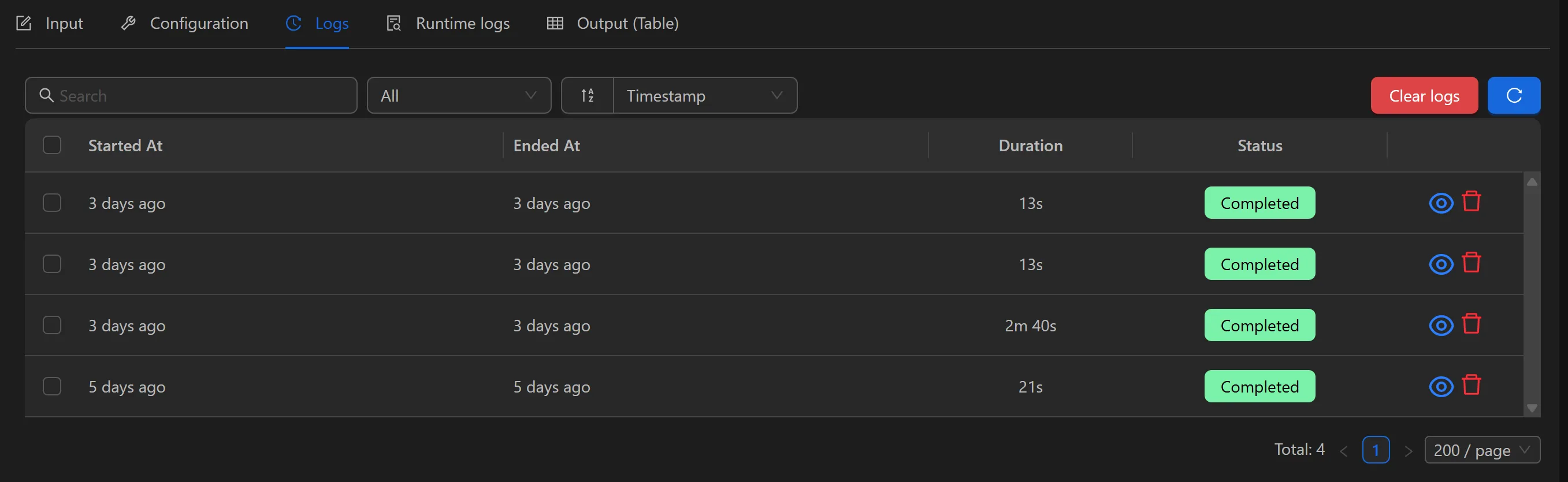
See more about how to read and understand Logs when running each process here
To see details, users can click the eye icon to view the running process.

Runtime logs
Display all logs For the processes that have just run, users can monitor here to see which process is failing, then view the details in the Logs section.

Output (Table)
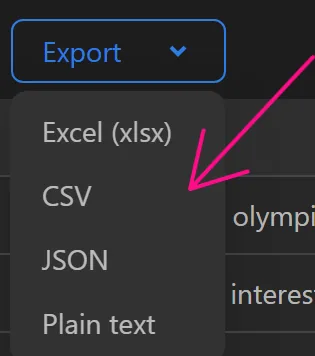
Displays the data exported from the last run.

Users can export in a different format here, instead of the format selected in the process.
Note
While the workflow is running, you should not close Omnilogin's popup browser window, otherwise the Automation will not function.