
Manage Extensions
The Manage Extensions feature lets you install, enable, disable, uninstall, and update browser extensions across your profiles. You can install extensions from ZIP files or Chrome Web Store links.
Caution: Avoid installing sensitive extensions (such as crypto wallets or 2FA authenticators) through this feature, as data security and backups are not guaranteed. Install critical extensions directly within individual profiles instead.
Enable/Disable Extensions
To enable or disable extensions, click this icon:
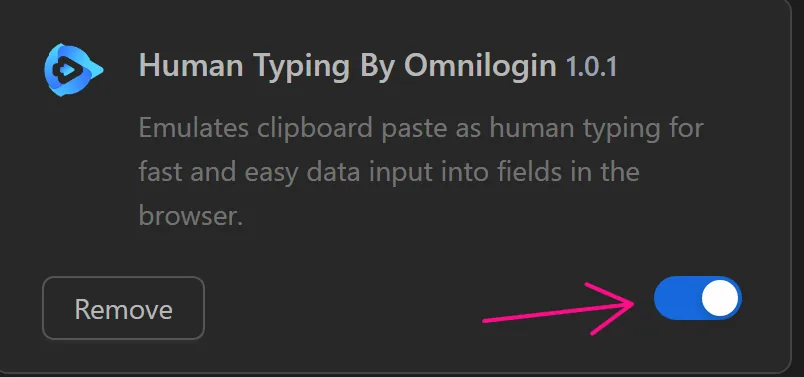
Load Extension
Extensions can be installed in two ways:
Upload File
Upload a ZIP file of the extension to install it.
To obtain the extension file, install this extension.
Go to the extension on the Chrome Web Store:
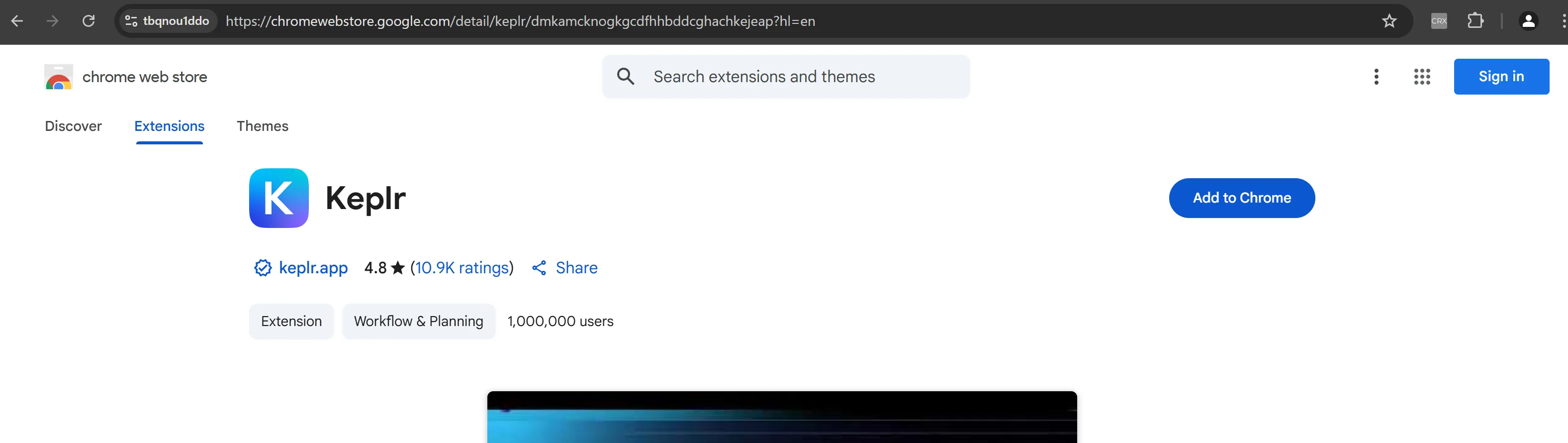
Click the CRX Extractor/Downloader icon:

Select Download as ZIP:
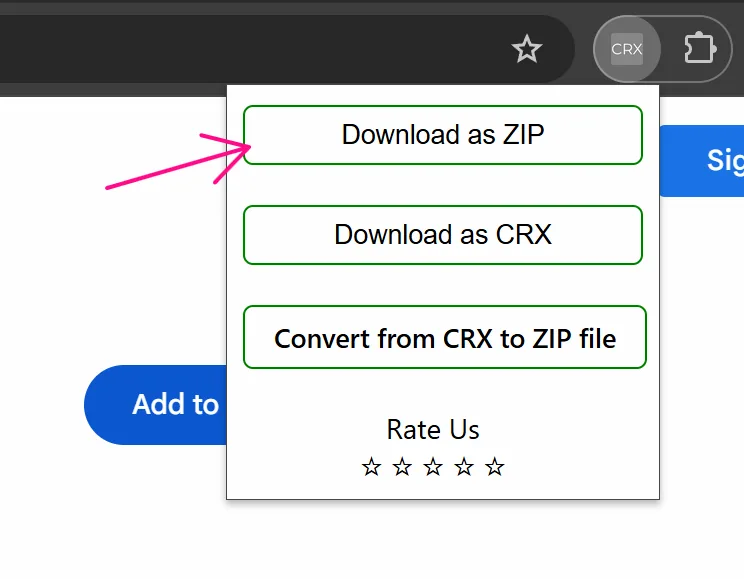
After downloading, go to Omni's Manage Extensions and select Load Extensions:

Click the folder icon to select the extension folder:
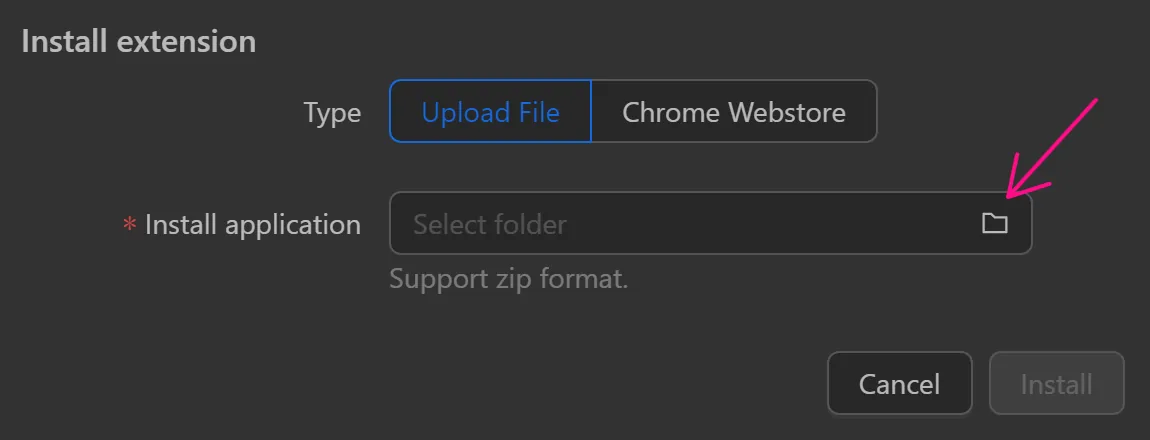
Then click Install:
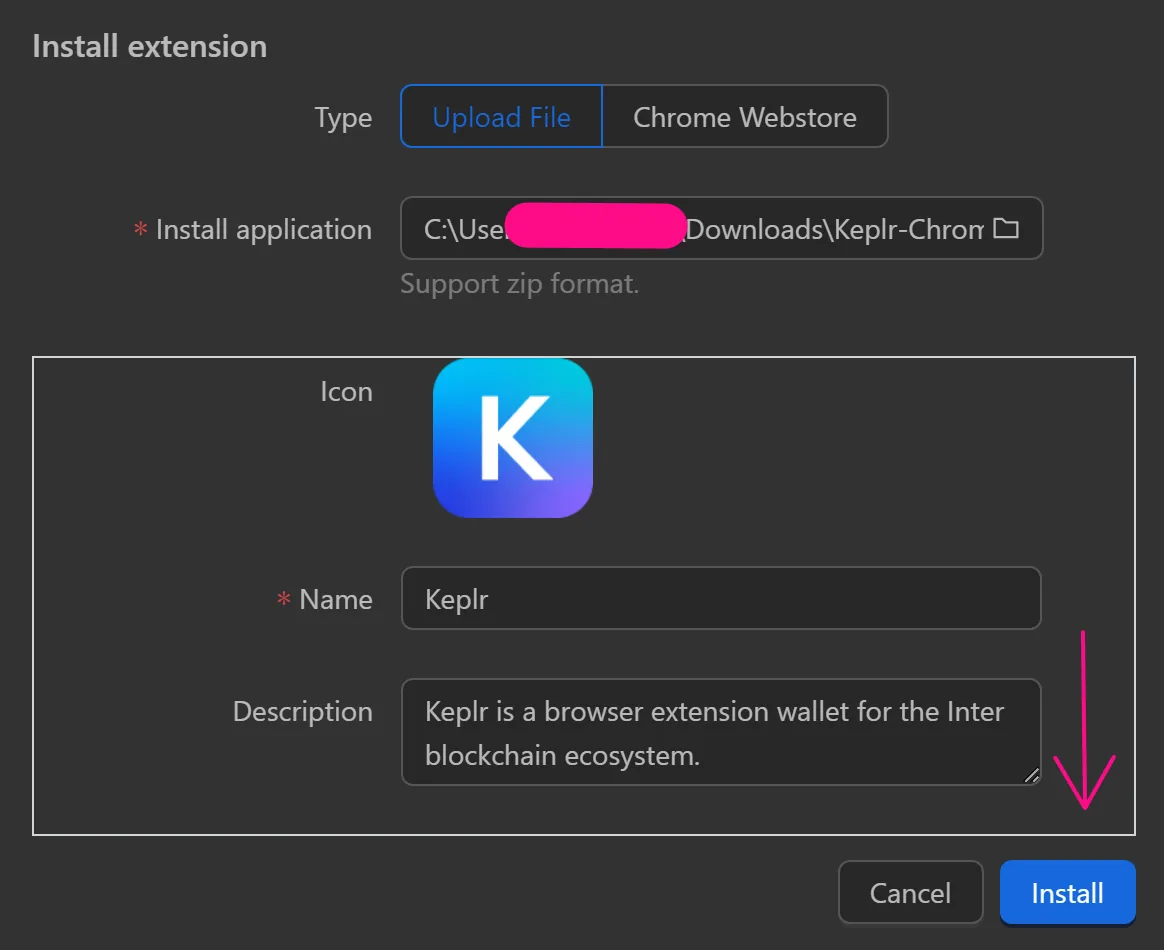
The extension is now installed in Omni:
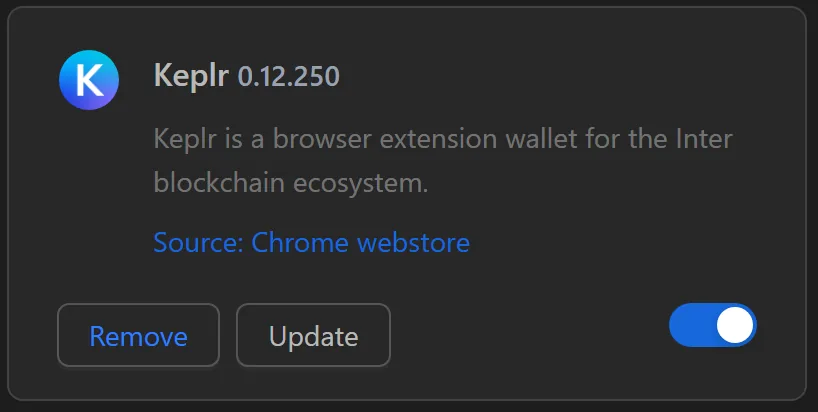
Chrome Webstore
To install via a Chrome Web Store link, follow these steps:
Copy the extension's URL:
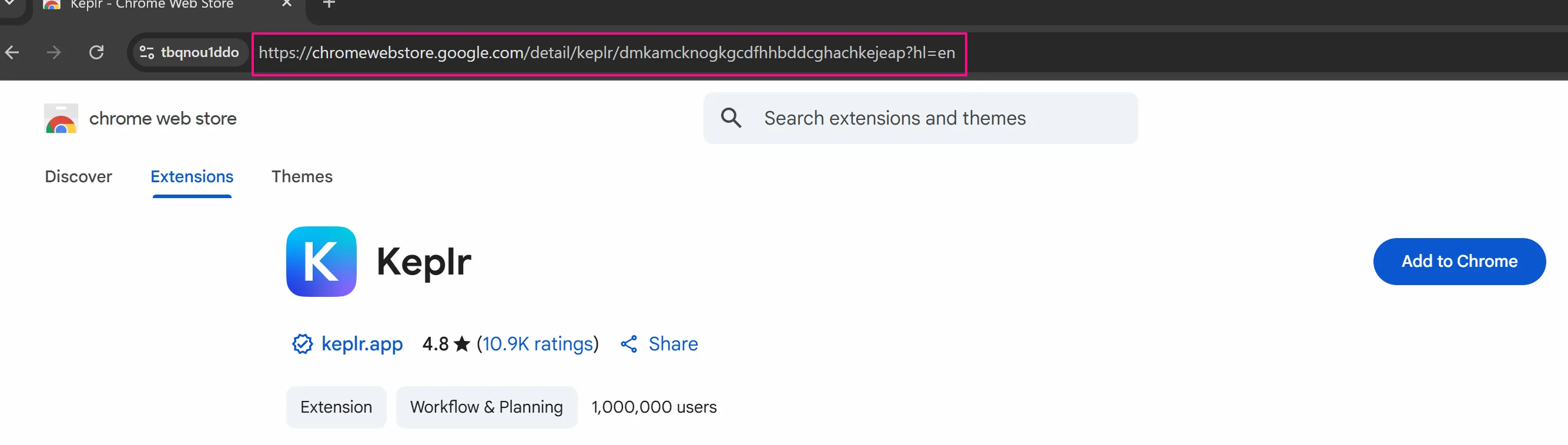
In Omni's Manage Extensions, select Load Extensions:
Choose Chrome Webstore and paste the URL into the Chrome Webstore URL field:
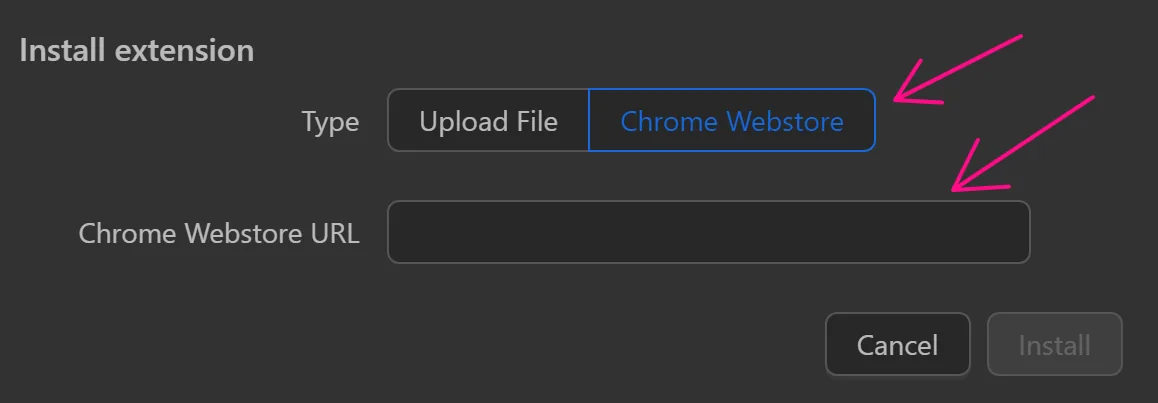
Click Install:
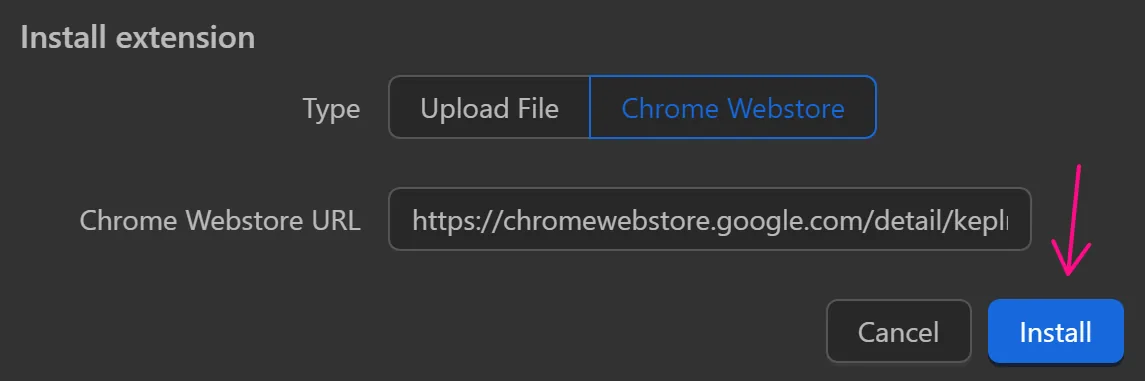
The extension is now installed:
Uninstall Extension
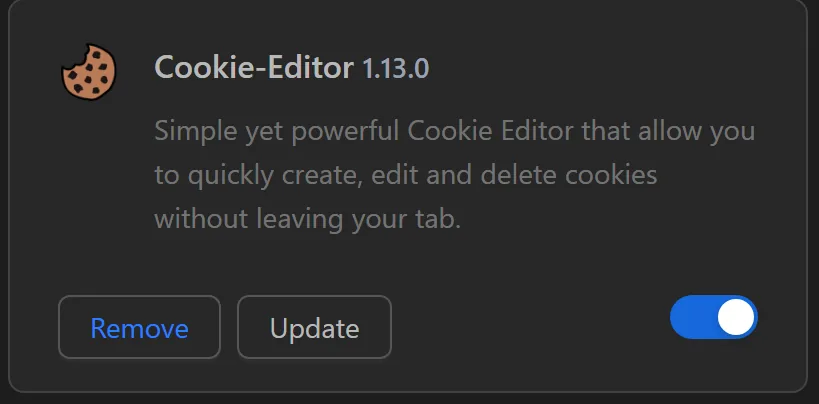
To uninstall, click the Remove button for that extension:
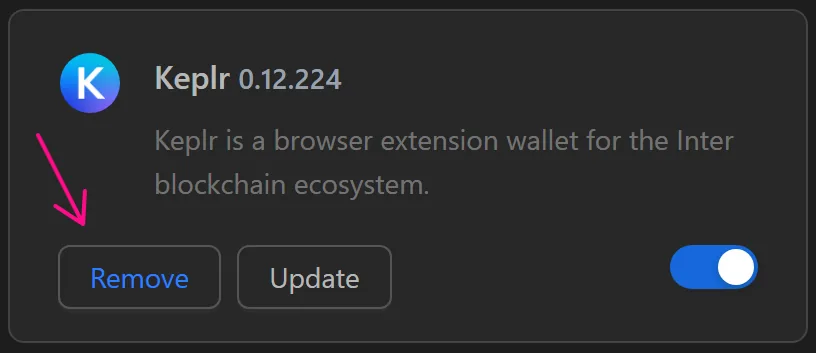
Close all profiles before uninstalling to avoid errors.
Update Extension
To update an extension, click the Update button for that extension:
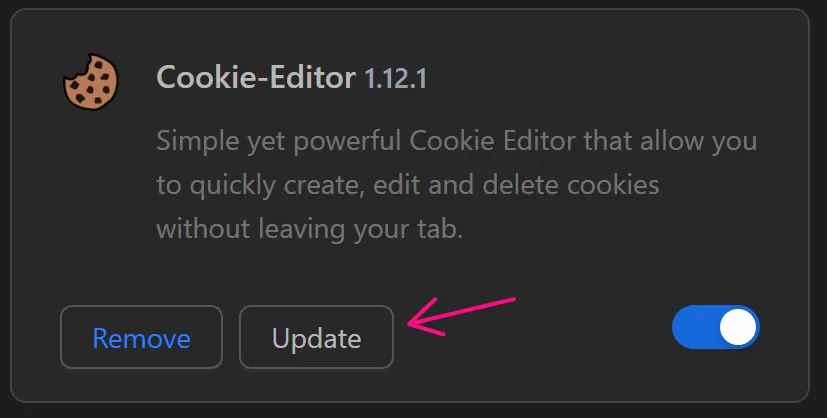
Depending on how the extension was originally loaded, repeat the Load Extension process to download the new version, then upload it here and click Update:
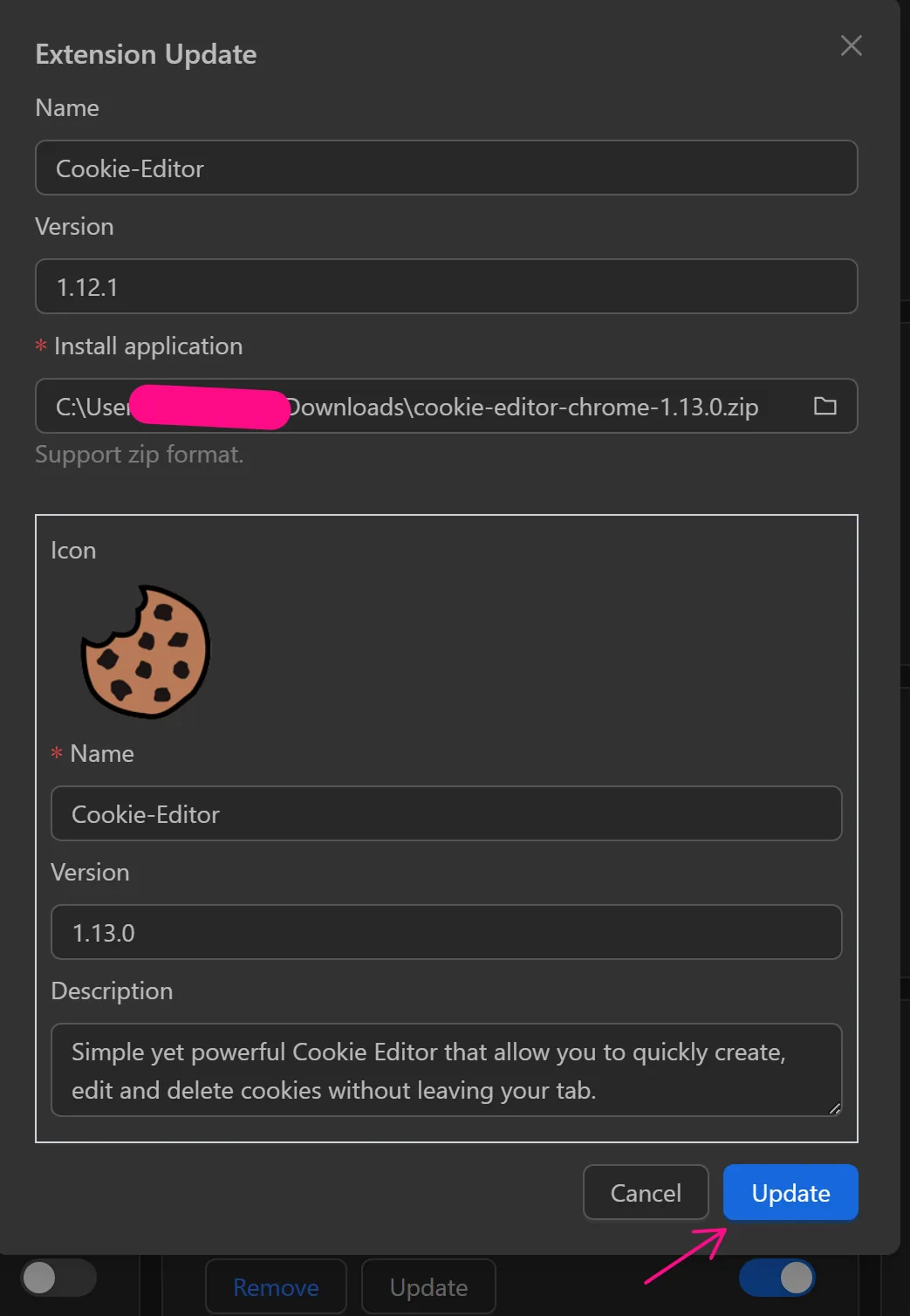
The extension is now updated:
Note
- Data for extensions here is not secure; avoid installing critical extensions like wallets or 2FA.
- Extensions installed here are not backed up during data backups.
- For critical extensions, install directly in profiles via the Chrome Web Store and use the sync feature for faster multi-profile installation.