
Bulk Import MetaMask Wallets in Omnilogin
This tool automates importing multiple MetaMask wallets into browser profiles using seed phrases from an Excel file. It controls the official MetaMask extension directly, and all data stays local. For creating new wallets, see Create MetaMask Wallet.
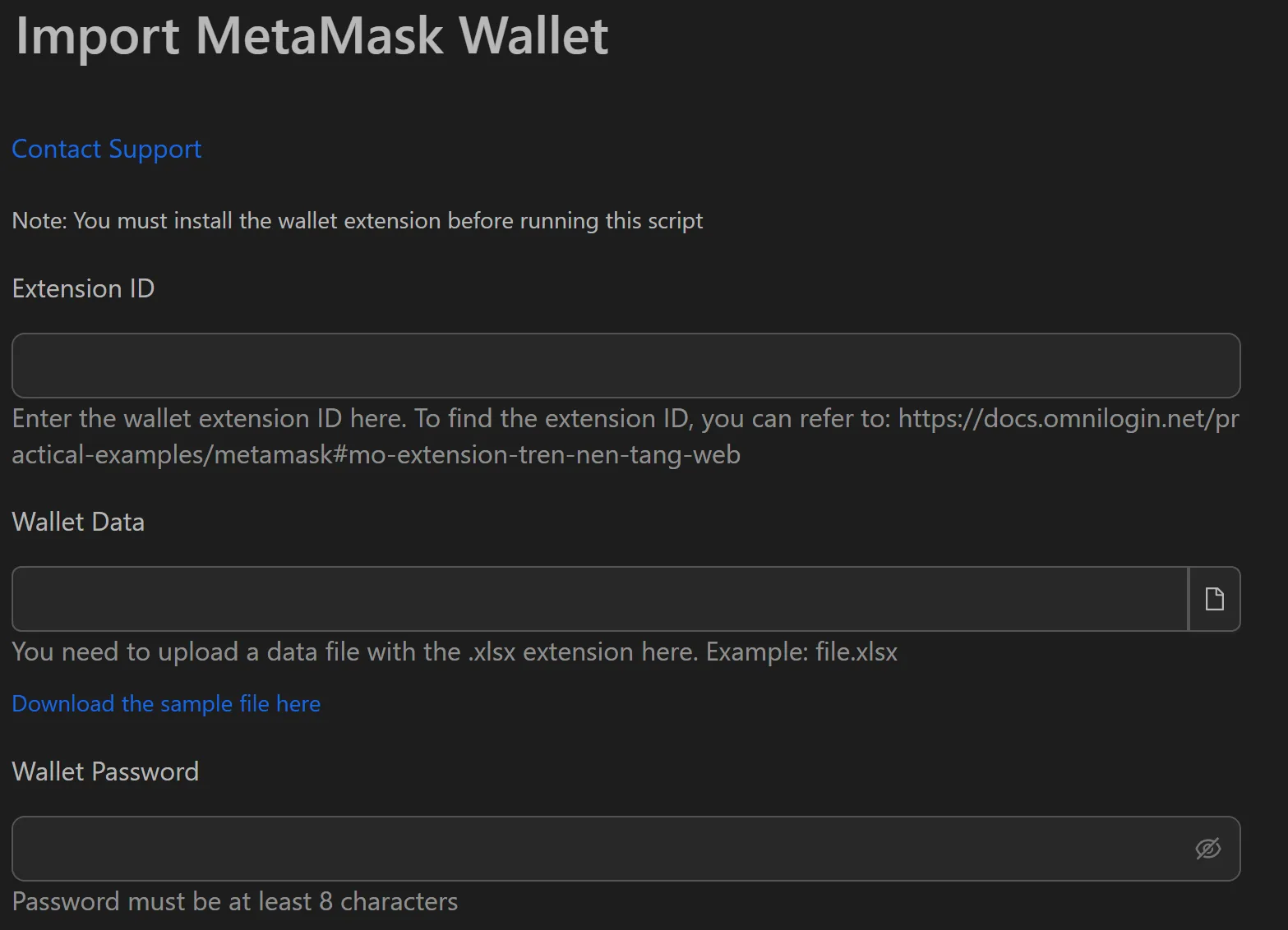
How to Import MetaMask Wallets in Bulk
- Install MetaMask extension from the Chrome Web Store in each target profile.
- Prepare an
.xlsxfile with columns for wallet name, seed phrase, and notes. - Open the MetaMask import workflow in Omnilogin.
- Enter the MetaMask Extension ID from your browser.
- Provide the path to the
.xlsxfile. - Set a single Wallet Password (applied to all wallets in this session).
- Click Run to start the import.
Features
- Excel-based input -- organized columns for wallet name, seed phrase, and notes for managing thousands of wallets
- Direct extension control -- automates the official MetaMask UI via Extension ID
- 100% local processing -- seed phrases never leave your computer or touch any remote server
- Single password setup -- one password for all wallets per session
- EVM-compatible -- works with Ethereum, BNB Chain, Polygon, Arbitrum, Optimism, and all EVM networks
Use Cases
- Token distribution events -- import hundreds of wallets for Layer-2 retroactive campaigns in minutes
- Portfolio restoration -- rebuild a multi-wallet DeFi portfolio on a new machine quickly
- DApp testing -- set up 100+ wallets in a testnet environment for QA and load testing
Security Notes
- The tool reads a local
.xlsxfile and enters data into the locally installed MetaMask extension. No data is transmitted over the network. - Follow the principle: not your keys, not your coins -- keep your seed file encrypted and stored securely.
Related: Import Keplr | Import Phantom | Import OKX