Run Command Block
The Run Command block executes system commands (CMD on Windows, Terminal on macOS/Linux) on the computer where Omnilogin is installed. Enter any command and Omnilogin will execute it and return the result. This is useful for tasks like checking disk space, listing files, testing internet connectivity, restarting services, or running executable files.
Command to Run
The command to execute a file on your machine.
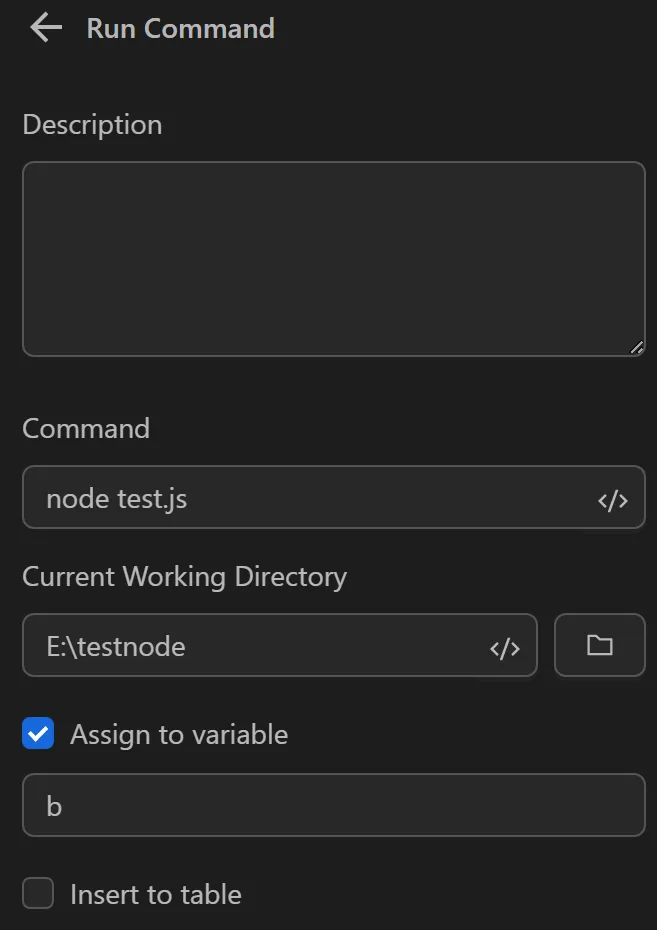
Current Working Directory
The folder containing the file to run in this node.
Assign to Variable
Assign the result of the command execution to a variable.
- Variable Name: Enter the name of the variable to store the text. This is optional when selecting "Assign to variable."

Insert into Table
Assign the command output to a column in a table.
- Select Column: The column where the text from the file execution will be inserted. This is optional when selecting "Insert into table."
Real-world Example
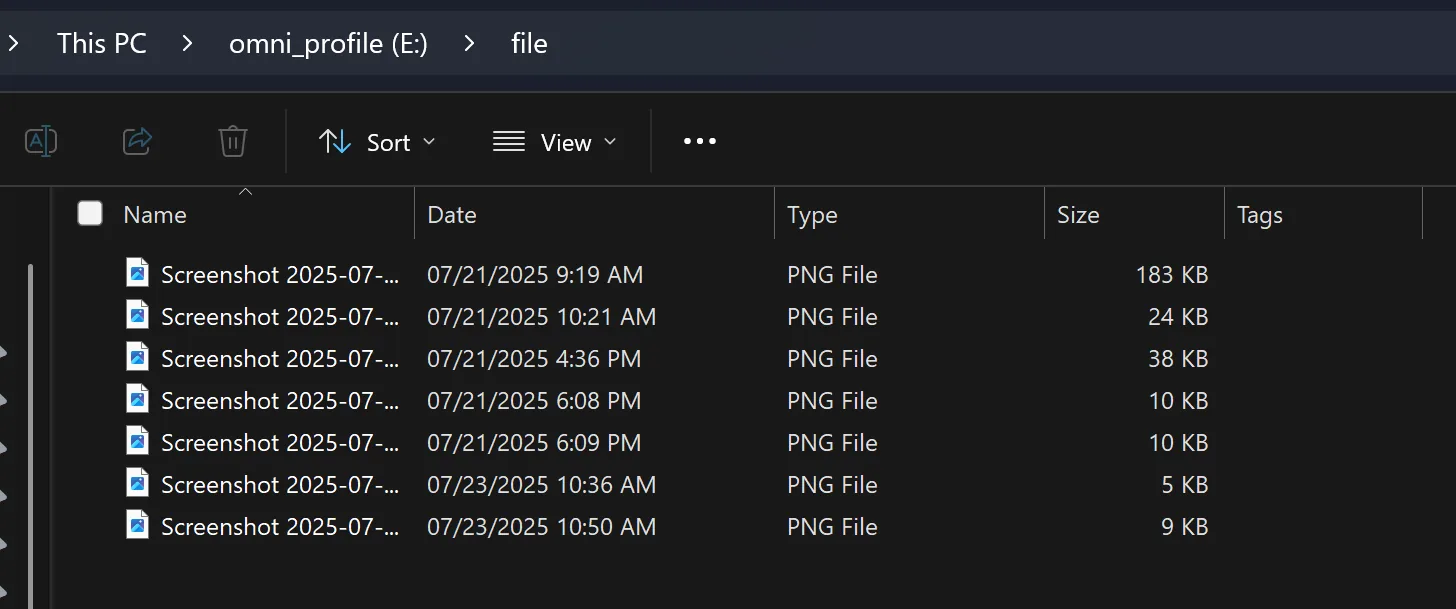
For example, to retrieve a list of file paths in a folder for a file upload workflow, configure the node as follows:
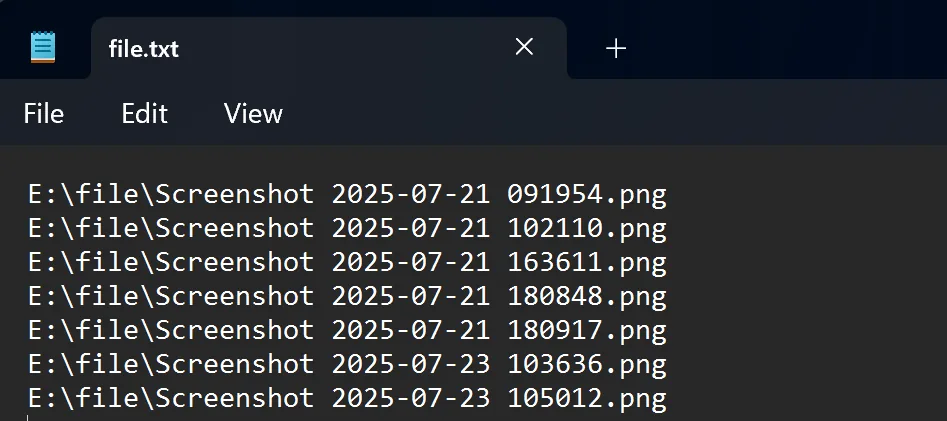
Obtain the path to the folder containing the image list, then prepare a text file (create it beforehand or let the command create it).
Configure the Run Command node with the following command
The command dir E:\file" /b /s /a-d > "E:\file.txt means the following:
dir: Lists files."E:\file": The directory to list files from./b: Displays file names only (bare format)./s: Includes the full path./a-d: Lists files only, excluding directories.>: Redirects output to a file."E:\file.txt": The output file; if it doesn't exist, it will be created with the file list.
The file.txt will contain the file paths as shown below