Send Message Block
The Send Message block sends automated messages to external platforms (such as Telegram) via their APIs. Use it to receive workflow notifications, alerts, or export data in real time.
Type
Telegram
Currently, you can only send messages to groups in the Telegram application.
Bot Token
The token of the bot, you created. After creating the bot, you can retrieve this value.
Chat ID
The group ID or channel username.
Formatting Options (Parse Mode)
Various text formatting styles are available. You can refer to their usage here: https://core.telegram.org/bots/api#formatting-options.
Send message silently
If you don't want notifications to appear when sending messages to the group, you enable this option.
Content
Enter the content you want to send via the bot. When run, the bot sends the message to the specified group.
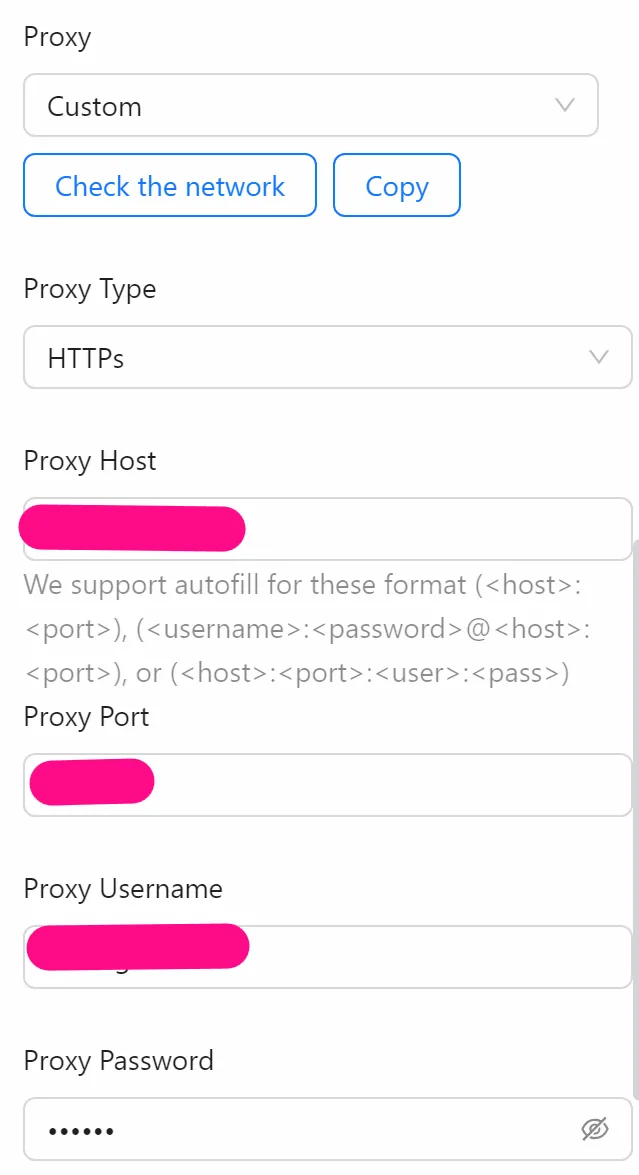
Proxy
Select proxy to be able to send messages via proxy to the tele group. Note: Currently, only proxies other than Vietnamese proxies can be used with this node.
Practical Example
You want to create a bot to send a message containing a link to a Telegram group after opening it.
First, you prepare a data file as shown:

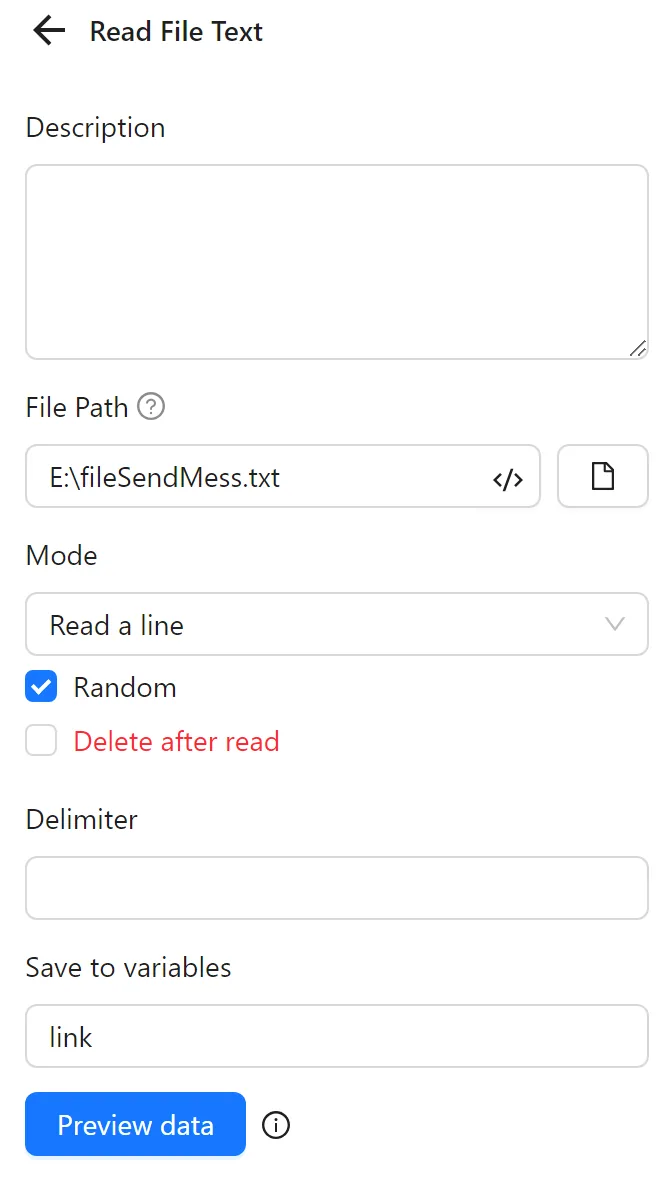
Then, you configure the Read File Text node to retrieve a random link and assign it to the link variable:
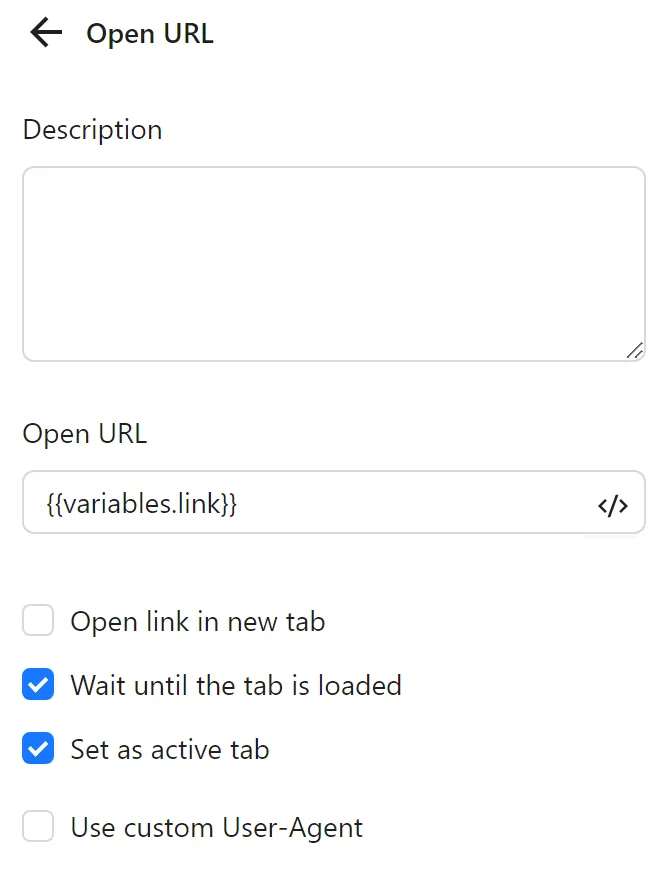
Next, you use the Open URL node to open the link stored in the link variable:
Before configuring the Send Message node, you need to create a bot. To do this, you click the documentation link under the Bot Token field or visit https://core.telegram.org/bots/features#botfather. This opens a page where you click the @BotFather bot and select to open it on the web or directly access https://web.telegram.org/k/#@BotFather:

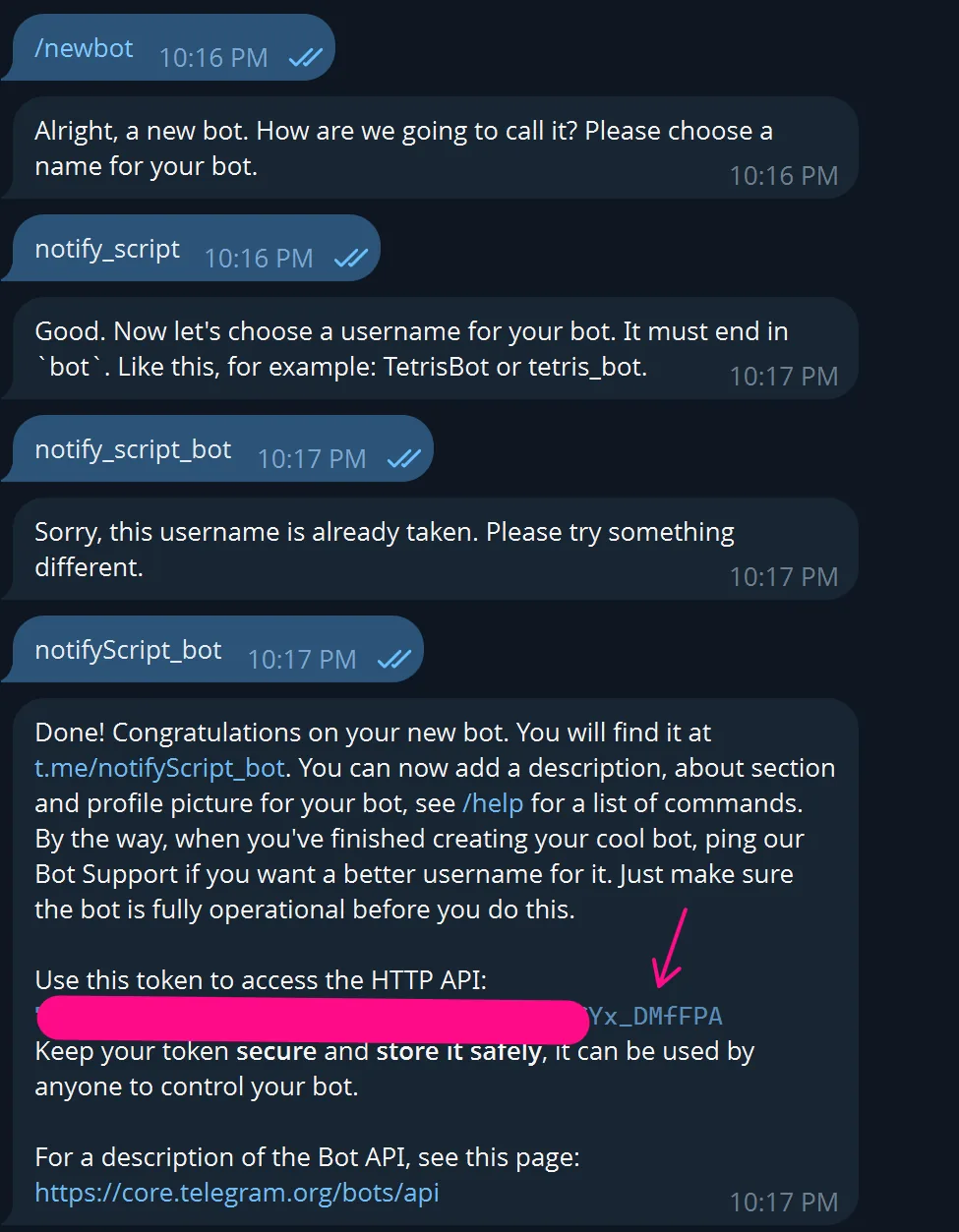
Next, you start the bot and use the /newbot command to create a bot. You provide a name, e.g., notify_script, and a username, e.g., notifyScript_bot:
After completion, you receive the bot token and enter it into the Bot Token field:
Before retrieving the Chat ID, you add the bot to the group by entering its username and selecting it:
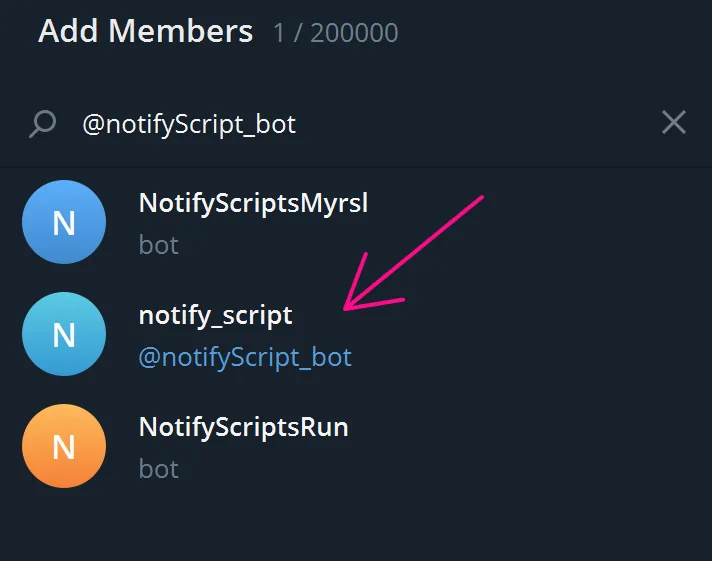
Then, you use the command @BotUserName /start, e.g., @notifyScript_bot /start.
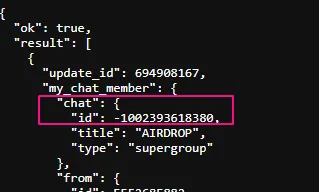
To retrieve the Chat ID, you call the API at https://api.telegram.org/bot<token>/getUpdates, replacing <token> with the bot token, you just obtained.
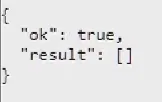
If the response looks like this, you remove the bot from the group, re-add it, and repeat from the @BotUserName /start step:
If the response contains data like this, you take the value of the id key in the my_chat_member object:
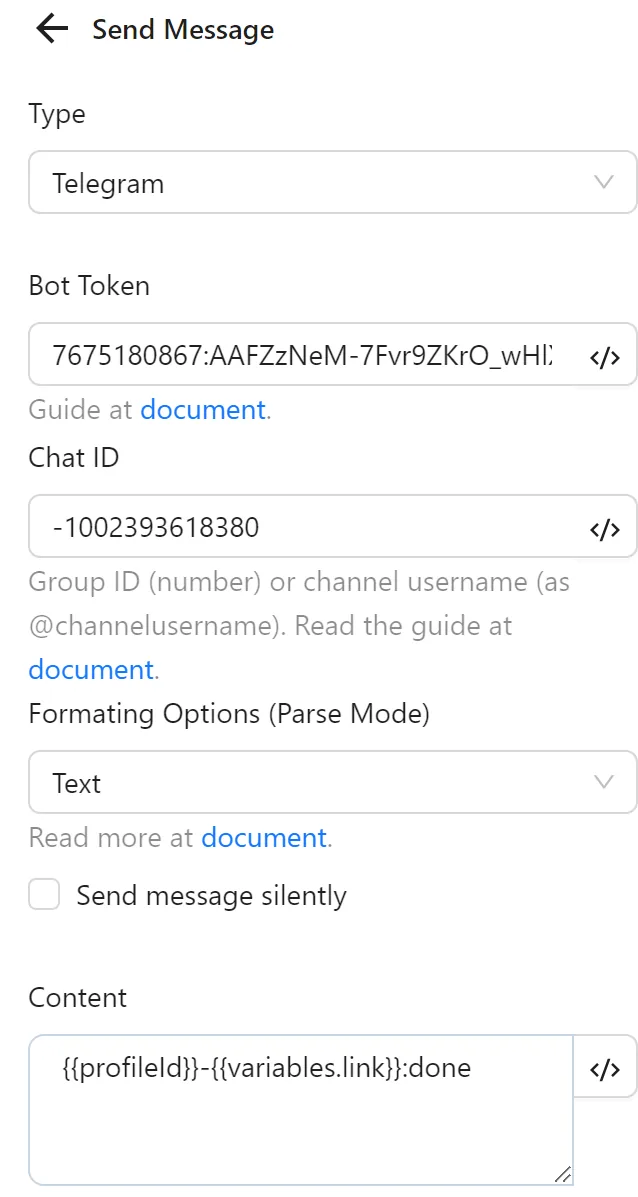
Next, you select Send Message Without Notification to avoid multiple notifications. Finally, you set the content to {{profileId}}-{{variables.link}}:done for the bot to send. The node configuration looks like this:
The node cluster will look like this:
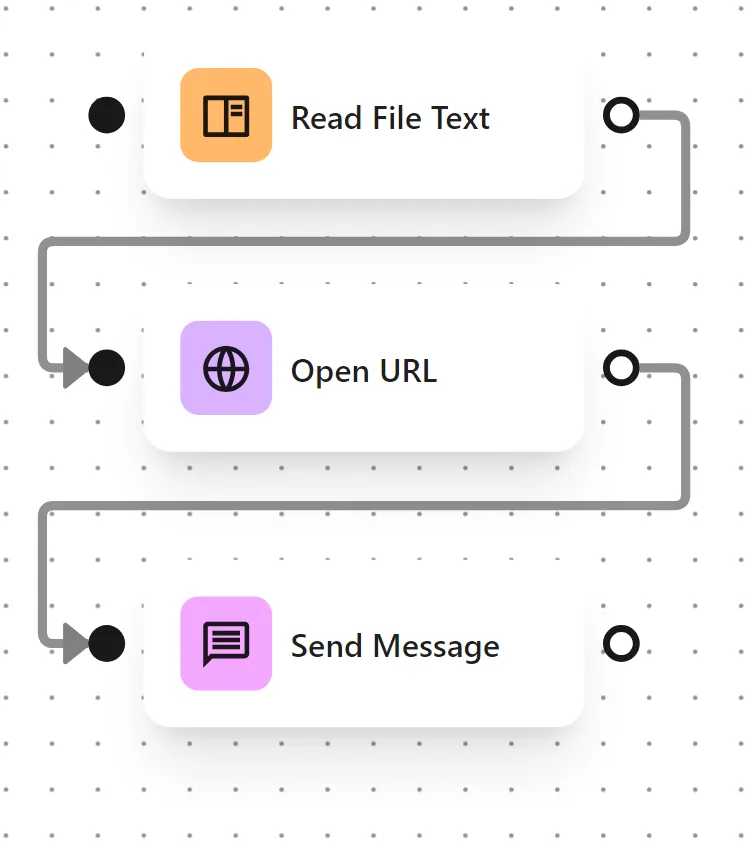
When executed, the workflow performs the steps: retrieve link -> open link -> send message containing the link:
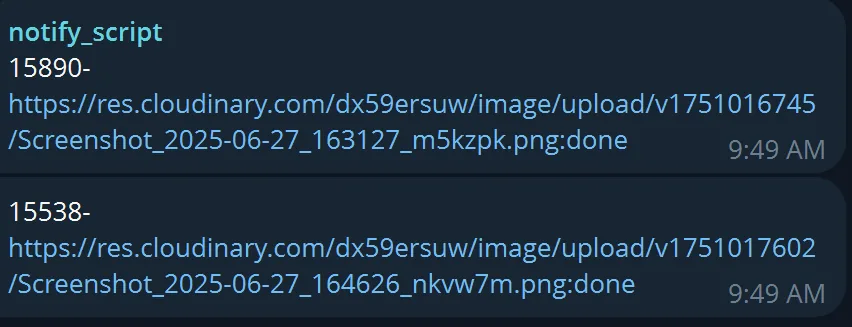
The bot sends the message as follows: