
Active Tab Block
The Active Tab block sets the currently displayed browser tab as the active tab. This is useful after operations that change tab focus - such as closing a tab, opening a new one, or handling pop-ups - to ensure subsequent actions target the correct tab.
When to Use Active Tab
Use this block whenever your workflow performs an action that might shift the browser's active tab. Without it, the next block in your workflow could interact with the wrong tab.
Example: Close a Tab and Continue on the Next One
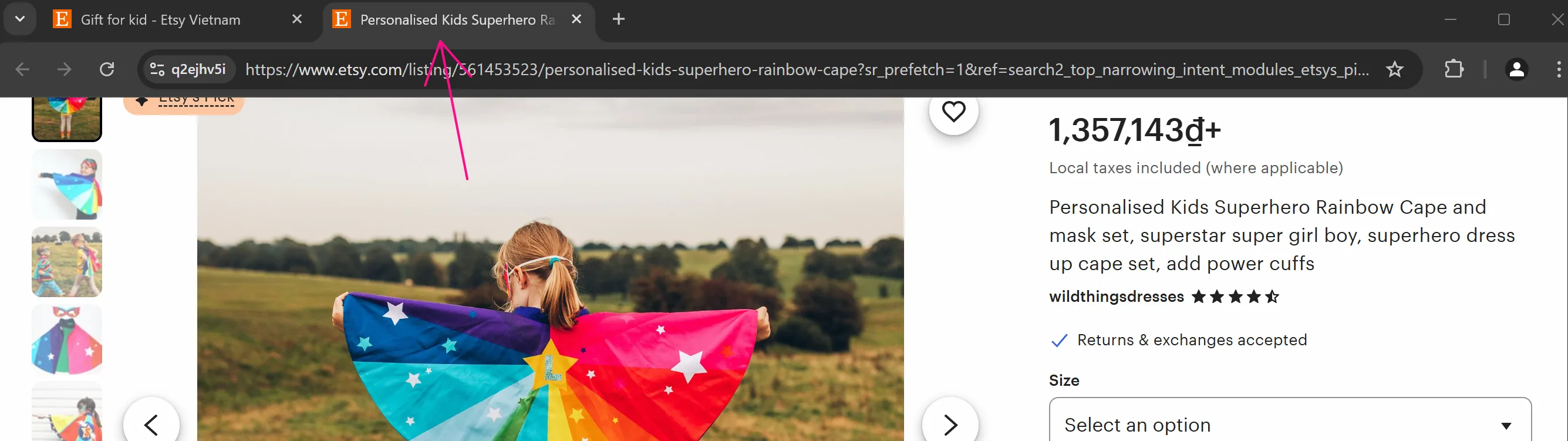
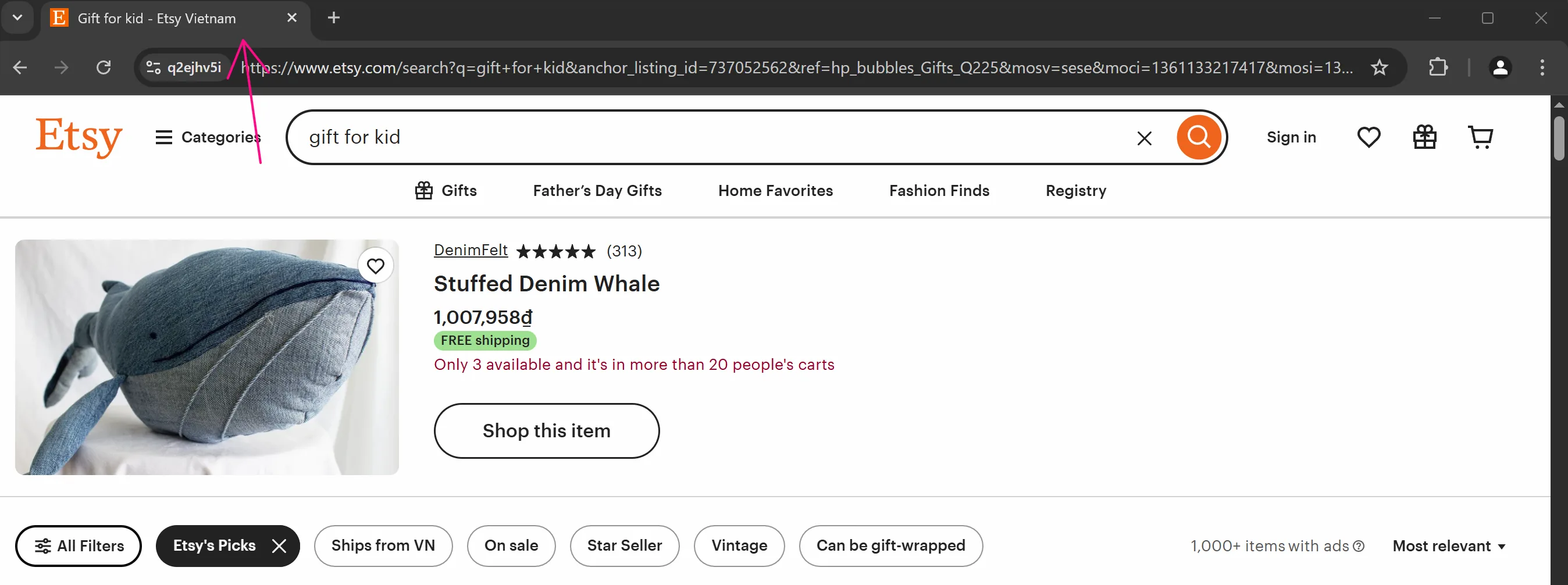
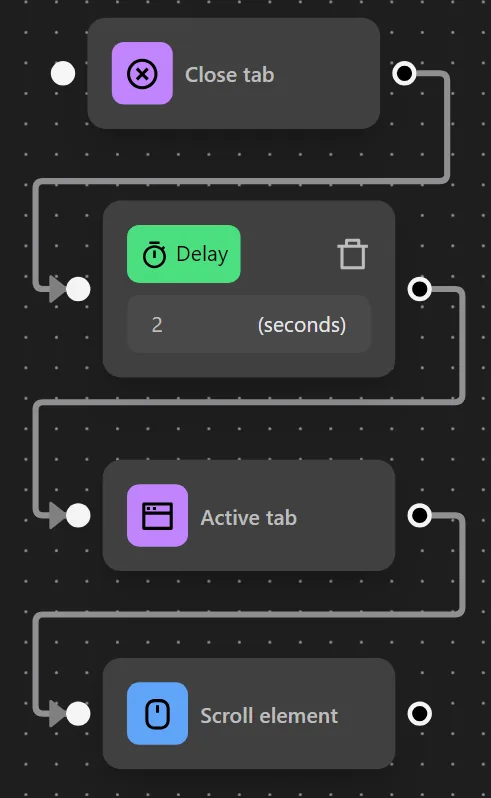
In this example, the workflow closes the active tab, marks the nearest remaining tab as active, and then scrolls on it.
Step-by-Step Configuration
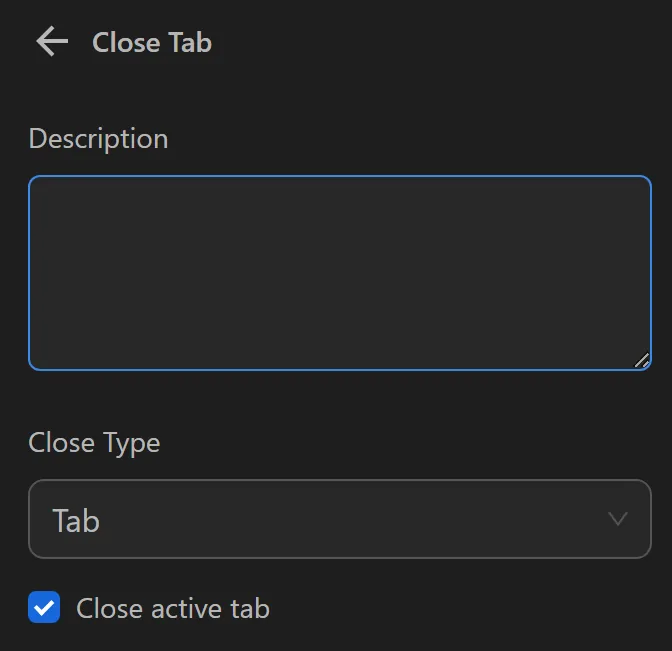
- Configure the
Close Tabnode to close the current tab.
Add a
Delaynode and set it to pause for 2 seconds.Add the
Active Tabnode to mark the currently displayed page as active.Configure the
Scroll elementnode to scroll on the newly active tab.
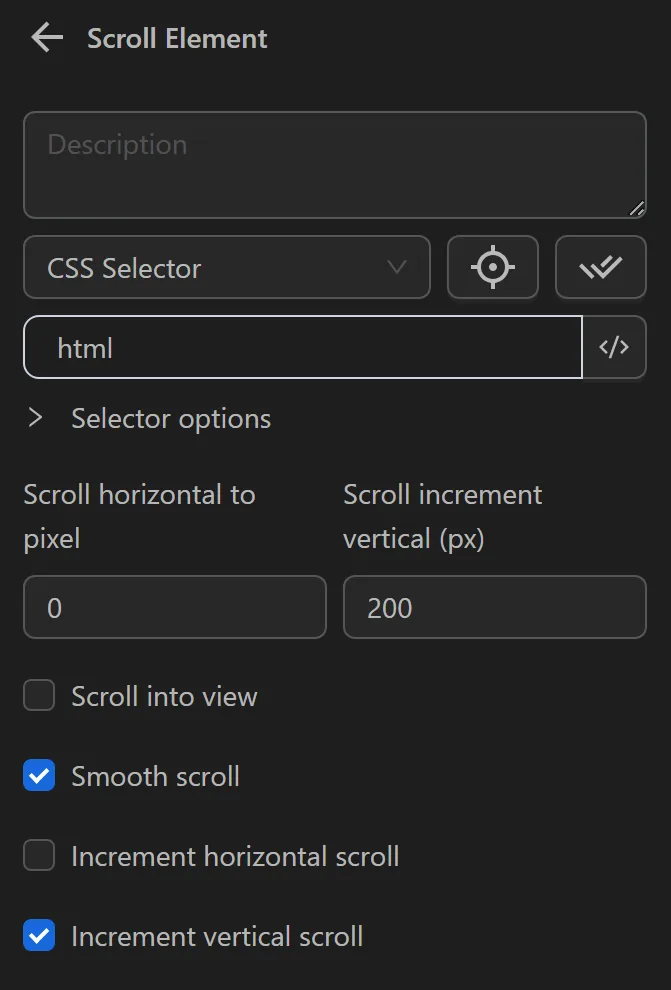
The completed workflow looks like this:
Result
When you run the workflow, it performs the following sequence:
Tips
- Always place an Active Tab block after a
Close TaborNew Tabblock to avoid targeting the wrong page. - If your workflow opens pop-up windows, use Active Tab to return focus to the main window afterward.