
Bulk Import Keplr Wallets in Omnilogin
This tool automates importing multiple Keplr wallets into browser profiles using seed phrases from an Excel file. All data stays on your machine -- seed phrases are never sent to any server. For creating new wallets instead, see Create Keplr Wallet.
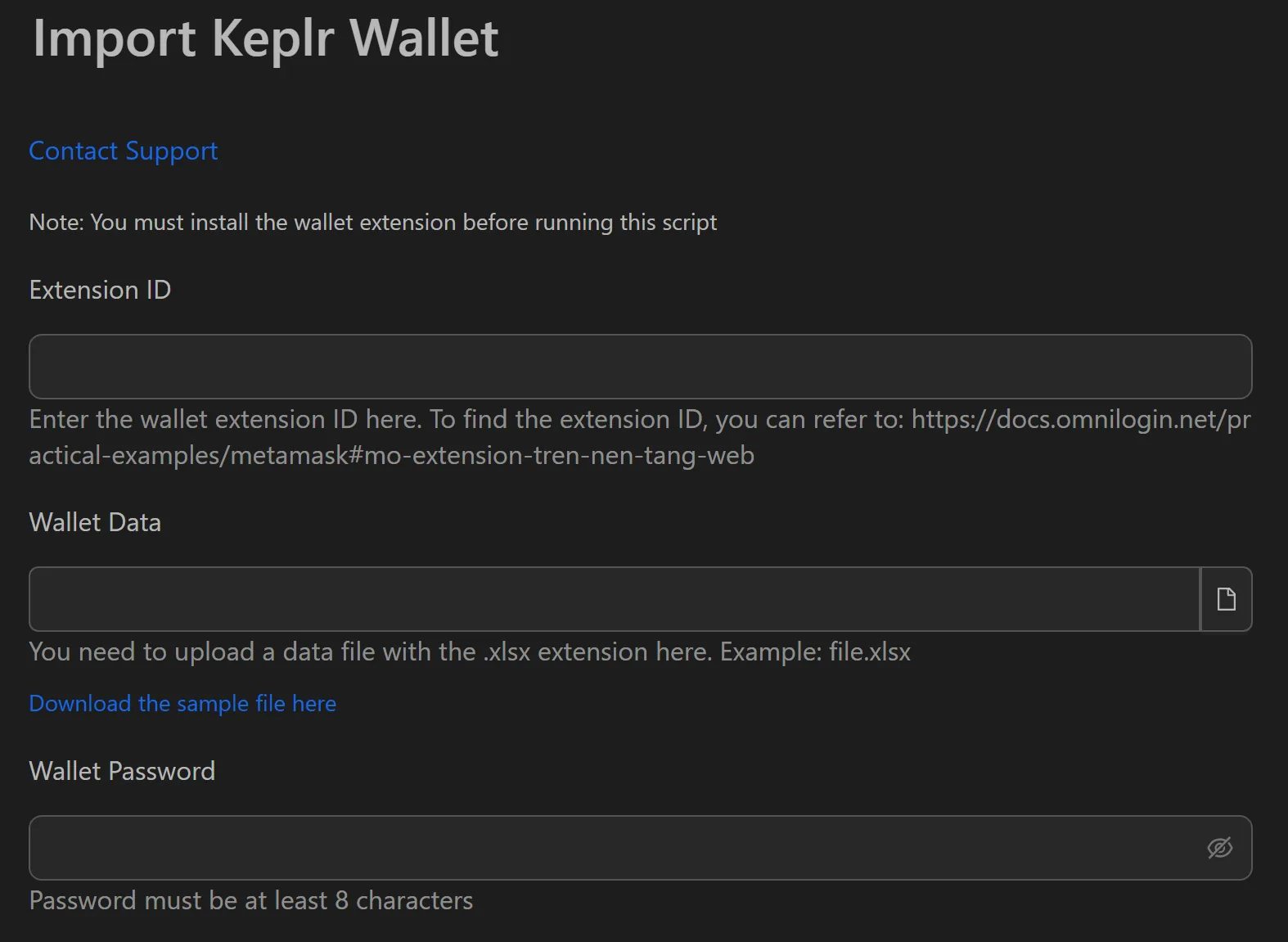
How to Import Keplr Wallets in Bulk
- Install Keplr extension in each target browser profile.
- Prepare an
.xlsxfile with columns for wallet name, seed phrase, and any notes. - Open the Keplr import workflow in Omnilogin.
- Enter the Keplr Extension ID from your browser.
- Provide the path to the
.xlsxfile. - Set a single Wallet Password (applied to all wallets in this session).
- Click Run to start the automated import.
Features
- Excel-based input -- structured columns for wallet name, seed phrase, and notes minimize copy-paste errors
- Direct extension control -- interacts with the official Keplr UI via Extension ID, ensuring compatibility
- 100% local processing -- seed phrases never leave your computer
- Single password setup -- one password covers all wallets per session for faster imports
- Status logging -- tracks Completed/Error status for each wallet
Use Cases
- Airdrop claiming -- import hundreds of wallets at once to claim rewards across Cosmos ecosystem projects
- Testnet participation -- quickly set up wallet arrays for DApp testing and validator simulations
- Portfolio restoration -- recover all staking wallets on a new machine in minutes instead of hours
Security Notes
- Your seed phrases are read from a local file and entered into a local extension. No network transmission occurs.
- Store your
.xlsxfile securely and delete it after import if not needed.
Related: Import MetaMask | Import Phantom for other wallet ecosystems.