
Install Chrome Extensions in Bulk
Automatically install Chrome Web Store extensions across hundreds of browser profiles in Omnilogin. The tool handles the full installation flow - opening the store page, clicking install, confirming permissions, and verifying success - with no manual steps.
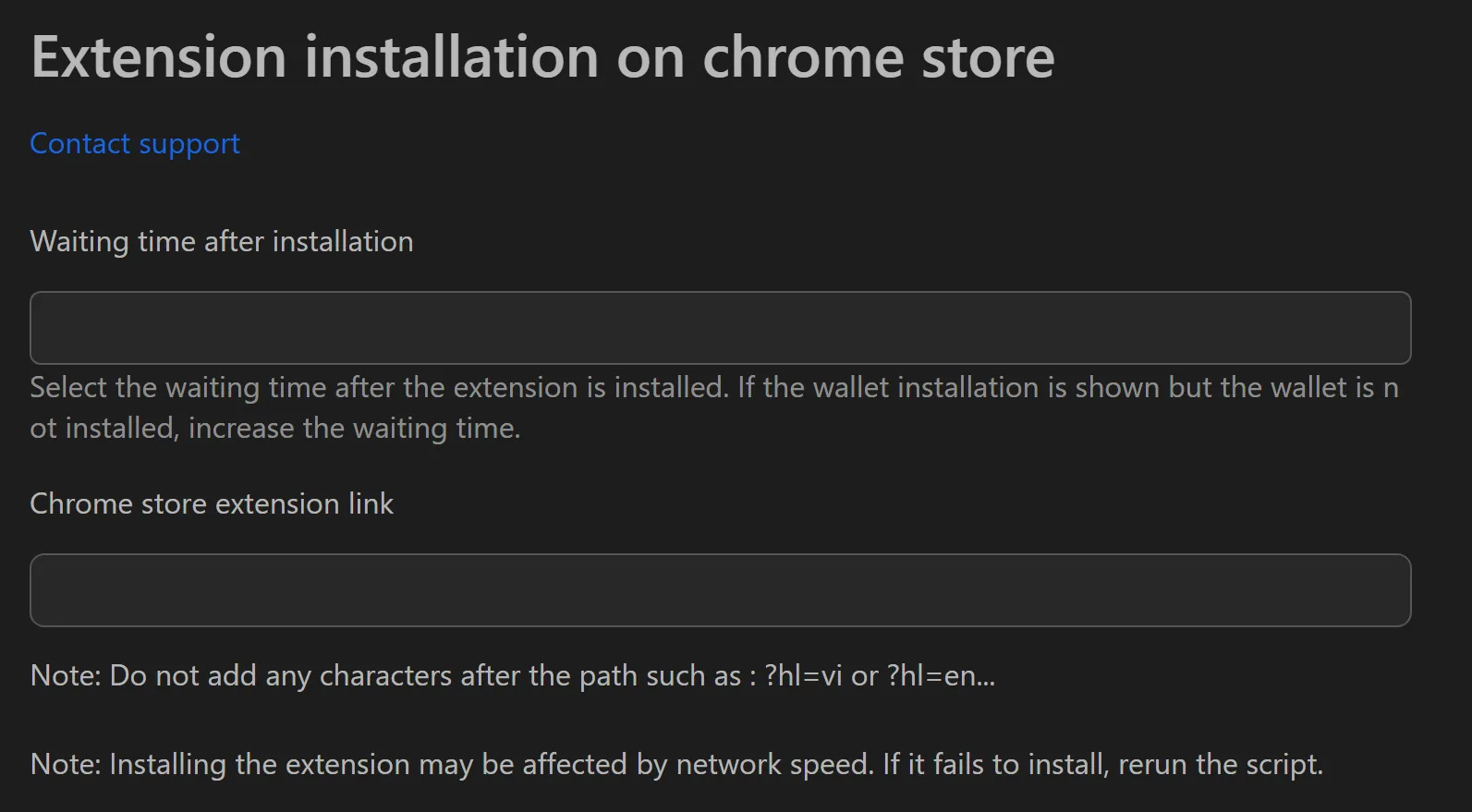
How to Install Extensions
- Copy the extension's Chrome Web Store URL.
- Paste it into the tool's input field.
- Set the Number of concurrent profiles (e.g., 10 for parallel installation).
- Click Start.
- Check status messages:
Installation successfulorError loading link, try again.
Key Features
- End-to-end automation - Opens the store page, clicks "Add to Chrome," confirms permissions, and verifies toolbar presence.
- Multi-threading - Install on 10+ profiles simultaneously, completing 100 profiles in under an hour.
- Status reporting - Clear success/error messages for each profile.
Practical Use Cases
- DeFi setup - Install MetaMask, Rabby, Tonkeeper, and captcha solvers across all profiles in one session.
- Team standardization - Deploy a consistent extension set (proxy manager, translation tools) to all team member profiles.
- Security utilities - Bulk-install ad blockers and anti-tracking extensions to improve profile fingerprint quality.
Note: To remove extensions later, use the uninstall extension tool. For wallet-specific setup, see guides like creating MetaMask wallets or importing Rabby wallets.