
Upload File Block
The Upload File block uploads a file to a web page element. You can specify the file by local path, URL, or Base64-encoded data.
Element Selector
Select the element and input using the element selector.
Selector Options
Choose the desired options.
Add File Path
You can choose to upload a file in the following formats:
URL
The link to the file on a website.
For example:
https://example.com/files/document.pdfhttps://example.com/words.txt
File path
The path to the file on your computer.
For example:
- Windows:
C:\Users\Public\Documents\testing.docx - MacOS:
/Users/Josh/Desktop/docs.pdf
Base64
The Base64 format of an image.
For example:
data:image/png;Base64,iVBORw0KGgoAAAANSUhEUgAAB4AA...
Practical Example
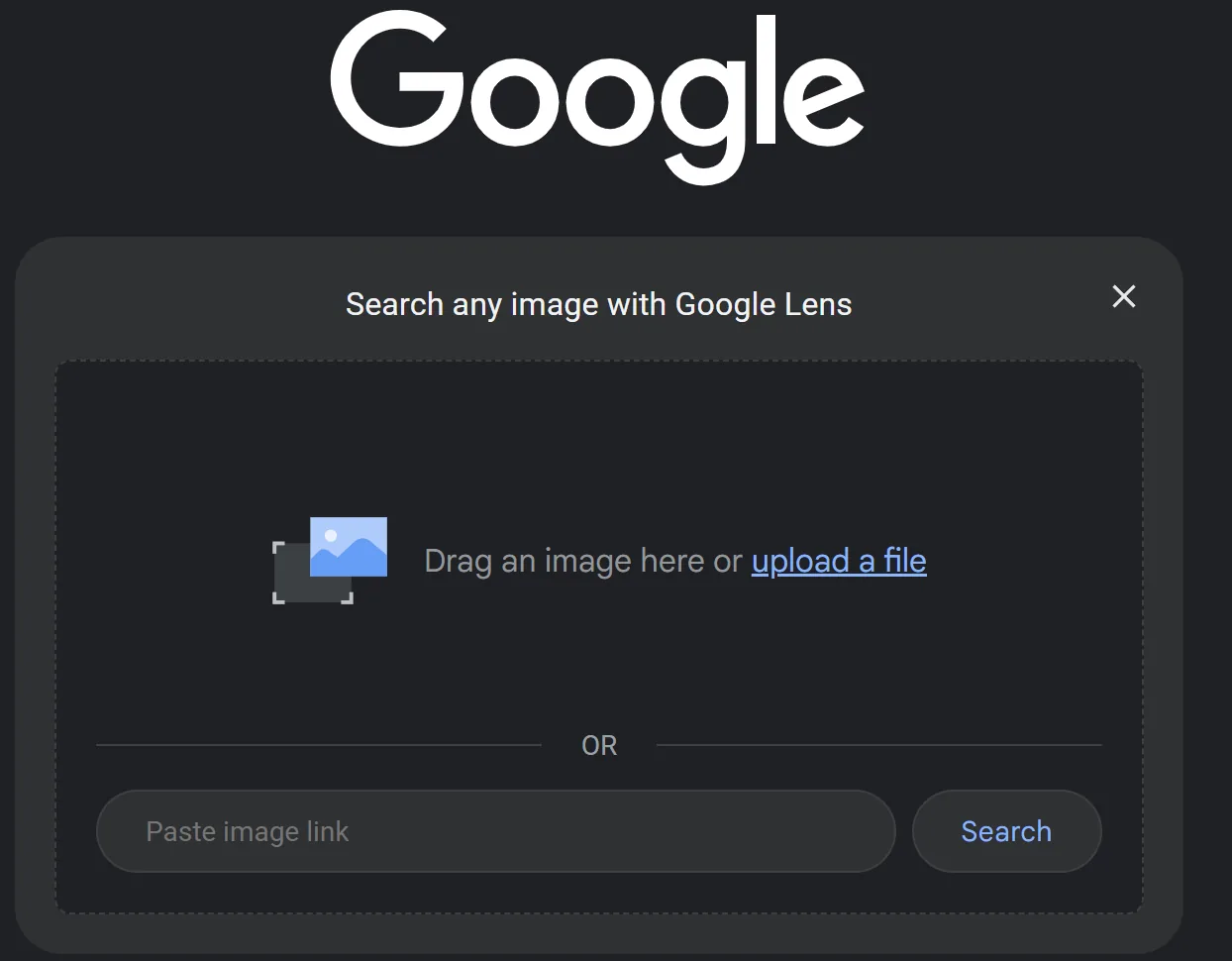
Here you want to upload a random file from a list of files on your computer to a page.
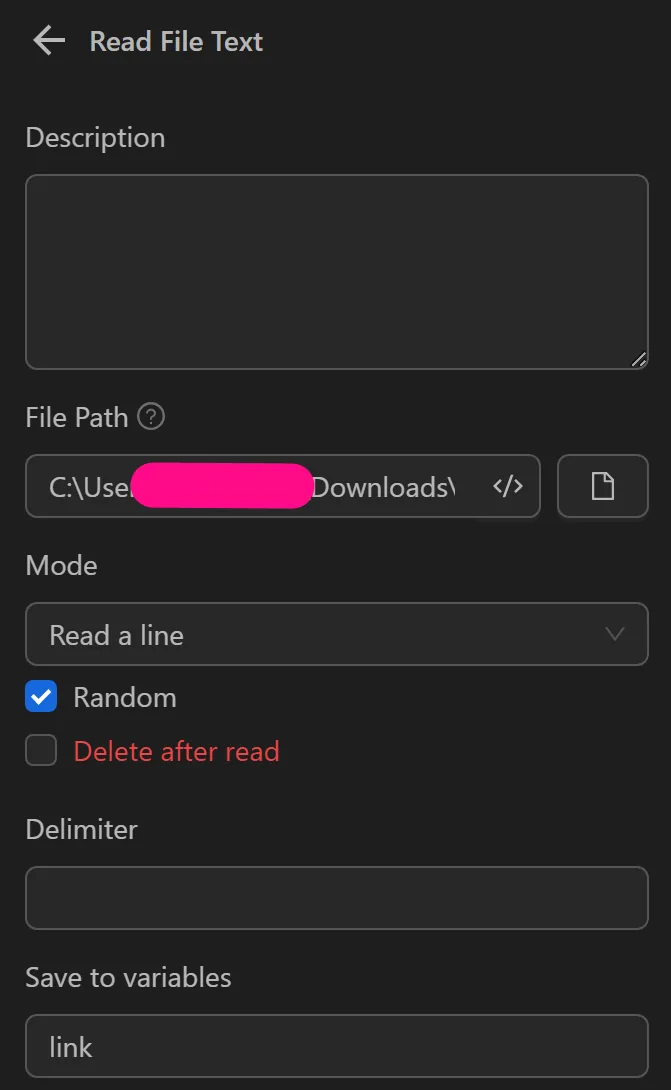
First, you will use the Read File Text node to read a file containing the links to the images you want to upload. You will configure the node as follows to assign the retrieved link to a variable named link.
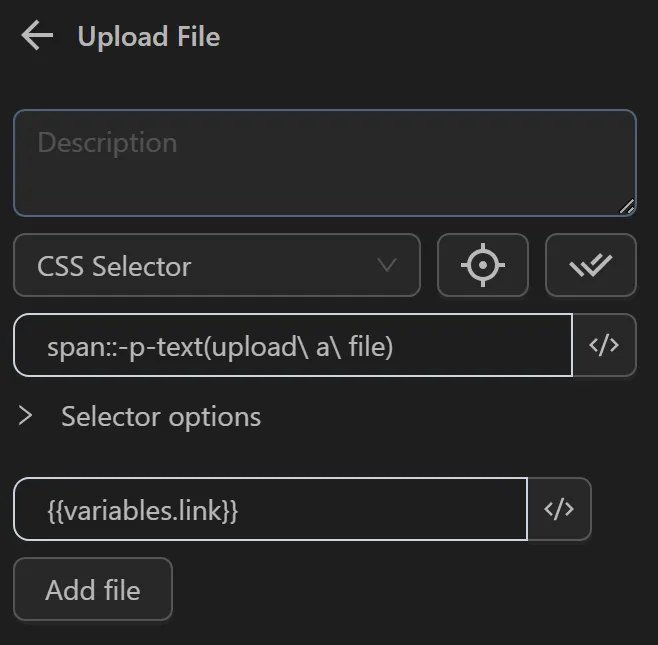
Then, configure the Upload File node as follows to use the link variable containing the image link.
After running the node cluster, you will see that the image has been uploaded.
Note
The file name and the folder containing the file must not contain spaces or accented characters.