
Random Block
The Random block generates random data of various types - such as first name, last name, full name, password, email, and more. Use it to populate forms with realistic test data or create unique identities for each profile.
Language
You can select the language for the data type to be generated:
- English: Data will be generated in English.
- Tiếng Việt: Data will be generated in Vietnamese.
Type
You can choose the data type to generate. There are various data types available for selection.
Test
Display a value based on the Language and Type you selected.
Assign to Variable
Assign the generated text to a Variable.
- Variable Name: Enter the name of the variable to assign the text to. This field is optional when you select
Assign to Variable.
Insert into Table
Select a column in a Table to assign the text to that column.
- Select Column: The column where the text will be inserted. This field is optional when you select
Insert into Table.
Practical Example
In a Yahoo account registration scenario, you want to randomly generate two values: First name and Last name in the English language.

You configure the first Random node as follows: First, select Language as English. Then, select Type as Last Name. Finally, assign it to the fName variable .
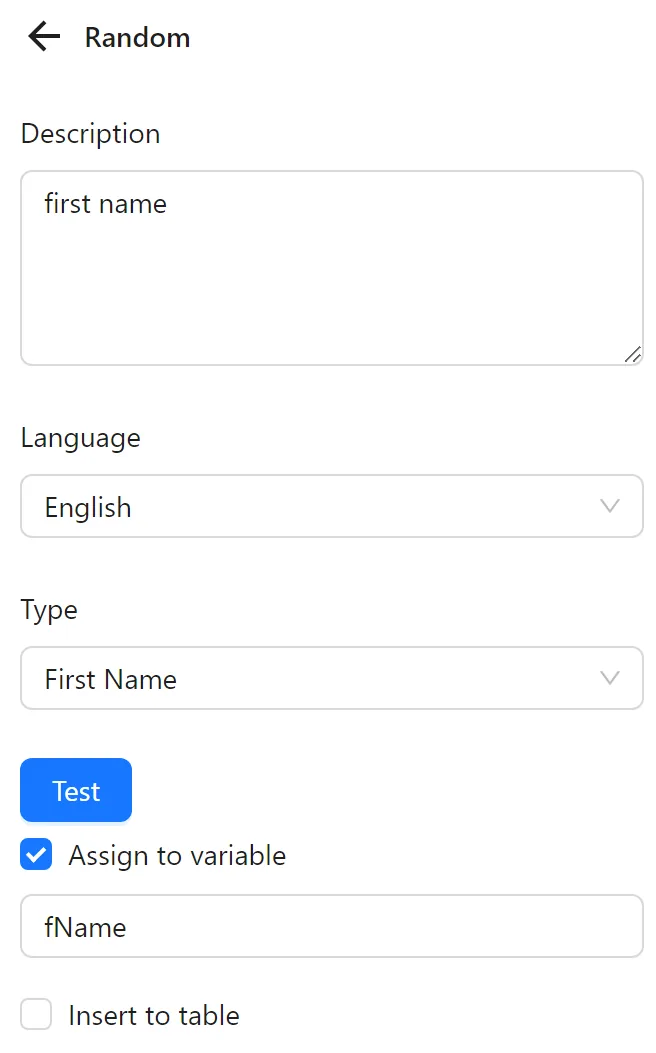
Next, you configure the second Random node as follows: First, select Language as English. Then, select Type as First Name. Finally, assign it to the variable lName.
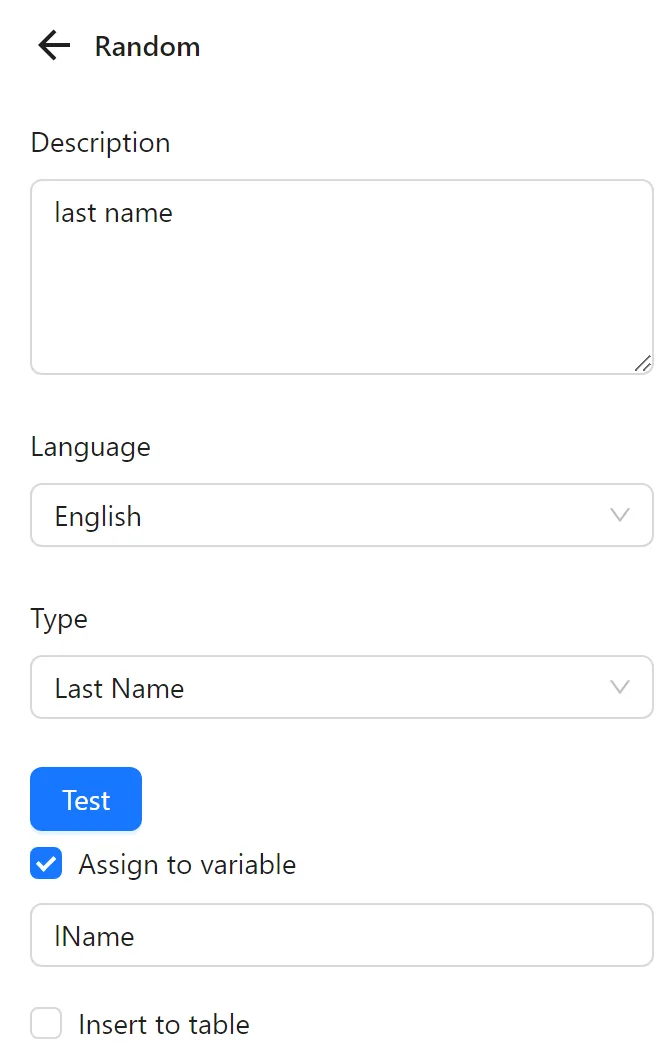
Then, you use two Key Press nodes to input the values of the two variables into the respective fields on the page as follows:
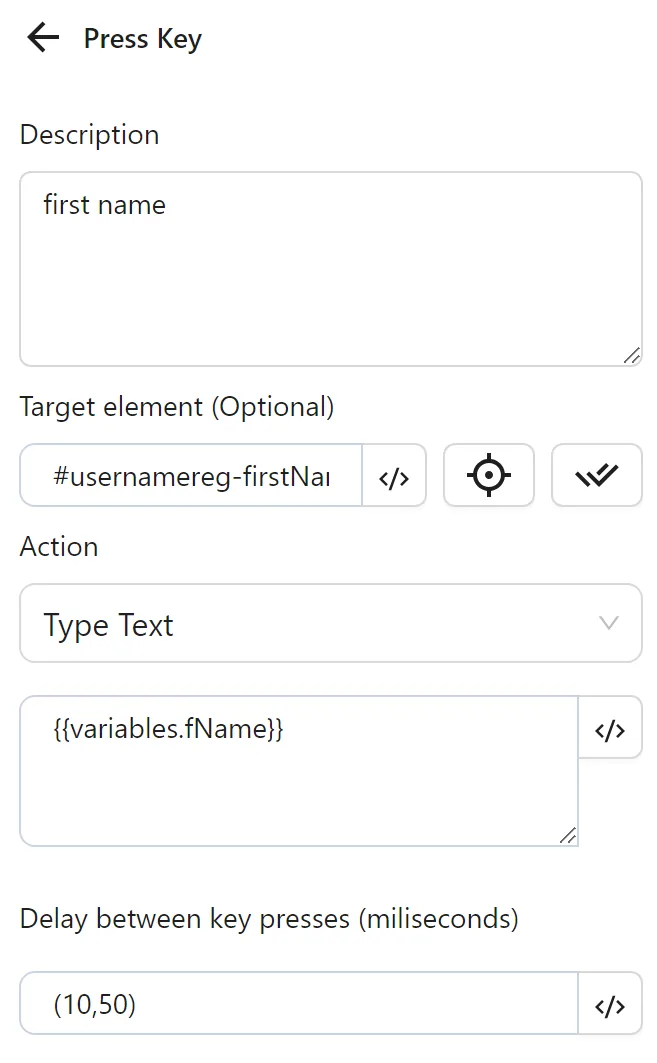
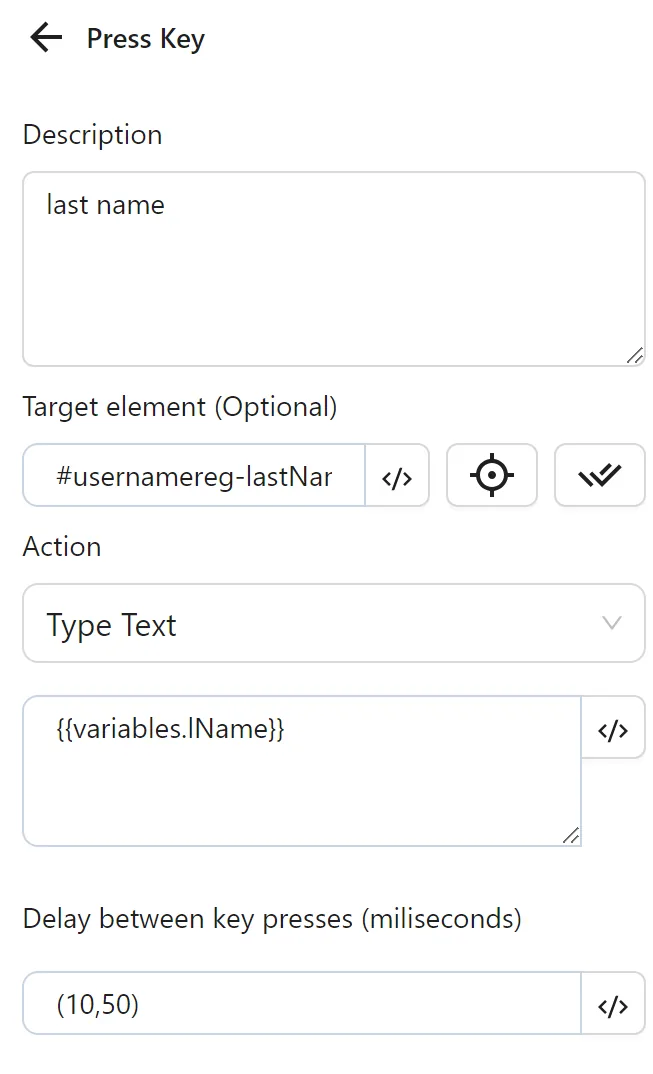
The node cluster will look like this:
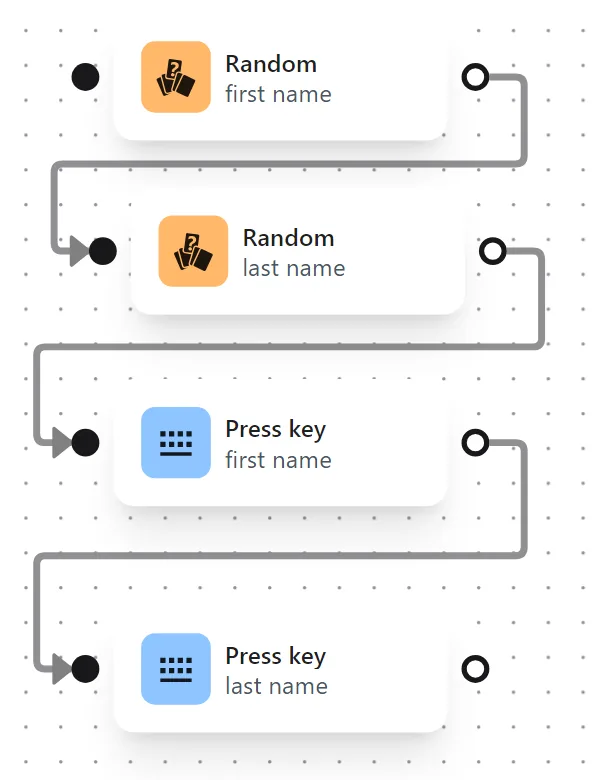
When running the node cluster, the first name and last name values are inserted into the two fields on the page: