
Upload Designs to Merch by Amazon
Automate the entire Merch by Amazon (MBA) upload workflow using a single Excel file. The tool reads your designs, titles, descriptions, keywords, prices, and marketplace settings, then uploads everything automatically.
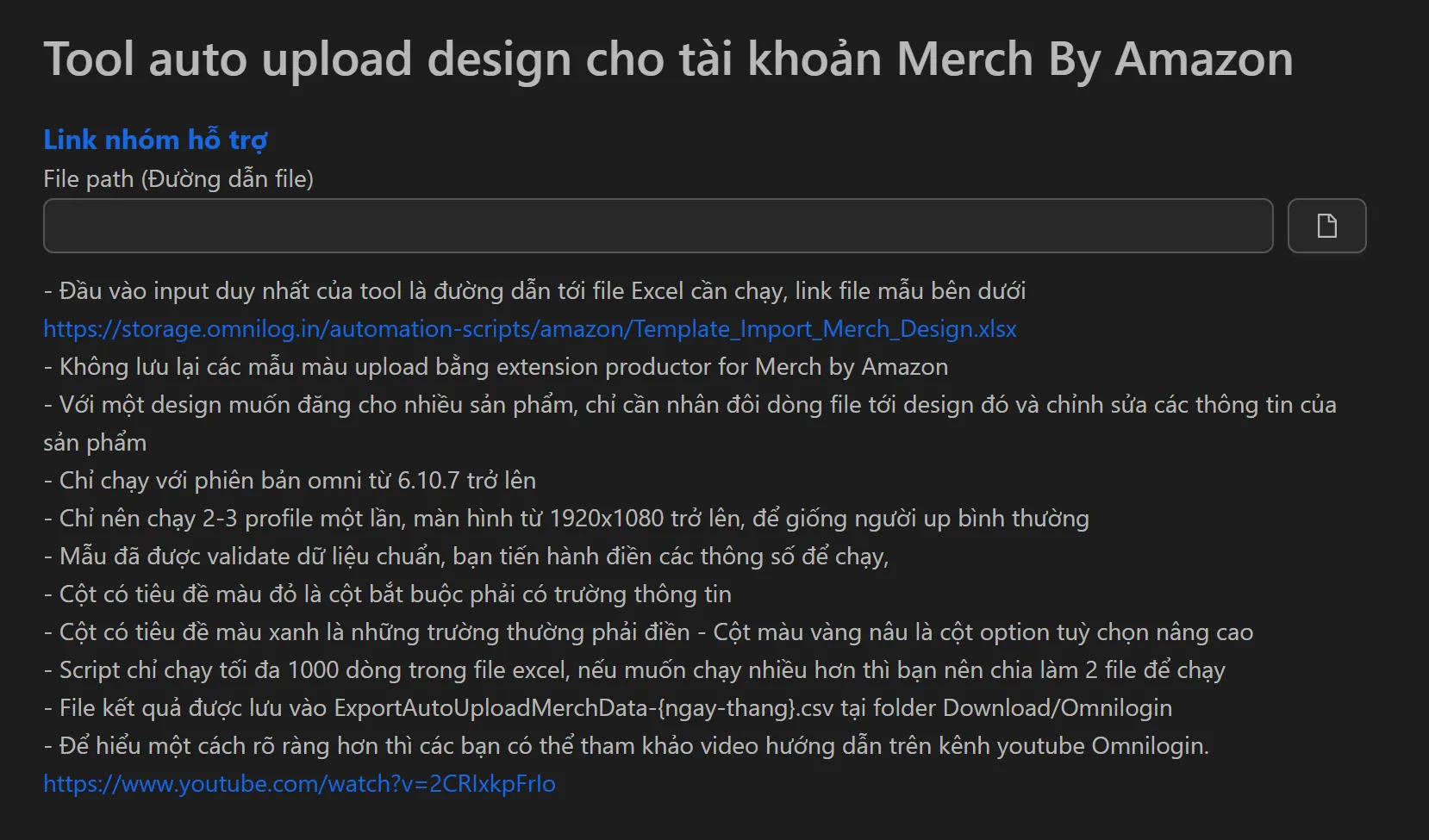
How to Upload Designs
- Download the
template_import_merch_design.xlsxtemplate. - Fill in product data in the corresponding columns:
- Red columns — Mandatory (design file path, product title).
- Green columns — Standard options (description, bullet points, keywords).
- Yellow columns — Advanced options (marketplace-specific pricing).
- Save the Excel file.
- Open the tool, click the folder icon, and select your Excel file.
- Click Start. Monitor progress and check the exported report file.
Key Features
- Excel-driven workflow — All product data controlled from one spreadsheet using the provided template.
- Color-coded columns — Red (required), green (standard), yellow (advanced) for easy data entry.
- Multi-product listing — Duplicate rows to list one design across t-shirts, hoodies, phone cases, etc.
- Up to 1,000 rows per file — Split larger batches into multiple files.
- Auto-generated reports — Creates
exportautouploadmerchdata-[date].csvin thedownload/omniloginfolder. - Recommended concurrency — Run 2-3 profiles simultaneously for optimal speed and natural behavior.
Practical Use Cases
- New collection launch — List 20 designs across 5 product types (100 rows) in a single automated session.
- International expansion — Duplicate rows, change marketplace and price columns, and deploy to UK, Germany, or France.
- Bulk keyword/price updates — Edit the Excel file and re-run the tool to apply changes across all listings.
Related: For TeePublic uploads, see the TeePublic upload tool. To generate MBA content with AI, see the MBA content generator. For trademark checking, see check trademark MBA.