
Upload Designs to TeePublic
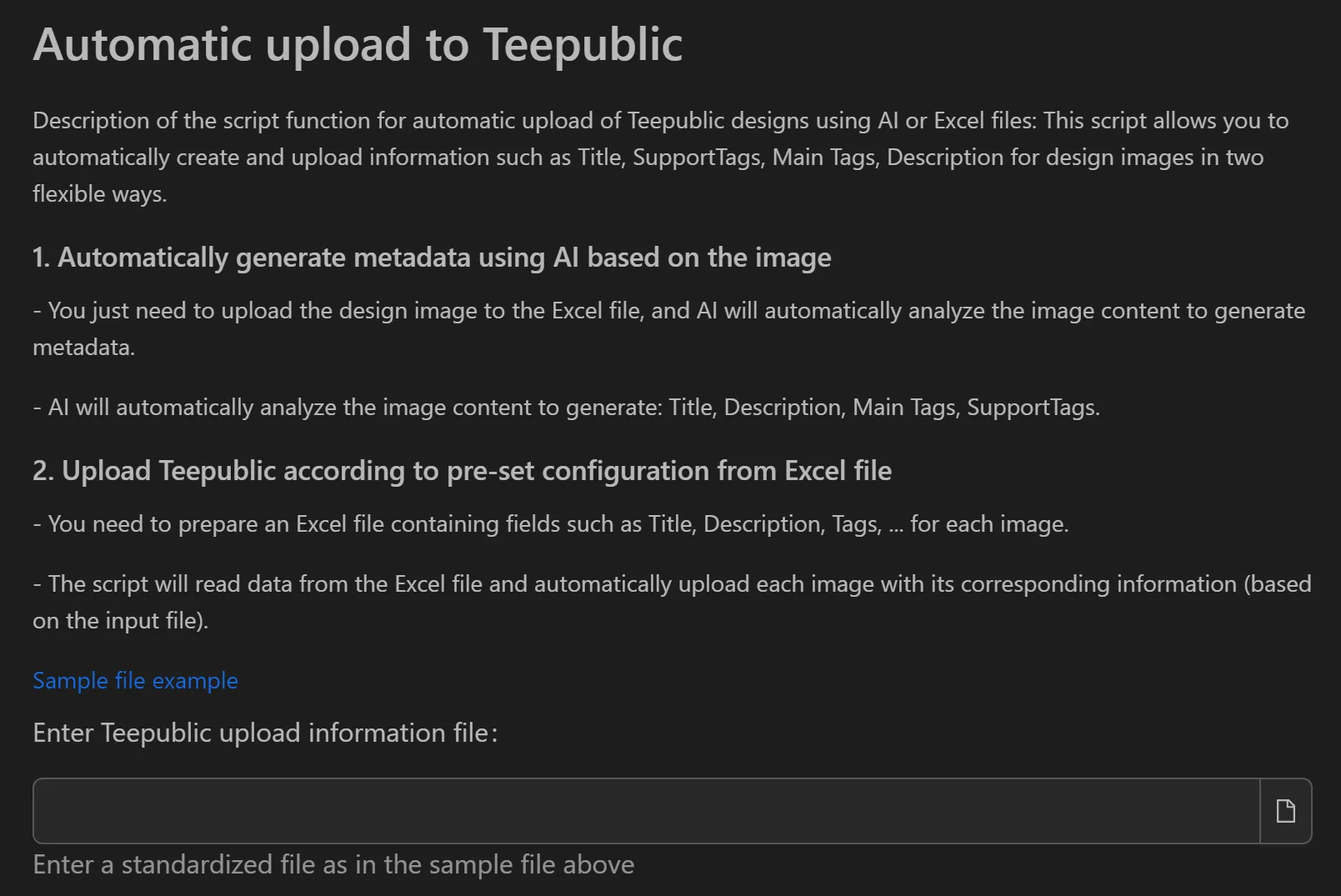
Automate TeePublic uploads with two flexible modes: let AI generate titles, descriptions, and tags from your design images, or control everything manually via an Excel file. The tool simulates human typing speed and random delays to avoid detection.
Two Upload Modes
Mode 1: AI-Generated Metadata
- Add design image file paths to the Excel file (no other columns needed).
- The AI analyzes each image and auto-generates title, description, main tags, and support tags.
- Best for quickly uploading large batches without manual keyword research.
Mode 2: Excel-Controlled Upload
- Fill in all columns: image path, title, description, and tags.
- The tool reads each row and fills TeePublic forms exactly as specified.
- Best for flagship products with carefully researched SEO keywords.
How to Upload
- Prepare your Excel file (AI mode: image paths only; Excel mode: all columns).
- Open the tool and select your Excel file.
- Choose the upload mode.
- Click Start and monitor progress.
Key Features
- AI image analysis — Computer vision identifies objects, style, and text in designs to generate relevant keywords automatically.
- Single Excel file management — One spreadsheet controls the entire upload campaign.
- Human behavior simulation:
- Random delays between actions (title entry, description, etc.).
- Simulated keystroke speed with millisecond pauses between characters.
Practical Use Cases
- Trend capture — Upload 50 new trend designs in one session using AI mode before competitors catch up.
- SEO optimization — Use Excel mode for your top-selling designs with researched keywords.
- Team workflow — Designers fill image paths in a shared Google Sheet; manager runs AI mode to complete the rest.
Related: For Merch by Amazon uploads, see the MBA upload tool. To generate MBA content, see MBA content generator.